Chromebook Bluetooth often starts working after restarting the connection or enabling accessory pairing mode. A device that never appears, refuses pairing, or drops after connecting needs different checks.
When the switch itself disappears, restart the Chromebook and check ChromeOS updates. A connected headset with the wrong sound output needs an audio choice instead. Don't erase the Chromebook just to fix one accessory.
In this guide
1. Check the accessory and Bluetooth control
Charge the accessory and place it close to the Chromebook. Select the lower-right clock to check Bluetooth. If it's off, turn it on before trying to connect anything.
Follow the accessory's manual to put it in pairing mode. Being powered on isn't always enough. A headset already using a nearby phone might not appear during Chromebook discovery.
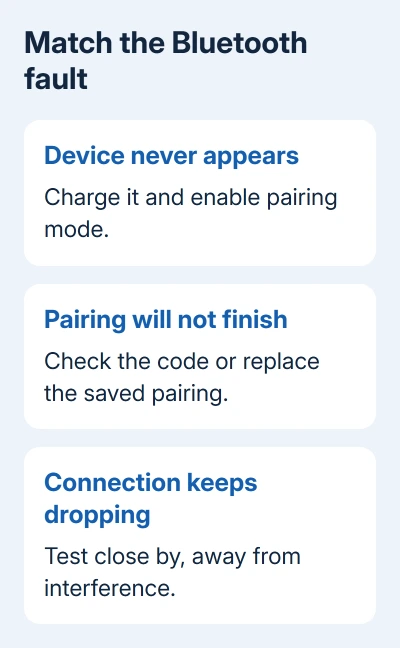
If a phone or another computer is already using the accessory, disconnect it there while testing. Start another search in the Chromebook's Settings > Bluetooth > Pair new device list.
For the ordinary setup sequence, our Chromebook pairing instructions show where the controls are. Continue here when the control is available but the connection fails.
If the Bluetooth control is absent, continue with section 3 instead of retrying pairing. If the device appears but rejects the connection, check the pairing prompt in the next section.
2. Finish pairing or replace a failed saved connection
Select the accessory in the new-device list and complete any prompt it shows. For a keyboard, enter the displayed code exactly as instructed. A visible device that never finishes pairing isn't ready for normal use yet.
If a Fast Pair notification fails, try the manual route: open Settings > Bluetooth > Pair new device, then choose the accessory. The automatic pop-up isn't the only way to connect a supported device.
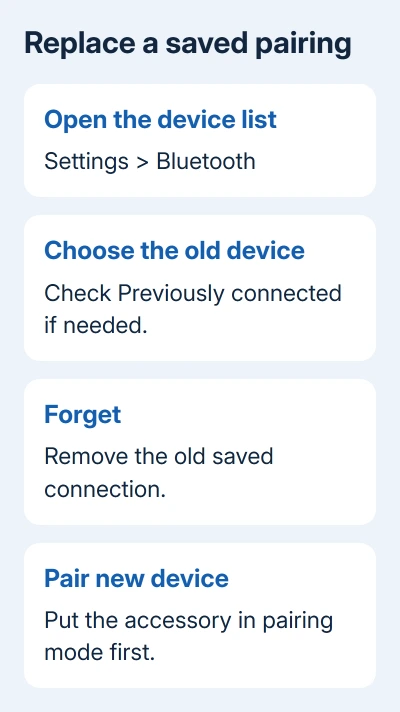
For a device that previously worked, open Settings > Bluetooth and select its name. If necessary, look under Previously connected, select the device, and choose Forget. Enable its pairing mode again, then select it through Pair new device.
Google says the Bluetooth settings offer Forget and manual pairing when you need to replace a connection. Forget removes the saved pairing, so have the accessory ready to pair again before using it.
If a different accessory connects successfully, focus on the original accessory's instructions and support. If several supported devices fail, continue with the Chromebook checks rather than resetting each accessory in turn.
To connect an Android phone for Phone Hub, use the phone-setup controls instead. Open Settings > Connected devices > Android phone > Set up to set up supported Phone Hub features. Ordinary Bluetooth accessory pairing doesn't provide them.
3. Restart Bluetooth and finish ChromeOS updates
Turn Bluetooth off from the clock menu, then turn it back on. Retry the same accessory. This restarts the wireless connection without deleting local files or changing your account.
If it still fails, save your work, turn the Chromebook off, and turn it on again. Power it down completely; a closed lid usually just puts it to sleep. Check whether the Bluetooth switch returns and whether the device can connect.
Next, open Settings > About ChromeOS > Check for updates. Allow an available update to install, then restart when prompted. A downloaded update hasn't finished changing the running system until that restart is done.
The ChromeOS update procedure shows how to confirm that the new version has actually been applied. For an organization-managed device, ask your administrator whether policy limits updates or accessory connections.
If a restart brings Bluetooth back temporarily, note when it vanishes again, such as after sleep. Send the manufacturer your model, ChromeOS version, and that repeatable behavior. A temporary return isn't a lasting repair.
4. Treat dropouts differently from failed pairing
For a device that connects and then disconnects, keep it close to the Chromebook and confirm its battery is charged. Try another spot clear of appliances and competing wireless equipment, then repeat the same activity.
Shut unused tabs and applications while checking the connection. These are also part of Google's steps for dropped connections. Notice whether the device disconnects entirely or only loses sound while staying connected.
For connected headphones with sound still on the laptop, select the clock. Open the audio controls next to volume and choose the headset output if listed. Retry playback in the app that was silent.
If the output is correct and another app plays normally, check the silent app's own volume and audio choices. Forgetting the headset repeatedly won't fix a tab or application that's muted.
I'd try the accessory beside the Chromebook before replacing it. A connection that works close by but drops across the room needs a range or interference check before another pairing reset.
If the same device drops on another computer too, take that result to its manufacturer. If several accessories fail only on this Chromebook, continue checking the Chromebook.
5. Use the right hardware reset for your model
Try a hardware reset if restarting and updating haven't helped. Copy important Downloads files elsewhere first: some can be lost during a hard reset. A hardware reset is different from a Powerwash factory reset.
For most Chromebook laptops, turn the device off. Hold Refresh and tap Power. Once the Chromebook starts, stop holding Refresh. Check the Bluetooth control and try the accessory again after signing in.
For a ChromeOS tablet, hold Volume Up + Power for at least 10 seconds, then release both buttons. Use this tablet procedure instead of looking for a Refresh key the device doesn't have.
Some models use a dedicated reset button, a power-cable procedure, or another model-specific method. Check the manufacturer's instructions or the hardware-reset model list before applying the common laptop key sequence.
6. Give support the connection result
If Bluetooth still fails, contact the Chromebook manufacturer for a missing control or failures across several accessories. Give them the model, ChromeOS version, and whether a full restart or hardware reset changed anything.
For one accessory that fails on multiple computers, contact its manufacturer instead. Include the accessory model and whether it appears during discovery, rejects pairing, or disconnects after a successful connection.
On a managed Chromebook, send that report to the administrator first. A factory reset can remove local data and still leave a hardware fault or an organizational restriction in place, so ask what to try on your model before erasing it.
The Short Version
Enable accessory pairing mode and retry from Bluetooth settings. Replace a failed saved pairing if needed. For wider faults, restart, update, and try the model's hardware reset. Test dropouts at close range before requesting repair.
Checked November 15, 2026.
 If you have any business, I can build it online