
Type emoji on a Chromebook by placing the cursor in a text field and pressing Search + Shift + Space. On a keyboard labeled Launcher, use that key in place of Search.
The picker can also be opened by right-clicking inside the text field and choosing Emoji. Selecting a character then inserts it at the active cursor.
Put the cursor in the field before opening the picker
Click into the message, document or other editable text box. Check that the insertion cursor appears, then press the three keys together. Opening a menu while the page itself has focus can leave no text destination selected.
Google says Search + Shift + Space opens the character picker in its emoji and symbol instructions. Its keyboard shortcut list also uses Search or Launcher naming for the Chromebook key.
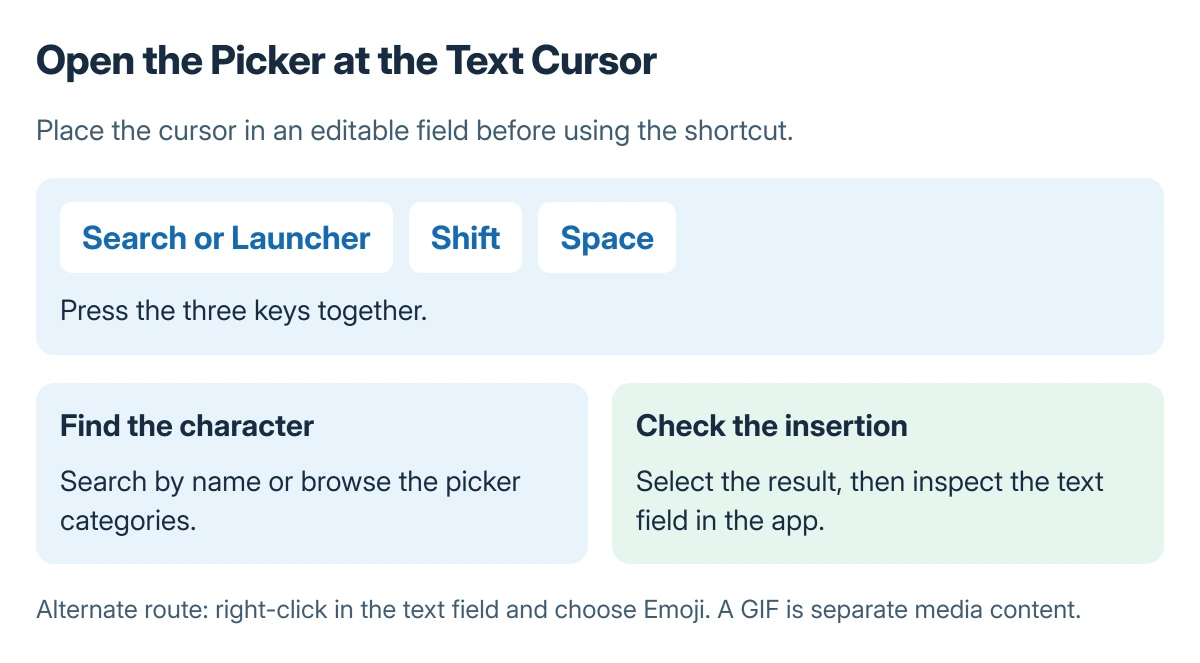
Status: Chromebook picker routes documented by Google, checked 23 October 2026. The key guide is a schematic; no message was entered into an app.
Search and Caps Lock are different functions on Chromebook keyboards. The Caps Lock key guide helps identify that key when the keyboard does not have an ordinary Caps Lock keycap.
Search for the character and inspect the insertion
Type the character's name into the picker's search bar, or choose a category. Google states that the picker includes emoji, symbols and emoticons, with separate categories for browsing.
Select the intended result and inspect the text field. Its appearance can differ between apps and fonts. An app that accepts plain text may handle an inserted character differently from an image or animation.
Google says the picker also offers GIFs, whose search uses Tenor. A GIF is media content. Its insertion behavior does not establish whether the app accepts ordinary emoji characters.
Use the text-field menu when the shortcut is awkward
Right-click inside the editable field and select Emoji. The Chromebook right-click methods cover touchpad and keyboard alternatives when a mouse is unavailable.
If the command is absent, try an ordinary editable field in another app. A field that is disabled, protected or not currently editable cannot accept a new character. Keep that separate from a keyboard shortcut problem.
The Short Version
Focus a text field, press Search or Launcher with Shift and Space, then search or browse the picker. Right-clicking in the field provides an alternate route. Check the inserted result in the actual app.
Where to Next
For a problem limited to one app, record the app name and whether normal text still types. That distinguishes field behavior from a device-wide shortcut failure.

Isaac Smith is the founder and editor of PC Glance, a website that covers computers, laptops, and technology. He is a tech enthusiast and a computer geek who loves to share his insights and help his readers make smart choices when buying tech gadgets or laptops. He is always curious and updated about the latest tech trends.