Bar notation on a Chromebook is easiest to type in Google Docs with a combining overline, a mark identified by the code U+0305. Type the letter or digit first, then insert that character immediately after it to put a bar over it.
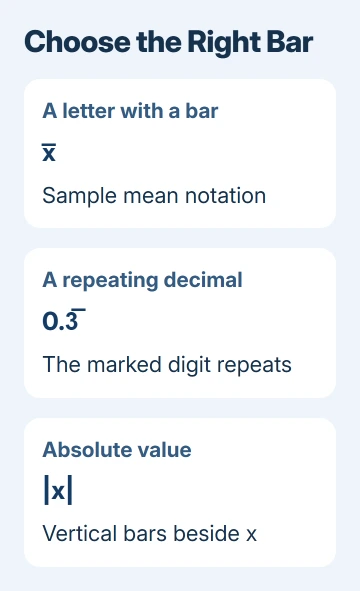
A bar over a letter, a repeating-decimal bar, and the vertical bar used for absolute value are different marks. Choose the mark your assignment needs before changing keyboard settings or searching for a special Chromebook key.
In this guide
Choose the mark that matches your math
For a sample mean, the mark usually sits over a letter, as in x̅. For a repeating decimal, it sits over the digit or digits that repeat. The number 0.3̅ means that the 3 continues repeating.
Absolute value uses upright bars instead: |x|. Those belong beside the expression. An underscore puts a mark under text, so it won't produce either kind of notation correctly.
The Unicode character list identifies U+0305 as COMBINING OVERLINE. A combining mark attaches to the character just before it instead of taking up space like a normal letter.
I'd choose character insertion for a short answer such as x-bar. For an expression with several levels, fractions, or one continuous bar over a whole group, I'd use an equation editor to keep the layout together.
Insert a combining overline after the letter in Docs
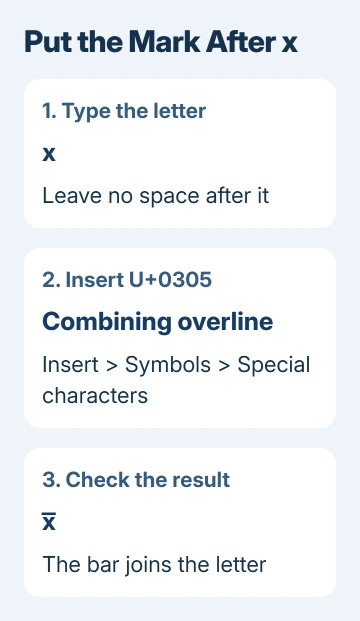
Open an editable Google document in Chrome. Click in the paragraph and type the letter or digit, such as x. Leave the cursor immediately after it, without adding a space.
Open Insert > Symbols > Special characters. Some older layouts put Special characters directly in the Insert menu. Use that entry if the Symbols submenu isn't shown in your version.
In the character search box, enter 0305, the character's Unicode code. Select the combining overline result. Google's special-character instructions support searching with a character's Unicode value.
Close the character window and inspect the result in your paragraph. The bar should sit over the x. If it appears over a blank space, undo the insertion, remove the space after x, and insert the mark again.
Type another letter and check that it follows the marked character. The bar shouldn't appear over the words that follow. You've added a character, not turned on a text style you'll need to switch off.
The same character window is available in Google Slides. Google Sheets doesn't offer that special-character insertion window directly; create the short marked text in Docs, then copy it into the spreadsheet cell.
Add the bar to repeating decimals carefully
Type the number through its first repeating digit. For one-third written as a decimal, enter 0.3, then insert U+0305 after the 3. The result should read 0.3̅, with the bar over the repeating digit.
For a sequence such as 27 repeating, each digit you want to mark needs a combining character immediately after it in plain text. That produces 0.2̅7̅. Whether the bars join neatly depends on the font and the app displaying them.
Check the mathematical meaning as well as the appearance. A bar over the last digit only is different from a bar over both digits. Don't accept a result that changes which part of the decimal repeats.
Use an equation editor when a continuous bar across several characters is required. Separate combining marks can be useful in a text answer, but a long expression needs a layout that can keep the whole group together.
Use an equation box for a larger expression
In Google Docs, click where the formula belongs and open Insert > Symbols > Equation. In a layout without the Symbols submenu, choose Insert > Equation. The document opens the equation tools for mathematical content.
The available menus include Greek letters, miscellaneous operations, relations and math operators. Add the symbols and variables needed for the expression inside that equation box instead of aligning separate text boxes by hand.
If the tools aren't visible, use View > Show equation toolbar. Google's equation guide explains both the toolbar and symbol-name shortcuts inside equations.
If these tools can't produce the notation you need, ask your teacher which equation editor or input format they accept. A homework system's math field can have its own overbar control even though it runs in the same Chrome browser.
Don't assume a command copied from one editor will work in another. A backslash command typed into an ordinary paragraph can remain literal text. First enter the editor's math or equation field, then use its supported control.
Copy a short marked example into another app
For a quick text answer, copy x̅ or 0.3̅ from this page and paste it into the app you're using. Select the whole marked example, including its bar, rather than trying to select the narrow combining character separately.
Then check the pasted text in the app where you'll submit it. A form can change fonts or restrict accepted characters. Make sure the pasted answer still means the same thing, especially for repeating decimals with several marked digits.
The Chromebook's emoji and symbol picker is useful for other characters. For this task, searching the exact Unicode value in Docs gives a more precise choice than browsing unrelated symbol categories.
If a bar looks detached or clips into the line of text, try a different font offered by the editor. The Chromebook font guide explains why fonts available in one app don't automatically appear in another.
Check the submitted copy, then ask about an unsupported field
Open the exported or submitted copy and inspect the marked letter at normal reading size. Check that the bar stayed with the intended character, that no extra spaces appeared, and that a multi-digit repeat still marks every required digit.
If the school form strips the mark, tell the school's support team which app rejected it and provide a short example. Ask whether it accepts Unicode combining characters, an equation field, or a document attachment for mathematical answers.
The Short Version
Type the base character in Docs, then use Insert > Symbols > Special characters to insert U+0305 after it. Use an equation editor for larger grouped expressions, and check the final copy in the app where you'll submit your answer.
Checked November 15, 2026.
 If you have any business, I can build it online