
Chromebook shortcut keys can open apps, switch windows, copy text, and lock your screen without reaching for the touchpad. Press Ctrl+Search+S to see the shortcuts on your own Chromebook, including any combinations you've changed.
Start with the tasks you do often. The Search or Launcher key takes the place of the Windows key in several system shortcuts, while familiar combinations such as Ctrl+C still work for copying.
Find the keys your Chromebook actually has
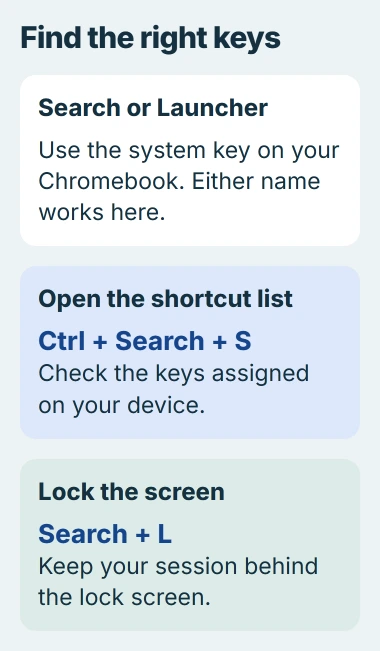
Look for Search or Launcher on your keyboard. Depending on your model, it can have a magnifying glass or a circle on it. Use whichever of these keys your Chromebook has when a shortcut calls for Search.
Google says an attached Windows keyboard uses its Windows key, while a Mac keyboard uses Command for these Search or Launcher combinations. Its Chromebook shortcut reference covers both.
Hold keys such as Ctrl and Shift while you tap the last key, then release them. The plus signs in a shortcut mean you press those keys together, not that you type a plus sign.
For example, Ctrl+Search+S means hold Ctrl and Search, tap S, then let go. The shortcut list should appear. Use it to check a combination before trying several similar ones that could do different things.
These combinations are for an English QWERTY keyboard. If your keys have a different layout, open Settings > Device > Keyboard and inputs > View keyboard shortcuts to check the combinations for it.
Move between your apps and open windows
These four shortcuts help when you're moving between a document, your browser, and your files. They switch windows or open apps and controls on your Chromebook; they don't select anything inside the page you're reading.
| Task | Keys |
|---|---|
| Switch to another window | Alt+Tab |
| Open the Files app | Shift+Alt+M |
| Show the status area containing the clock | Shift+Alt+S |
| Lock the screen | Search+L |
For Alt+Tab, keep Alt held and tap Tab until the window you need is selected. Release Alt to switch to it. This is useful when two documents look alike and a single quick press chooses the wrong one.
Locking the screen leaves you signed in, so you can return to your work after unlocking it. To sign out, press Shift+Ctrl+Q twice. Save anything you're working on before you do.
I'd learn the lock shortcut first if you often step away from your desk. It's easier to remember one clear action than a long list of shortcuts you'll rarely use.
Work with tabs without losing your place
Tabs are the pages inside a browser window, so moving between them uses different keys from switching windows. Make sure you're working in Chrome when you try these shortcuts.
| Browser task | Combination |
|---|---|
| Create a new tab | Ctrl+T |
| Move to the next tab | Ctrl+Tab |
| Move to the preceding tab | Ctrl+Shift+Tab |
| Restore a recently closed tab | Ctrl+Shift+T |
| Select the address bar | Ctrl+L |
Press Ctrl+L to type another website's address or start a web search. To look for a word on the page you're already reading, use Ctrl+F instead.
Ctrl+F displays a page-search box. Type a distinctive word from the information you're looking for, then use Enter to move through matches. A search for a common word may highlight far more text than you need.
To close just the tab you're using, press Ctrl+W. If you close the wrong one, try the restore combination immediately. For a desktop computer with a different keyboard, the Chrome keyboard guide covers that layout.
Copy text, remove formatting, and undo mistakes
Select some text before copying it. Ctrl+C copies the selection, Ctrl+X cuts it, and Ctrl+V pastes it into the place where your cursor is waiting. Check the selection before cutting anything.
When text arrives with an unwanted font or color, use Ctrl+Shift+V to paste plain text in an app that accepts it. That keeps the words while leaving their original styling behind.
Press Search+V to open the clipboard menu, where you can choose from saved copies of text or other items. A normal paste uses the current item without opening that menu.
Press Ctrl+Z to undo your last action in apps that support it, or Ctrl+Shift+Z to redo it. If you've accidentally removed a paragraph, try undo before retyping it.
For symbols used in conversation, open the Chromebook emoji picker. Its panel gives you a visual choice, so you don't have to remember a separate code for each character.
Add a shortcut that suits your hands
Open the Shortcuts app and choose a category, such as Device, Text, or Windows and desks. Find the action you want to change rather than searching for the key combination you hope to use.
For pages lost after closing Chrome or restarting, restore the Chromebook session through the available tab, session and History controls.
- Move the pointer over that action and select Edit.
- Choose Add shortcut in the dialog.
- Hold keys such as Ctrl and Shift, then tap one other key.
- Release the keys to save the combination, then select Done.
Try your new shortcut in the app or window where you'll use it. Start with an obvious action such as opening a window, and check it before you need the shortcut for important work.
An entry with a lock symbol can't be changed. If you get a conflict message, those keys may already do something else. Pick another combination to keep using that existing shortcut.
Include Search or Launcher when making a shortcut for your Chromebook's controls. This helps avoid using keys a browser app already needs. The shortcut customization instructions list combinations ChromeOS won't accept.
Put back a shortcut that no longer works
Find the action again in Shortcuts, select Edit, then Restore defaults and Done. That puts its original keys back. You'll see the reset option when you've added custom shortcuts for that action.
Reset all shortcuts removes every custom combination you've made. If only one shortcut has stopped working, restore that action on its own so you can check whether the change helped.
If a letter won't type normally either, follow the Chromebook keyboard checks. A damaged or remapped key needs attention before a combination that uses it can work.
For a school-managed Chromebook, give the administrator the action name and the keys that fail. Include whether the problem happens on the built-in keyboard, an external keyboard, or both.
The Short Version
Press Ctrl+Search+S to see your Chromebook's shortcuts. Learn the ones you use often, and use Shortcuts to add a combination or restore an original one. If a key also fails when you type, check the keyboard itself.
Checked November 4, 2026.

Isaac Smith is the founder and editor of PC Glance, a website that covers computers, laptops, and technology. He is a tech enthusiast and a computer geek who loves to share his insights and help his readers make smart choices when buying tech gadgets or laptops. He is always curious and updated about the latest tech trends.