
A Chromebook keyboard light usually turns on by holding Alt and tapping the screen brightness up key. That shortcut only works on a keyboard with a backlight, so check the model's specifications if the keys stay dark.
Some newer keyboards have a separate backlight key instead. Use the lighting control on your keyboard, then adjust brightness until the letters are comfortable to read.
Try the backlight shortcut on the built-in keyboard
Find Alt beside the space bar and the brightness controls in the top row. The screen brightness up key normally has the larger sun symbol. Hold Alt, tap that key, then release both keys.
Google lists this combination for making a backlit keyboard brighter. Tap it again while holding Alt if the first change is too small to see in the room's lighting.
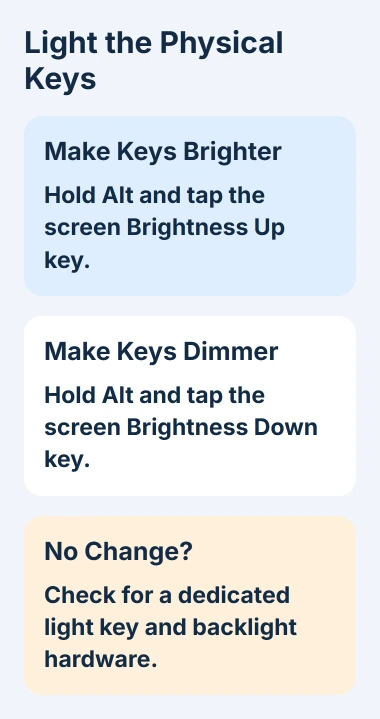
To dim the keys, use Alt+screen brightness down. On a built-in keyboard that supports this shortcut, it changes the keyboard light rather than the screen. At the lowest setting, the keys can look unlit.
Try this on the Chromebook's own keyboard first. A separate USB or Bluetooth keyboard can have its own lighting controls, which may not respond to ChromeOS's shortcut.
Watch what changes. If only the display gets brighter, check that you held Alt and used your model's shortcut. The keyboard might also lack a backlight. Check all three before arranging a repair.
Use a dedicated lighting key when the model has one
Look for a keyboard-light symbol rather than the screen's sun symbol. Some current keyboards have separate controls for screen brightness and keyboard lighting, and the key positions vary by model.
Press the dedicated backlight key if your model's manual shows one. For example, the Lenovo Chromebook shortcut guide shows a lighting toggle as well as Alt-based brightness combinations.
Don't assume a Windows laptop's Fn shortcut works on a Chromebook from the same brand. Use the manual for your full model number, especially if that product family offers several keyboard options.
Open Shortcuts or press Ctrl+Search+S to see the available combinations. Use Launcher in place of Search if that's the key your keyboard has. Look for the keyboard-backlight action, not display brightness.
The ChromeOS shortcut guide covers that list and custom assignments. Even if ChromeOS lists the shortcut, your keyboard still needs a backlight for it to work.
Confirm that this exact Chromebook has illuminated keys
Find the full model code on the underside label, receipt, or specification sheet. Look for backlit keyboard in its specifications. A generic product-family picture isn't enough to identify your keyboard option.
A listing that only says keyboard doesn't promise lighting. A touchscreen, a high-resolution display, or a Chromebook Plus label doesn't tell you whether the keys are backlit. Check for that feature by name.
If the maker offers two versions of the same model, compare their full product codes. School or store-specific versions can have different keyboards even when their names differ by only a few letters.
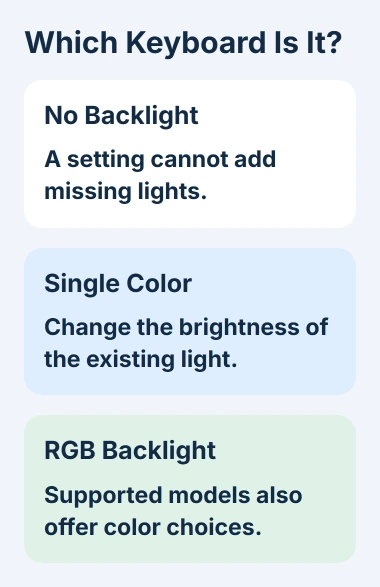
Without backlight hardware, no brightness setting can light the keys. A browser extension or keyboard theme can change the screen, but it can't put lights under the physical letters.
I'd make this check before resetting anything. An unlit keyboard can be working exactly as built, and erasing the Chromebook won't change its specifications.
For a school-issued Chromebook, give the administrator its asset or model number and ask whether that version has a backlight. They can check the equipment record without removing your account or changing device policies.
Change colors only on an RGB model
RGB means the keyboard can display different colors. A white backlight can brighten and dim without a color menu, so missing color choices don't necessarily mean the brightness shortcut has failed.
On a supported RGB Chromebook, select the clock, open Settings, then choose Wallpaper and style > Set your wallpaper & style. Find Keyboard backlight and select the color you want.
The gaming-feature instructions list supported models and note that the ASUS Chromebook Vibe CX55 Flip doesn't have RGB keyboard support. Its inclusion in a gaming list doesn't change that exception.
Choose a color, then look at the physical keys. If the color changes but typing remains difficult in a dim room, use the brightness control. Color and light level solve different problems.
For an external gaming keyboard, use its own lighting controls. Its key combinations or the maker's software control the lights, even when it's plugged into a Chromebook.
Check failed controls before arranging a repair
If the backlight has stopped responding, save anything unfinished, then restart your Chromebook. After signing in, try the same built-in control and note whether all the keys stay dark or just one area.
If the brightness key or Alt also fails in other tasks, follow the Chromebook keyboard checks. Those checks cover typing problems; keys can type normally even when their lighting has failed.
If a confirmed backlit model stays dark, contact the maker with its exact product code and the controls you've tried. Mention any spill, impact, or repair before the lighting stopped so the service team knows what happened.
Don't remove keycaps to look for a light. Ask about service or warranty coverage if the keyboard used to light up and its supported controls no longer work.
The Short Version
Hold Alt and tap screen brightness up, or use your model's dedicated backlight key. Check the full specifications if nothing lights. Color choices need RGB hardware. Ask the manufacturer about a backlit model that stays dark.
Checked November 6, 2026.

Isaac Smith is the founder and editor of PC Glance, a website that covers computers, laptops, and technology. He is a tech enthusiast and a computer geek who loves to share his insights and help his readers make smart choices when buying tech gadgets or laptops. He is always curious and updated about the latest tech trends.