
Press Search + L or Launcher + L to lock a Chromebook immediately. Without the keyboard, click the clock, then choose Lock from its panel. Your current session stays open behind the lock screen.
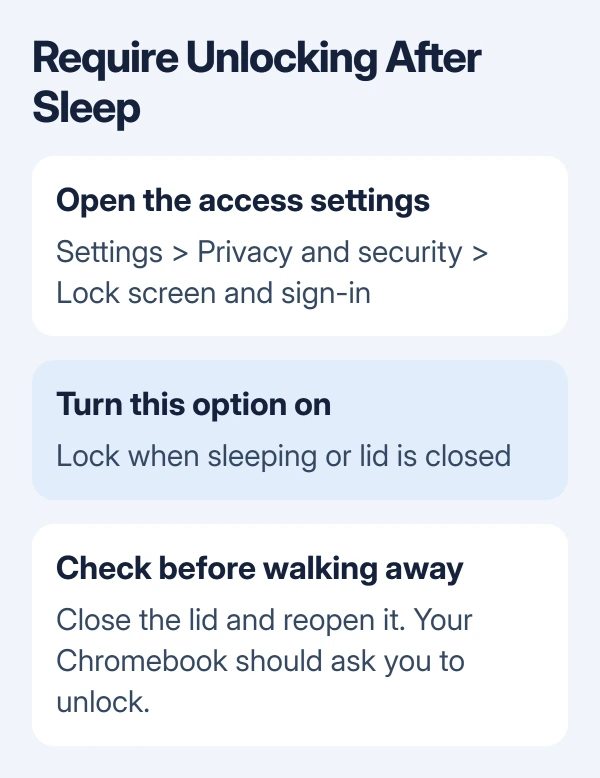
Closing the lid needs one extra check: Settings > Privacy and security > Lock screen and sign-in > Lock when sleeping or lid is closed. Turn that on if the Chromebook wakes straight into your account without asking you to unlock it.
Lock immediately with the keyboard shortcut
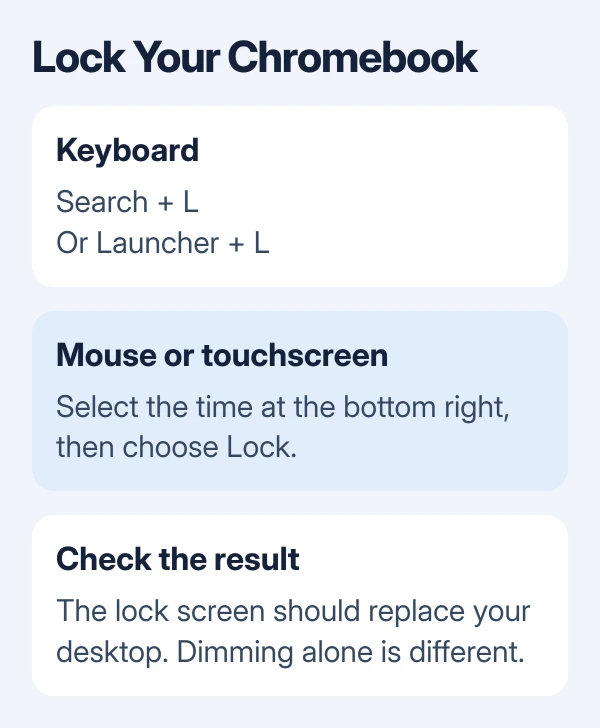
Hold Search and press L, then release both keys. On a Chromebook with a Launcher key instead, use Launcher + L. Use whichever of those keys your Chromebook has.
The desktop should disappear and the lock screen should appear. That's the result to look for before stepping away. A screen that has only dimmed or gone dark doesn't show you whether the account is locked.
Google lists both shortcuts in its screen locking instructions. Leave your tabs open and your websites signed in while the Chromebook session is locked.
Press the keys from your normal desktop and confirm that the desktop is replaced by the unlock screen. If the shortcut doesn't work with your keyboard, use the menu in the next section so you can lock the device immediately.
Alt + Search does something different: it toggles Caps Lock on supported Chromebook keyboards. The Chromebook Caps Lock shortcut explains that control if capital letters changed instead of the screen locking.
Use the time menu when the keyboard isn't convenient
Click the time in the lower-right corner. In the panel that opens, select Lock, shown with a lock symbol. On a touchscreen, tap those controls instead of clicking.
This reaches the same lock screen without needing the Search or Launcher key. It's useful with a detached keyboard, an unfamiliar external keyboard or a key that isn't responding.
Choose Lock rather than Sign out or Shut down when you want to return to the same session. Locking keeps others out while you step away and leaves your session open.
If the time panel closes and the desktop remains visible, open it again and select the lock control. Confirm that you reach the account's unlock screen, instead of assuming it's locked just because the panel closed.
I'd check this menu route once even if you prefer the shortcut. The menu remains a useful option if keyboard trouble prevents your normal shortcut from working.
Require an unlock after sleep or closing the lid
Select the time, open Settings, then choose Privacy and security > Lock screen and sign-in. Turn on Lock when sleeping or lid is closed.
This setting matters when closing the laptop is how you normally leave it. Sleep saves power, while the lock setting controls access when you return. Check this setting instead of relying on the screen going dark.
Try it while you're still at the desk: close the lid, reopen it and wake the screen. The account should ask you to unlock it. If it goes straight back to the desktop, reopen the lock settings and check the switch.
For a tablet-style Chromebook or a device with the lid left open, the same setting covers sleeping. Use the immediate Lock command when leaving it, and check the sleep setting for times when the device sleeps on its own.
Power behavior has its own controls. The Chromebook sleep and shutdown options explain how closing the lid and the idle settings affect power. Choose those separately from whether you need to unlock it.
Set up a PIN for quicker unlocking
Before locking, open Settings > Privacy and security > Lock screen and sign-in. Enter your password if prompted and select Confirm. Choose PIN or password, then Set up PIN.
Enter a PIN with six digits or more, select Continue, enter it again and select Confirm. Use a number you can remember without writing it on the Chromebook or sharing it with the people you're keeping out.
Lock the screen and try the new PIN while you still have your password available. This checks both that setup finished and that the number you remember matches what you entered.
A PIN can make an ordinary unlock faster. On some Chromebooks it can also replace the Google Account password at sign-in, though that doesn't work on every model or every time you sign in.
Work and school administrators can require the password occasionally. If the Chromebook asks for it instead of accepting a PIN, follow the prompt rather than deleting your account or assuming your PIN is no longer set up.
Return to your session and check the account
Wake the screen if necessary, select your account if the Chromebook asks and use the offered password or PIN method. Once you've unlocked it, you should return to the session you left open.
The lock screen keeps others out of your account on this Chromebook. It doesn't sign you out of websites on another computer or change your Google Account password, so those are separate jobs if another device has account access.
If someone else needs to use the Chromebook, don't give them your unlock PIN as a substitute for their own account. Use the device's account options so their work doesn't happen inside your open session.
If sign-in itself fails, note whether the screen rejects a PIN, requests the account password or displays a different error. Those details matter more than repeatedly pressing the lock shortcut.
When the lock control or setting is unavailable
On a school or workplace Chromebook, contact the administrator and ask about screen-lock and sign-in policy. Give them the missing setting's name and say whether the Lock command works but the device stays unlocked after sleep.
For a personal Chromebook, note the version in Settings > About ChromeOS before asking the Help Community or manufacturer for help. Describe the failed lock method and whether waking the device requires a password.
If the keyboard itself isn't responding, use the menu Lock control and follow the keyboard response checks. Keeping that fault separate avoids changing account settings to solve a key problem.
The Short Version
Use Search + L, Launcher + L, or the time menu's Lock control. Enable locking after sleep or lid closure, and test it once. Add a PIN for quicker access while keeping your account password available.
Checked November 9, 2026.

Isaac Smith is the founder and editor of PC Glance, a website that covers computers, laptops, and technology. He is a tech enthusiast and a computer geek who loves to share his insights and help his readers make smart choices when buying tech gadgets or laptops. He is always curious and updated about the latest tech trends.