
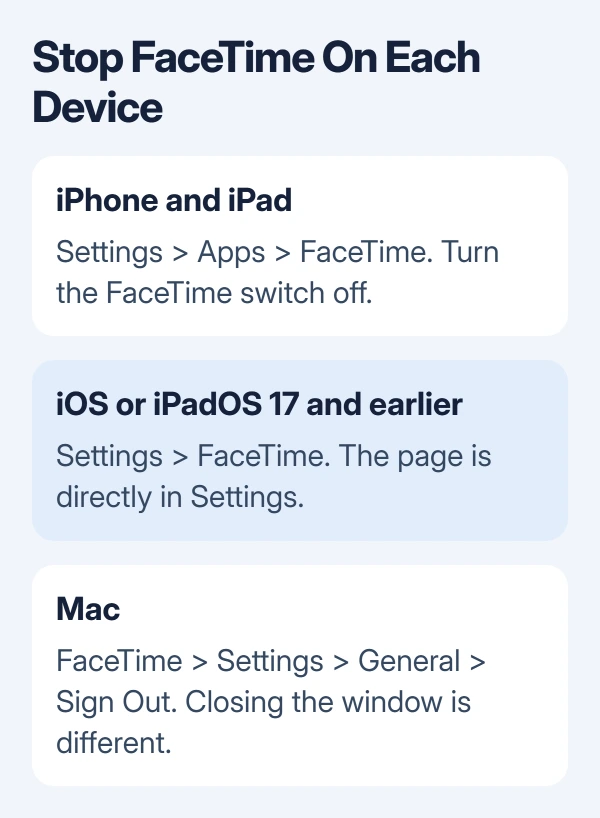
Turn off FaceTime in Settings > Apps > FaceTime on an iPhone or iPad. On a Mac, open FaceTime > Settings > General and choose Sign Out. Repeat the change for every device that should stop taking FaceTime calls.
Turning it off on the iPhone doesn't switch it off on a Mac or iPad signed into FaceTime separately. If only one person is bothering you, blocking that caller lets other people keep calling you.
Turn off the FaceTime switch on iPhone
Open Settings > Apps > FaceTime and turn FaceTime off. On iOS 17 and earlier, FaceTime has its own entry in the main Settings list, so use Settings > FaceTime instead.
The switch should remain off when you reopen the page. Use this switch to stop FaceTime on this iPhone and keep your other account settings as they are.
Apple says to use the off switch or sign-out action to stop FaceTime in its setup controls. Choose the off switch for a simple stop, rather than signing out of your entire Apple Account.
To check the result, ask someone to make a FaceTime call to the phone number or address they normally use for you. Keep other devices in view so a ringing iPad doesn't make it seem as though the iPhone change failed.
An ordinary phone call is a separate check. Turning off FaceTime doesn't ask your carrier to suspend your line, and it doesn't turn off iMessage.
Sign out of FaceTime when that is what you want
In Settings > Apps > FaceTime, tap the Apple Account shown in the FaceTime settings and choose Sign Out. Use this route when you want that account signed out of this app, rather than simply leaving its FaceTime switch off.
You'll see this option when an Apple Account is signed into FaceTime. A phone can also use FaceTime with its phone number without signing into an Apple Account, so don't hunt for an account sign-out option that isn't present.
If you only use your phone number for FaceTime, use the main switch to turn it off. If you use an Apple Account, check the page after signing out. An email address disappearing doesn't tell you whether FaceTime still uses your phone number.
I'd use the switch if the aim is simply fewer calls on this phone. Signing out adds a sign-in step when you want to use the same address again.
Leave the Apple Account controls at the top of Settings alone for this task. That account serves other features too; the FaceTime page has the control you need for this app.
Repeat the change on an iPad
On current iPadOS, open Settings > Apps > FaceTime and turn FaceTime off. On iPadOS 17 and earlier, use Settings > FaceTime. The Settings route is the same with or without a Home button.
An iPad signed into your Apple Account can be reachable through FaceTime even after you stop it on your iPhone. Check the tablet's own switch before changing the account on a device that already behaves correctly.
For the account sign-out option, open that same FaceTime settings page, tap the Apple Account and choose Sign Out when available. That signs you out of FaceTime on the tablet without signing you out of iCloud as a whole.
If you're only trying to stop calls during a meeting, a temporary Focus may suit you better. Disabling FaceTime is useful when the tablet shouldn't make or receive these calls until you're ready to enable it again.
The iPad FaceTime setup guide covers turning the service back on and making a test call when the tablet needs it again. Keep that separate from deciding which devices should ring today.
Sign out on the Mac that keeps ringing
Open the FaceTime app on the Mac. In the menu bar, choose FaceTime > Settings, open General and click Sign Out. Closing its window isn't the same as signing the app out.
Older macOS versions may label the menu Preferences rather than Settings. The important part is the account's sign-out control inside FaceTime, rather than the Mac's main Apple Account settings.
Apple's Mac sign-in and sign-out instructions use this route to stop making and receiving calls through FaceTime. Open the app again afterward and check that it's asking you to sign in.
If another Mac still rings, repeat the change there. You're choosing where to take calls. Changing FaceTime on one device doesn't switch it off on the others you want to quiet.
Keep selected callers or quiet the alerts instead
Before disabling the service everywhere, decide whether the problem is one caller, an unwanted address or the interruption itself. Each needs a different control; the main off switch stops them all.
The FaceTime settings include the phone numbers and email addresses where people can reach you. If you still want calls at one address, keep it selected and deselect the addresses you don't want people to call.
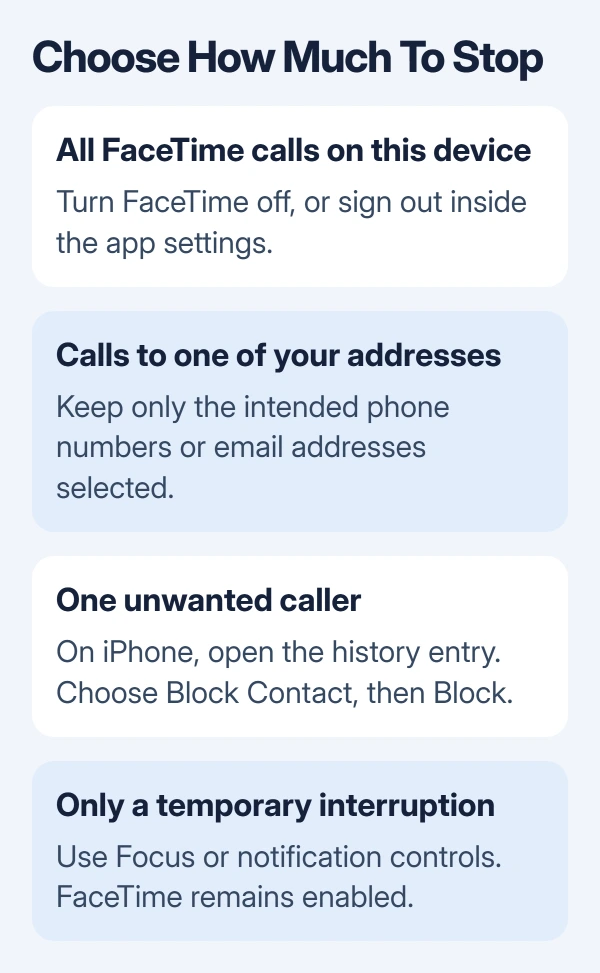
For an unwanted caller, open their entry in iPhone FaceTime history. Select Block Contact, then Block. Use blocking when you don't want their calls; muting an alert leaves calls enabled.
For a temporary quiet period, use a Focus or the device's notification settings. Muting an alert changes the interruption; it doesn't mean the account has been signed out or FaceTime disabled.
When FaceTime is off but a device still rings
Check which device rings and whether the incoming call is actually FaceTime or a regular phone call relayed from the iPhone. Note which email address or phone number received the call and repeat the check on that device.
For a missing or unavailable FaceTime switch on a managed device, ask its administrator about restrictions. On a personal device, give Apple Support the system version and name the control you can't find.
If the aim was to repair failed calls rather than stop them, use the FaceTime connection checks. Leave the service enabled for those checks so an account you've turned off isn't mistaken for a fault.
The Short Version
Switch FaceTime off in its iPhone or iPad settings, and sign out inside FaceTime on a Mac. Check every device that rings. Use address selection, blocking or temporary alert controls when only part of the service needs changing.
Checked November 9, 2026.

Isaac Smith is the founder and editor of PC Glance, a website that covers computers, laptops, and technology. He is a tech enthusiast and a computer geek who loves to share his insights and help his readers make smart choices when buying tech gadgets or laptops. He is always curious and updated about the latest tech trends.