

Open FaceTime on your iPad, tap New, enter the person's number or email, and choose video or audio. A Wi-Fi iPad can call through your internet connection and Apple Account, without its own cellular plan.
Sign into FaceTime first if the app asks. The person you're calling also needs a working FaceTime address, which may be their email rather than their phone number.
1. Turn on FaceTime for your Apple Account
Connect the iPad to Wi-Fi, then open Settings > Apps > FaceTime. Turn FaceTime on if it's off. If a sign-in screen appears, enter your Apple Account details and complete any requested verification.
Apple's own steps say to enable FaceTime in Settings. On iPadOS 17 or earlier, FaceTime sits directly in Settings instead of inside Apps.
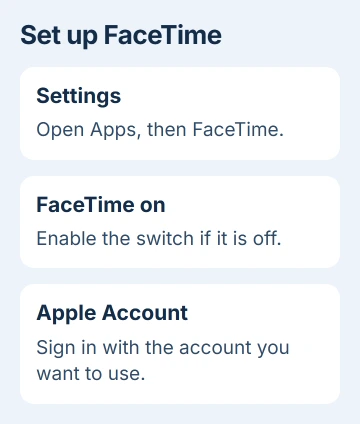
Pick the Apple Account for FaceTime before signing in on this iPad. If you share the device, check the account before handing it over, since that decides whose addresses and calls it uses.
On a Wi-Fi-only iPad, give the other person the email address you've enabled for FaceTime. A linked iPhone number may also be available, but you don't need a cellular plan to call by email.
You can leave Calls from iPhone off for FaceTime. That option is for a different kind of call through your iPhone's cellular connection, rather than an internet FaceTime call.
Return to FaceTime once you've signed in. If it opens normally, you're ready for the next step. If Settings asks for another sign-in or shows an error, save the exact message to help work out what's wrong.
2. Select the person and the type of call
Open FaceTime and tap New near the top of the current iPad layout. Older releases can label the starting button New FaceTime or New Call.
Type the person's name, the phone number they use for FaceTime or their email address. Choose the right match from the suggestions. If their contact card has several numbers, use the one they've set up for FaceTime.
Tap FaceTime for video, or the phone handset button for FaceTime audio. Choose audio if you just want to talk; you won't need to start a video call and then turn off its camera.
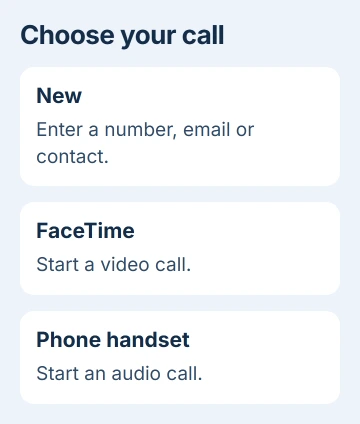
The current calling guide shows both choices. Whether FaceTime audio is available depends on your country or region.
Wait for the call to connect before speaking. If they don't answer, check with them that you chose the right address before trying other numbers on their contact card.
I'd make the first call to just one person. Once that works, try adding others; it's easier than sorting out several people's addresses and connections at once.
3. Use an existing conversation or call again
In an iMessage conversation, tap the FaceTime control at the upper right and choose FaceTime Audio or FaceTime Video. This calls the person you're already messaging.
Use this when their iMessage address is also the address you want to call. In a group conversation, check who you're calling first, since the call could include several people.
For someone you've already called, open FaceTime's call history. Tap their contact tile, then choose video or audio from the options shown.
Call history saves you entering the address again, but the person's device may be offline now. If the call goes unanswered, check with them.
To receive a call back, leave FaceTime on and give the person your enabled email or linked number. Turning it off in Settings stops both incoming and outgoing FaceTime calls.
If the contact uses Android or Windows, use a FaceTime invitation link instead. They join through a supported browser, while you host from the Apple device.
4. Manage your camera, microphone and connection
If the call controls disappear, tap the iPad's screen once to bring them back. Use the microphone button to mute your voice and the camera button to stop or restart the video you send.
The FaceTime camera and microphone guide explains why those are separate controls. Stopping the camera doesn't mute the microphone, so check both when you need a private break.
Rotate the iPad horizontally if landscape gives you a better view. Position it where the camera can see you and where your hand won't cover the microphone while holding the edge.
On a Wi-Fi + Cellular iPad, you can also use FaceTime over cellular data if your plan and settings allow it. Open Settings > Cellular and check FaceTime's switch.
Cellular data charges can apply. A Wi-Fi-only iPad doesn't have that mobile-data option, so keep it connected to Wi-Fi or another available internet connection.
When that connection comes from a phone hotspot, check which mobile allowance supplies the call before leaving video running.
If the picture freezes or sound breaks up, move closer to the Wi-Fi access point and pause large downloads. Have the other person check their connection too, since either end can disrupt the call.
When FaceTime or its call button is missing
Search the iPad for the FaceTime app. If you deleted it, download FaceTime again from the App Store. On current iPadOS, removing the app also removes FaceTime choices from settings and contact cards.
For an app that's present but restricted, check Settings > Screen Time > Content & Privacy Restrictions > Allowed Apps & Features. FaceTime and Camera need to be allowed for the relevant calling features.
If a parent or administrator manages those controls, ask them for help. Country or region restrictions can also make FaceTime unavailable even when the app is installed.
If calls still fail, restart your iPad and install available updates through Settings > General > Software Update. Try someone you know can receive FaceTime calls, using another working internet connection.
Give Apple Support your iPad model name, iPadOS version and exact error. Tell them whether you can sign in, whether calls fail to every contact, or whether the app is missing.
The Short Version
Turn on FaceTime with your Apple Account, tap New and choose the person's working number or email. Pick video or audio, control the camera and microphone separately, and call over Wi-Fi without an iPad cellular plan.
Checked November 5, 2026.

Isaac Smith is the founder and editor of PC Glance, a website that covers computers, laptops, and technology. He is a tech enthusiast and a computer geek who loves to share his insights and help his readers make smart choices when buying tech gadgets or laptops. He is always curious and updated about the latest tech trends.