
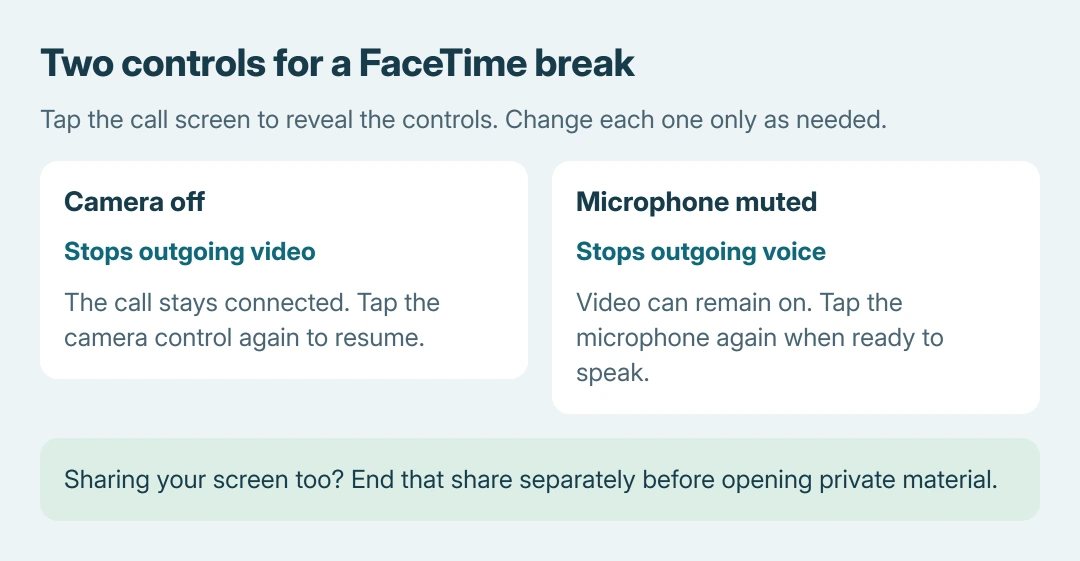
FaceTime video pauses on iPhone when the camera is turned off in the call controls. Tap the screen, then tap the camera button. The call stays connected; tap the same button when ready to send video again.
The microphone has its own button. Turn that off too if the other participant should neither see nor hear what happens during the break.
Switch the camera off during the call
Return to the active FaceTime call and tap the screen to reveal its controls. Choose the camera on/off button, rather than the control that flips between the front and rear lenses.
Apple documents this in its FaceTime camera instructions. Tap the same button to restore video. The call can stay connected during the break.
Status: FaceTime camera and microphone controls checked against Apple's iPhone guide October 26, 2026. This is a control reference; no video call was tested.
Check the self-view and ask the participant to confirm that live video stopped. Our recommendation is to verify that result before moving the phone toward anything private; that check is ours.
Changing the lens still sends camera video. Portrait mode blurs the background while leaving the person visible, so neither action serves the same purpose as switching the camera off.
A working video feed with missing call pictures needs the FaceTime Live Photo checks for permission and the destination library.
Mute the microphone for a quiet break
Tap the microphone button in the FaceTime controls to mute outgoing sound. Apple says tapping it again turns the microphone back on. Camera off and microphone muted are separate choices.
Apple's FaceTime audio guide also describes a reminder when speech is detected while muted. Check the microphone state before resuming the conversation.
Voice Isolation filters background sound while preserving speech. It is unsuitable when the intention is to stop sending voice altogether.
Stop an active screen share separately
Camera control concerns the camera feed. If a screen share is also active, end it through the FaceTime screen-sharing controls before opening private apps or messages.
This distinction matters when explaining a problem during a call: hiding the face should not be treated as confirmation that the shared display is hidden too.
Resume the call or check an unintended freeze
Enable the camera again and unmute the microphone when ready. Confirm both controls, particularly when video returns but the other participant still cannot hear the explanation.
For an unintended video freeze, use the FaceTime connection checks. A connection failure needs different action from a deliberately disabled camera.
If the control cannot restore video during otherwise working calls, give Apple Support the software version and the button's behavior. Avoid erasing the phone just to troubleshoot a camera button.
The Short Version
Use the call's camera control to stop outgoing video temporarily. Mute the microphone separately for silence, and stop any active screen share. Reverse the intended controls when the break ends.

Isaac Smith is the founder and editor of PC Glance, a website that covers computers, laptops, and technology. He is a tech enthusiast and a computer geek who loves to share his insights and help his readers make smart choices when buying tech gadgets or laptops. He is always curious and updated about the latest tech trends.