
An iPhone 13 can keep a supported video playing in a small window while you open another app. Turn on Start PiP Automatically in Settings, then leave the video app while it plays, or use its Picture in Picture control.
This setting works with compatible apps; it doesn't add Picture in Picture to every video service. If the window is missing in just one app, check that app before changing more settings on your phone.
Turn on automatic Picture in Picture
Open Settings > General > Picture in Picture and turn on Start PiP Automatically. PiP is the short name for Picture in Picture, the small video window that sits over another app.
Play a video in a compatible app, then swipe upward at your iPhone 13's bottom edge to go Home. The video should shrink into a window you can move instead of disappearing with the app.
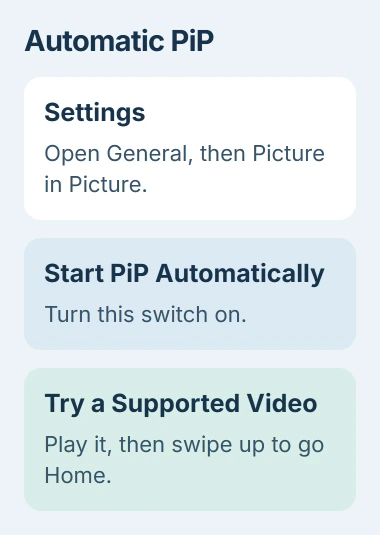
If the player stays on screen, open Notes or another app and check that the video keeps playing. That confirms you can watch it while doing something else on your phone.
If leaving the app stops the video, go back to the player and show its playback controls. Look for the Picture in Picture or minimize-video control. Some players use that button to start the floating window.
Apple's Picture in Picture instructions describe the minimize-video control, but support depends on the app and video. Don't reset your iPhone just because one player doesn't offer it.
Move and resize the floating player
Drag the small window to another corner when it covers something you need to tap. You're only moving the video window; nothing in the app behind it gets moved or edited.
Spread two fingers on the floating video to enlarge it, or pinch them together to make it smaller. Choose a size that leaves the controls and text in the other app usable.
Tap the video once to show its controls. Use the return-to-full-screen control to watch in the original player again. Use the close control when you want to close the floating window.
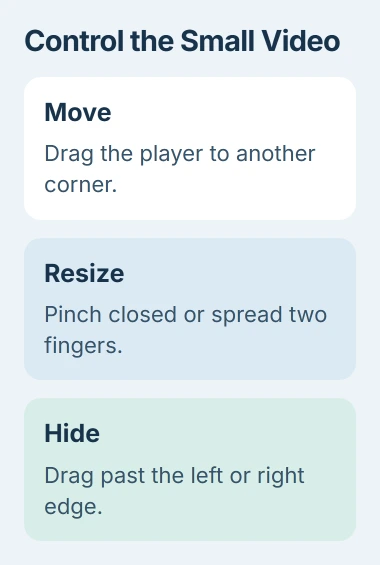
To see something behind the player, drag the window past the left or right edge. That hides the picture without closing the window. Bring the hidden player back when you want to watch again.
PiP lets you adjust the video window, but it doesn't put two complete apps side by side. The app you're using still fills the screen, with the video floating over it.
If the whole display stays in portrait when you expect it to turn, check the iPhone rotation controls. Rotation Lock controls whether the screen turns; Picture in Picture controls the floating video.
Use another app during a FaceTime call
Picture in Picture also works with FaceTime. During a video call, go Home and open another app. Watch for the small call window; it lets you return to the call's full controls when you need them.
This is useful when you need to check an address, read a note or look up a detail without ending the conversation. Moving the floating window helps if it covers the information you're trying to read.
When you're finished with the other app, return to FaceTime to manage or end the call. Leaving the full-screen view doesn't end your conversation.
The call stays live while you use another app. To stop sending camera video, use the FaceTime video controls. Mute the microphone separately when you also want silence.
Check YouTube's own playback setting
In YouTube, open your profile area, go to Settings, then open Playback. Turn on Picture-in-Picture. The current YouTube playback instructions also say to turn on the iPhone's automatic PiP setting.
Start a video and leave the YouTube app while it's playing. Pausing before leaving can prevent the floating player from starting, so use a playing video for this check.
PiP works with non-music content, while music content needs Premium. Try an ordinary non-music video to check the setting; a music video alone won't tell you whether PiP is working.
If your app's settings look different, install any available App Store update and check again. Use the setting inside YouTube; changing a Safari preference won't turn on the YouTube app's playback option.
I'd compare two supported videos before changing more settings. When one video works and another doesn't, that comparison saves you from troubleshooting a phone feature that's already working.
When the small window still won't appear
Try the manual PiP control in another supported player, or try a FaceTime call. If that works, check whether the original app supports PiP for that video and whether its own setting is on.
If several supported apps fail, restart the iPhone, then check Settings > General > Software Update. After updating, repeat one simple playback test so you know whether the phone's behavior changed.
If it still fails across those apps, contact Apple Support with your iOS version and the apps you tried. When only one service fails, tell its support team the app version, video type and whether a manual PiP button appears.
The Short Version
Enable Start PiP Automatically, play a supported video and return Home, or tap the player's PiP control. Drag or pinch the window to adjust it. Check the video app's own settings when only one service refuses to float.
Checked November 4, 2026.

Isaac Smith is the founder and editor of PC Glance, a website that covers computers, laptops, and technology. He is a tech enthusiast and a computer geek who loves to share his insights and help his readers make smart choices when buying tech gadgets or laptops. He is always curious and updated about the latest tech trends.