FaceTime's camera-switch control is inside your own video tile, so tap it during a video call first. If the room appears but your face stays in a small window, a supported iPhone may be using Dual Capture rather than failing to flip.
A missing control, a black rear-camera image, and a mirrored face need different checks. Start with the call controls, then test the camera itself only if switching still fails.
In this guide
1. Open your own tile and use the camera-switch control
During a FaceTime video call, tap the screen to show the controls. Tap your own video tile, then tap the Flip to Back Camera button. Another tap brings back the front-camera view.
The tile is the small picture showing your camera, not the other person's picture. Expanding the other person's view won't select a camera on your iPhone. If several people are on the call, find your preview before opening its controls.
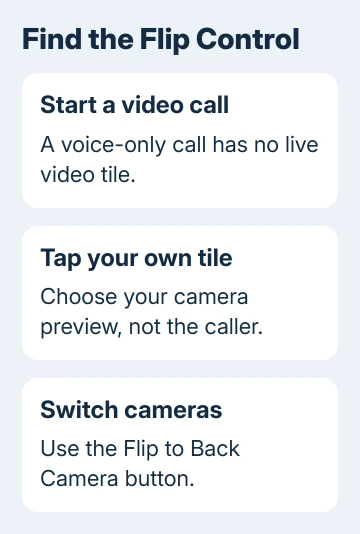
Point the rear camera toward a nearby object and ask whether the other person sees it. That's a clearer check than watching a dark lens or trying to judge the switch while your hand covers the back of the phone.
Apple says to open your tile in its FaceTime camera instructions. The camera on/off button is a separate control; it hides your video instead of changing which camera you're using.
If a camera button is crossed out, turn your video back on and repeat the tile check. If the call has no video interface at all, check whether you started an audio call before looking for a missing flip button.
2. Separate a video call from FaceTime Audio
Open the call's controls and check the call type. A FaceTime Audio call is meant for voice. Start a FaceTime video call to share either camera's view with the caller.
If the current call offers a video control, use it and wait for video to connect. Otherwise, end the audio call and start a new video call with the same person. Make sure both people understand that the camera will be enabled.
Once your preview appears, open your tile and switch cameras. If it now works, the camera hardware wasn't the cause; the original call didn't have the video view needed for that control.
To pause your video during a call, the FaceTime pause controls explain turning the picture off while keeping the call connected. Restore video before judging whether the camera can switch.
Don't look for a rear-camera setting inside Settings > Apps > FaceTime. The front-versus-rear choice is made within the active video call. Changing the account's reachable email address won't reveal that control.
3. Check Dual Capture if both views stay visible
On supported iPhone 17 or later models, FaceTime can show the rear camera with your face in a small window. This is Dual Capture, which uses both cameras together, rather than a failed attempt to leave the front camera.
To use this feature, each person on the call needs iOS 27, iPadOS 27, macOS 27, or later. Don't expect the two-camera layout on an earlier software setup simply because ordinary rear-camera switching works.
Open your tile and use the control for showing only the rear camera if you don't want your face included. The current guide says future calls keep this choice until you select the other layout.
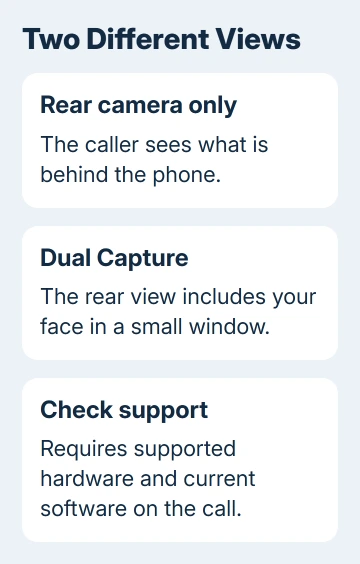
Look for the rear-camera view without the small window showing your face. Ask the other person to confirm it before showing private surroundings or a document. Your own display can be harder to judge while holding the phone.
Older iPhones and earlier iOS versions use ordinary switching. Choose the rear camera through your tile rather than searching for a Dual Capture option they don't offer.
4. Use Camera to check a black or frozen rear view
If the flip button responds but its result is black, end the call and open Camera. Use Camera's rotate control to test each lens. Try a photo with each one and check that both previews respond to movement.
Remove a case or accessory that blocks a lens or puts a magnet near the cameras. For a blurry image, clean the lenses with a microfiber cloth. If something covers the lens, move it out of the way before changing FaceTime settings.
If one camera also fails in Camera, the problem affects more than the FaceTime controls. Note which side fails and continue with the restart, update, and camera-service checks rather than repeatedly hunting for another flip button.
If both work in Camera, make a new FaceTime video call and try the same tile control. If it fails only with one person or network, include that comparison when describing the problem to support.
For reversed text in your preview, use the FaceTime mirror-image explanation. Switching lenses differs from reversing an image. The Camera app's selfie setting won't fix FaceTime.
5. Restart and update before requesting a camera check
After hanging up, restart normally. On Face ID models, hold Side together with Volume Up or Volume Down until the power-off slider appears. Slide it, wait 30 seconds, and hold Side until the logo appears.
For iPhone 6/7/8 and SE generations 2 or 3, press and hold Side alone to show that slider. An original SE uses Top, as do iPhone 5s and older models. After shutdown, hold the same button to start up.
Check Settings > General > Software Update; install the offered update when you're ready. Then repeat one video call and one camera switch. That lets you tell support whether the problem still happens with the current software.
If FaceTime or Camera is missing entirely, check Settings > Screen Time > Content & Privacy Restrictions > Allowed Apps & Features. The person managing Screen Time needs to allow the required apps if they're restricted.
For a continuing fault in Camera too, request camera help from Apple Support. Otherwise, request FaceTime help with the model, iOS version and call type. Say whether the flip control is missing or produces a black image.
The Short Version
Start a video call, tap your own tile, and use the camera-switch button. Check Dual Capture if both views remain visible on supported software and hardware. A black rear view needs a separate test in Camera before further FaceTime changes.
Checked November 15, 2026.