A frozen FaceTime picture with working buttons usually calls for a connection check; an app that won't respond needs to be closed and reopened.
First, end the call and call back on a stronger connection, with the other person checking their connection too. If the whole iPhone is stuck, skip the network changes and use the model's force-restart buttons instead.
In this guide
1. Match the freeze to what still works
Tap a FaceTime control or try returning to the Home Screen. If FaceTime's buttons and the rest of your phone still respond, a frozen picture doesn't mean the whole iPhone is stuck. Check whether you can still hear the other person.
Ask them whether they can hear you and whether your picture is moving. A problem on either end can spoil the call. I'd compare both ends before changing account settings; that helps you choose the right fix.
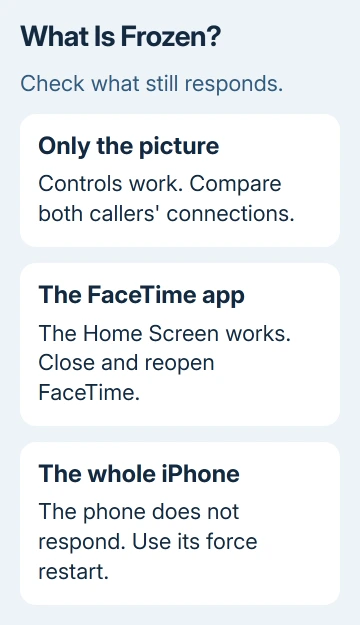
End the call and start a new one. Try another contact if possible. A problem with just one person points toward the connection or device at one end of that particular call, while freezes with different people call for more checks.
If the app buttons don't respond but the Home Screen remains accessible, go to section 3. If the display won't respond anywhere, go to section 4. The buttons and gestures there depend on your iPhone model.
If calls never connect at all, use the separate FaceTime call and account checks. A waiting-for-activation message needs that route rather than a repair aimed at an already connected video call.
2. Improve the connection at both ends
Move closer to your Wi-Fi router and pause heavy downloads or streaming on the same connection. Have the other person do the same. A connection can open ordinary pages yet still struggle to carry a continuous video call.
Apple says slow service affects calls in its FaceTime connection guidance, which lists choppy video, black screens and connection alerts. Both callers need a fast connection, so checking only your own phone can miss the cause.
On an iPhone, compare Wi-Fi with cellular data if your plan allows it. Open Settings > Wi-Fi and turn Wi-Fi off for the comparison. Make a fresh FaceTime call using the cellular connection.
If FaceTime can't use cellular data, open Settings > Cellular. The name of this mobile-data menu varies by region. Find FaceTime in the app list and allow its cellular access.
Check your data allowance and carrier charges before trying a cellular call.
If cellular works but home Wi-Fi freezes, reconnect to Wi-Fi after the test and check the home connection. If Wi-Fi works but cellular freezes, stay on Wi-Fi and ask the carrier about service at that location.
Judge the call itself rather than relying on signal bars. Listen for clear audio and check that the picture keeps moving during the new call. A strong Wi-Fi icon describes the link to the router, not everything beyond it.
For a Wi-Fi-only iPad or one without mobile service, compare a different working Wi-Fi network instead. The iPhone's cellular switch isn't a repair that a Wi-Fi-only iPad can copy.
If a contact only wants to stop sending their picture, that's a different situation. The guide to pausing FaceTime video explains the intentional camera control without treating it as a dropped connection.
3. Close FaceTime when the app itself won't respond
For Face ID models, begin at the bottom edge, swipe upward and pause near the screen's center. The app switcher appears. Find the FaceTime preview and swipe it up to close the app.
With a Home button, two quick presses open the app switcher. Find FaceTime and swipe its preview up. Open FaceTime again from its app icon and place a new call.
This step ends the current app session. Use it when the app is stuck, rather than closing every app after every normal call. If FaceTime opens and responds again, check whether the problem returns during a new call.
If it freezes again, restart the iPhone normally. On a Face ID model, keep Side and either volume button pressed together to reveal the power slider.
On an iPhone 6, 7, 8 or second- or third-generation SE, keep Side pressed to bring up the power slider.
For a first-generation SE or an iPhone 5 or earlier, hold the top button. Drag the slider, allow the phone to turn off, then keep Side, or Top on older models, pressed to start it again.
Once it starts, reopen FaceTime and test a call. A normal restart is useful while the controls work. A completely unresponsive phone needs the different button sequence in the next section.
4. Restart a phone whose controls are completely stuck
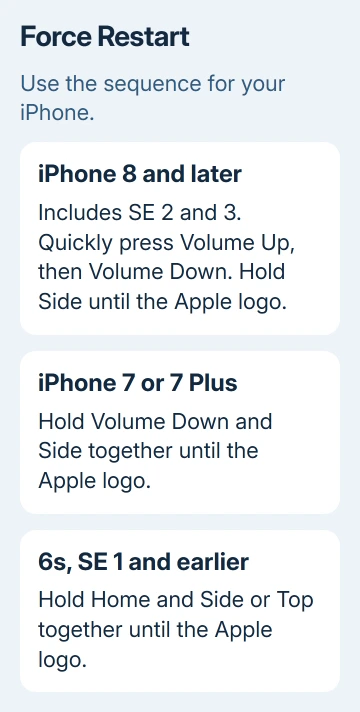
For iPhone 8 and newer, including SE 2 and SE 3, press Volume Up briefly and release it, then press and release Volume Down. Keep Side pressed until Apple's logo appears, then let it go.
For an iPhone 7 or 7 Plus, press Side together with Volume Down and keep both held. Keep holding through the dark screen; the Apple logo is your signal to release both. This generation doesn't use the quick Volume Up, Volume Down sequence.
For an iPhone 6s, first-generation SE or earlier, press Home together with Side (or Top, if fitted). Let go of both buttons once you see Apple's logo.
Use the button your model has rather than trying to follow a newer iPhone's sequence.
A force restart doesn't erase the phone, but it interrupts the active call and unfinished app work. When it starts again, unlock it and check FaceTime.
If the display remains stuck or won't start, seek device support rather than repeating network resets.
5. Update and get help with a repeatable freeze
Open Settings > General > Software Update and install the available iOS update after your usual backup. FaceTime is part of the system, so checking only the App Store doesn't cover its system fixes.
If freezing continues, note the iPhone model, iOS version, whether audio continued, and whether the phone's other controls worked. Include whether Wi-Fi and cellular behaved differently and whether it happened with more than one contact.
Share these details with Apple Support and ask for help with FaceTime freezes that keep returning. If the camera is unavailable in other apps after the call, mention that too.
That points to a possible camera or device problem, rather than just the video in one call.
The Short Version
Check whether only the picture, FaceTime or the whole phone is stuck. Compare a stronger connection at both ends, reopen an unresponsive app and choose the model-specific force restart for an unresponsive phone.
Update iOS, then report a repeatable failure with those comparisons.
Checked November 13, 2026.