Custom emojis in iOS 26 are made with Genmoji from the emoji keyboard. Describe the image you want, combine existing emoji, or choose a person from Photos, then save the result to use in messages and stickers.
You'll need an iPhone that supports Apple Intelligence to create them. Installing iOS 26 on an older iPhone doesn't add Genmoji, although ordinary emoji and Memoji are still separate options.
In this guide
Check that your iPhone can create Genmoji
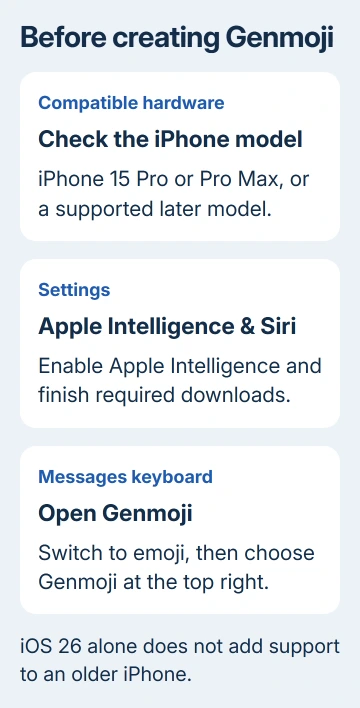
Genmoji is an Apple Intelligence feature. Both Pro models in the iPhone 15 family support it, as do supported iPhone 16 and later models. The ordinary iPhone 15 and 15 Plus don't gain it through a software update.
Check Settings > General > About for the model name and iOS version. Then open Settings > Apple Intelligence & Siri and turn on Apple Intelligence if it isn't already enabled. Let any required download finish before creating a Genmoji.
Availability also depends on language and region. Apple's iOS 26 Genmoji instructions link the requirements and recommend current software for the latest available features.
Keep the device and Siri languages on the same supported language. If you've just changed Siri's language, its download may need to finish before Apple Intelligence becomes available again. Check that before resetting keyboard settings.
These steps use the iOS 26 controls. Later system releases can change the creation experience, so don't assume a tutorial for iOS 27 shows the same panels. Check your version in About before comparing screens.
Make a Genmoji from a description
Open Messages, choose a conversation and bring up its keyboard by tapping the message field. Switch to the emoji keyboard with the smiley-face or globe control. Tap Genmoji in the keyboard's upper-right corner.
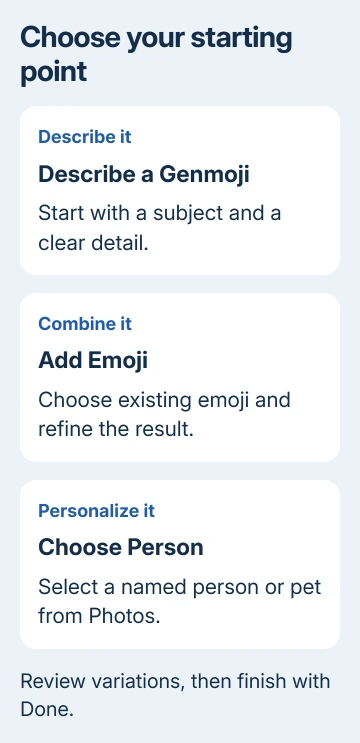
Choose Describe a Genmoji, enter a short description and tap the send control for that description. Start with a clear subject and one detail, such as a sleepy dinosaur wearing a scarf. Wait for the preview to appear.
Tap the preview bubble and swipe left or right to look through variations. Choose the one that fits, then tap Done to finish. The created Genmoji is saved with your stickers so you can use it again.
Finishing your Genmoji doesn't send the message. Check the conversation's message field before tapping its Send button. That lets you add words beside the image instead of sending something before you're ready.
I'd start with one simple description before adding several details. It's easier to decide what to change when you can see whether the subject, expression or accessory is the part you don't like.
If a complicated request doesn't produce a preview, simplify the description and try again. Results can vary. Adding more detail doesn't mean you'll get a more accurate face or the exact object you had in mind.
Combine emoji and other elements
In the Genmoji creation screen, choose an emoji from Suggestions, or tap Add Emoji to select another one. Add a description to explain how you want the combined image to look.
The iOS 26 guide also lists concepts such as expressions, costumes, accessories and places. Swipe left through the available concepts and select the detail you want. Those instructions let you mix up to seven elements.
Review the preview after adding an element. If you don't like the combination, remove the unwanted concept with its delete control instead of starting a completely different message.
The finished image is a custom Genmoji saved among stickers. It doesn't replace an existing standard emoji or add a new universal character to every keyboard. Use it as the custom image you've created.
Make one based on a person in Photos
Tap Choose Person in the creation screen, then select the person from your photo library or choose an emoji-based person. To use a person or pet from Photos, name them in the Photos app first.
When using a real person as the starting point, select the correct photo before refining the description. If the typed name and chosen photo disagree, Genmoji uses the selected photo rather than the name in your text.
To change the starting point, tap Choose Person > Edit. Use Choose Other Photo for a different reference, or Customize Appearance for options such as hairstyle, facial hair and eyewear.
Use Additional details to make a small change to a feature, such as the glasses color. Review variations again after the change. Tap Done when the starting point looks right, then finish the Genmoji.
Memoji is an avatar you build manually rather than a generated image. Its controls are separate from selecting a photo as a Genmoji reference. Use Memoji for direct control over an avatar's appearance.
Reuse or delete the saved creation
Tap an editable message field and reopen the emoji keyboard. Open the stickers area, or swipe right to reach it. Saved Genmoji appear with your stickers, where you can pick a previously saved creation.
You can share it as a sticker or use it as a Tapback, a message reaction, where supported. Check how the destination app handles it rather than expecting every app to offer the same message controls as Messages.
To remove a saved creation, hold that Genmoji in the stickers area and choose Delete. Check that you've selected the unwanted version if you've saved several similar creations.
If a reaction isn't reaching the other person as expected, the Tapback delivery guide covers reaction compatibility. Reaction delivery and a missing creation button need different checks.
When the creation button is missing
For a missing iPhone keyboard, restore the keyboard first. For a missing emoji keyboard only, open Settings > General > Keyboard > Keyboards > Add New Keyboard and add Emoji.
Regular emoji or Memoji remain options on an unsupported iPhone. A keyboard download can't add the required hardware. On a supported model, check that Apple Intelligence is on, the languages match and any downloads have finished.
If Genmoji stays unavailable despite meeting the requirements, contact Apple Support about access to Genmoji. Give them your model, iOS 26 version, device and Siri languages, region and whether the creation control ever appeared.
The Short Version
Enable Apple Intelligence on a compatible iPhone, then open Genmoji from the emoji keyboard. Add your inputs, review variations and finish with Done. Reuse creations from stickers; check model and language support for a missing button.
Checked November 13, 2026.