
You tap into a text box and no keyboard appears. You tap again, and still nothing. That is a horrible little fault, because you cannot do anything at all without it.
The first thing I would rule out is a keyboard you are not even looking at.
Apple documents the toggle for it but never mentions that it hides the on-screen one, which is why almost nobody finds this on their own.
The keyboard you forgot about is probably awake
Read Apple's reconnect instruction twice: turn the keyboard switch back on, "or bring the keyboard and iPhone back into range, then tap any key".
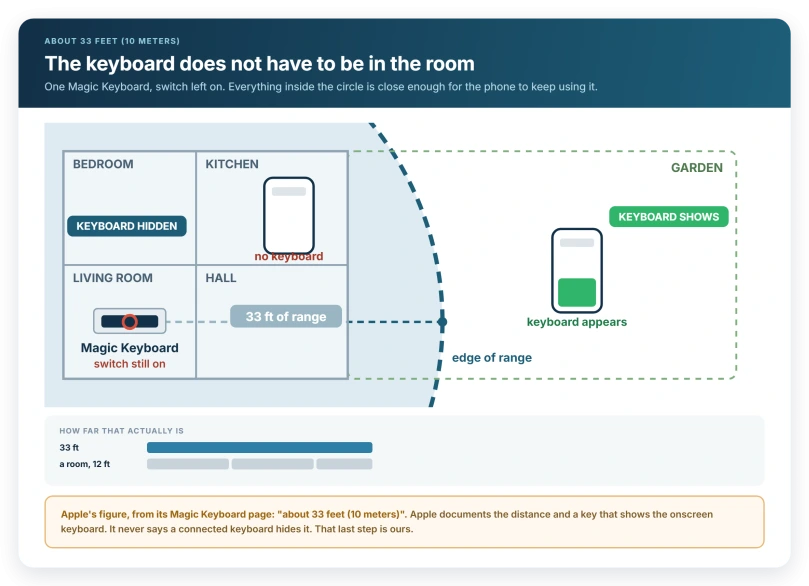
Nothing has to be pressed deliberately. A keyboard on a desk, in a drawer, or in a bag with something resting against it can send that key press, and a phone in your pocket is well inside 33 feet of it.
So the symptom travels. The keyboard is missing in the kitchen and fine at the end of the garden, and no setting on the phone has changed between the two.
On the keyboard itself, press the key Apple's switching guide uses for this.
Apple prints it as a symbol rather than a word, and its image description calls it the Eject key. On a Magic Keyboard it sits at the top right of the number row.
Press it once to show the onscreen keyboard, press it again to hide it.
Many keyboards have no such key, and newer Apple ones use the Globe key in that position. If yours has neither, the answer is the keyboard's own power switch or the Bluetooth list, not this section.
Either way it is a toggle, not a repair. The physical keyboard stays connected.
Making it stop for good
Tomorrow morning the keyboard will still be on the desk, its switch still on, and the phone still inside 33 feet of it.
Open Settings > Bluetooth and read the list. Anything showing as Connected is a candidate, and a keyboard is the likeliest.
Apple publishes no list of which accessory types suppress the onscreen keyboard, so treat this screen as suspects rather than a verdict.
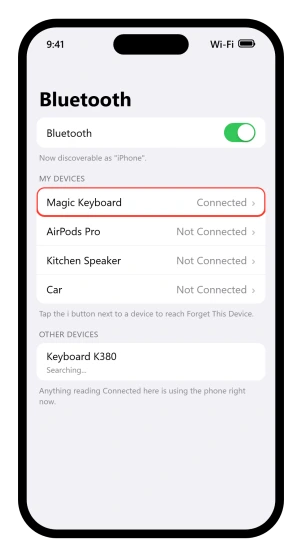
Work up in three steps, cheapest first. Tap the connected row to disconnect it and see whether the keyboard returns. Turn the keyboard's own switch off, which keeps the pairing intact.
Only then tap the i button beside it, tap Forget This Device, and confirm with Forget Device.
One warning if you are clearing out that list quickly: unpairing AirPods also unpairs them from every other device signed in to the same Apple Account.
"Until the next day"
That phrase is the whole reason this problem keeps coming undone.
Open Control Center, tap the Bluetooth button, and your accessories drop off without Bluetooth switching off.
From Apple's Bluetooth accessories page: "Your Bluetooth accessories and devices disconnect from your iPhone until the next day."
Its Control Center page is more exact about when the next day starts.
The block lasts until you switch Bluetooth back on, until you connect something in Settings, until you restart, or until "it's 5 AM local time".
So it is a timer, not a switch. The onscreen keyboard comes back, the problem looks solved, and the keyboard is connected again before you are awake to see it happen.
Our guide to iPhone 17 Bluetooth dropping carries the same warning from the other direction, for people whose "AirPods skip mid-song, or CarPlay connects and disconnects on a loop".
It says of that same button that it does not actually turn Bluetooth off.
The switch that forces the keyboard back
There is an iPhone control that displays the onscreen keyboard outright, and it is filed somewhere nobody would look for it.
Go to Settings > Accessibility > Touch > AssistiveTouch and turn AssistiveTouch on. Under the Pointer Devices heading, Apple lists Show Onscreen Keyboard, described simply as "Display the onscreen keyboard".
Two things to know before you use it.
It sits among the pointer-device options, which is Apple's word for trackpads, mice and game controllers, so it is aimed at people driving the phone with a pointer rather than at keyboard owners specifically.
And turning AssistiveTouch on puts its own floating button on your screen.
That makes it the right answer for an accessory that pretends to be a keyboard, such as a page-turning pedal or a barcode scanner, where there is no Eject key to press and no keyboard you want to unpair.
While you are in Accessibility, one other feature assumes a physical keyboard is doing the work.
Apple: "If you use Magic Keyboard or another physical keyboard with iPhone, you can use Full Keyboard Access to control your device with keyboard shortcuts instead of the touchscreen." Look for an outlined box jumping between items as you tap.
If it is there, turn it off at Settings > Accessibility > Keyboards & Typing.
If there is no keyboard anywhere near you
Before hunting for a fault, check the thing you tapped.
Apple's description of the onscreen keyboard sets a condition that is easy to read past: "In any app that allows text editing, open the onscreen keyboard by tapping a text field."
Two things have to be true. The app has to allow editing, and you have to tap the field itself.
Plenty of things that look like text are not fields: a message already sent, a PDF opened for reading rather than marking up, a web form that has not finished loading.
Tap directly into the box rather than the label beside it. If a search bar brings up a keyboard and a message box does not, the problem belongs to that one app.
One thing that is not this problem: a keyboard that does appear but sits in a narrow block hard against one edge of the screen.
Our guide to making the iPhone keyboard bigger names that as the one-handed layout, and puts the way back first, which is to reopen that same menu and tap the default layout button sitting between the left-handed and right-handed ones.
When one app is the only one affected
The search bar in Safari brings up a keyboard. The message box in one app does not. Same phone, same minute.
Go to Settings > General > Keyboard, then tap Keyboards to see everything installed. To clear one out: tap Edit, tap the remove button beside it, tap Delete, then tap Done.
Deleting a keyboard you installed yourself does not remove its app, and Add New Keyboard on the same screen puts it back. If the standard keyboard returns everywhere once the extra one is gone, you have found it.
Work down this list
Start at the top and stop the moment the keyboard comes back. Every step is free and every step is easy to undo.
- Look for a real keyboard within about 33 feet. Another room counts.
- Press the Eject key on it, top right of the number row.
- Or switch that keyboard off, which keeps the pairing.
- Open Settings > Bluetooth and tap anything reading Connected to drop it.
- Forget the device rather than using the Control Center button, which expires at 5 AM.
- Tap directly inside the text field, not near it.
- Turn on Show Onscreen Keyboard under AssistiveTouch if an accessory is impersonating a keyboard.
- Check Settings > General > Keyboard > Keyboards if only one app misbehaves.
- Restart the phone before assuming anything is broken.
When none of that applies
No accessory in the list, the field is a real text field, the keyboards list looks normal, and still nothing rises from the bottom of the screen.
Restart the iPhone first. A keyboard process that has stopped responding is exactly what a restart clears, and it takes a minute to rule out.
After that you are past the end of the map. Apple publishes no troubleshooting page for an onscreen keyboard that fails to appear.
Its keyboard pages describe how the keyboard works rather than what to do when it does not, so the next step is Apple Support rather than another setting.
What does not help
- Turning Bluetooth off from Control Center and calling it fixed. That lasts until the next day.
- Deleting and reinstalling the app you were typing in. A connected keyboard would take the onscreen one away in every app, not one.
- Hunting through keyboard settings for a hide switch. The accessibility keyboard settings change how keys look and respond. Show Lowercase Keys, Key Repeat, Sticky Keys and Slow Keys are all there, and none of them hides the keyboard.
- Resetting all settings as a first move. It clears far more than the keyboard, and you have not established the cause yet.
Status: current for iOS 26.6. Apple documents the 33 foot range, the Eject key toggle and Show Onscreen Keyboard, but never says a connected keyboard hides the onscreen one. The join is ours.
Why is my iPhone keyboard not showing up?
Usually because a physical keyboard is connected over Bluetooth. A Magic Keyboard reconnects whenever it comes back within about 33 feet and any key is pressed on it, including by something resting against it. Press the Eject key on that keyboard, or open Settings, Bluetooth and disconnect it.
How do I force the onscreen keyboard to appear?
Go to Settings, Accessibility, Touch, AssistiveTouch, turn AssistiveTouch on, then turn on Show Onscreen Keyboard under the Pointer Devices heading. Apple describes it as displaying the onscreen keyboard. Note that AssistiveTouch adds its own floating button to your screen while it is on.
Why does my keyboard disappear again the next day?
Because the Control Center Bluetooth button is a timer rather than a switch. Apple says the block ends when you restart, when you reconnect something in Settings, or when it is 5 AM local time. So the keyboard is back before you wake up. Forget the device in Settings instead, or switch the keyboard off.
Why does the keyboard only fail in one app?
That points at the app or at a keyboard you installed yourself rather than at iOS, since a connected physical keyboard would take the onscreen keyboard away in every app rather than one. Check Settings, General, Keyboard, Keyboards, and remove any extra keyboard with Edit, then Delete, then Done.
The Short Version
- A connected physical keyboard is the usual answer. Apple documents the toggle, not the hiding, so treat it as the first suspect.
- The range is about 33 feet, so a keyboard in another room still counts.
- The Eject key on that keyboard shows and hides the onscreen one.
- Settings > Bluetooth shows what is connected. Tap the row to disconnect, or Forget This Device to make it permanent.
- The Control Center Bluetooth button expires at 5 AM local time, so it is never the fix.
- Show Onscreen Keyboard lives under Settings > Accessibility > Touch > AssistiveTouch.
- Tap inside the text field, and remember not every app allows editing.
- Settings > General > Keyboard > Keyboards is where an extra keyboard gets removed.
Where to Next
Rule out a keyboard you are not looking at before anything else. A connected physical one hides the on-screen keyboard completely, and Apple never says so.
After that it is about which app it happens in, because one app and every app are different problems.
If it is every app and no keyboard is connected, tell me what happens in Notes specifically, because that is the cleanest test.

Isaac Smith is the founder and editor of PC Glance, a website that covers computers, laptops, and technology. He is a tech enthusiast and a computer geek who loves to share his insights and help his readers make smart choices when buying tech gadgets or laptops. He is always curious and updated about the latest tech trends.