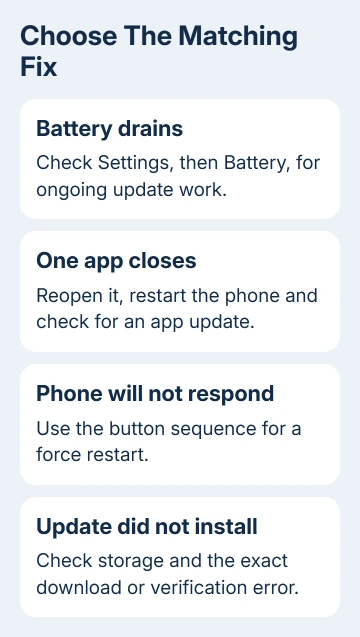
Battery drain just after iOS 26.2 can come from update work still running in the background. Check Settings > Battery first. An app that closes, a phone that freezes, and an unfinished update need different repairs.
iOS 26.2 is an older release now. Install the newer compatible release shown on your iPhone's update screen. For an ongoing fault, use the matching steps here and note whether it began immediately after installation.
In this guide
1. Check the installed version and get later fixes
Open Settings > General > About and note iOS Version. Then open Settings > General > Software Update to see which compatible release is available. A failed download can leave the phone on its earlier version.
Before installing, save a fresh iPhone backup to your computer or iCloud. Plug in the phone's charger, join reliable Wi-Fi, then follow the update screen's download and installation prompts. Check the version again after it restarts.
Apple lists later releases in its iOS 26 update notes. The notes don't describe every later bug fix, so a general mention of fixes doesn't mean your particular problem is covered.
The 26.2 notes do name two repaired issues: pre-release Apple Music albums not playing immediately at release, and a Privacy & Security setting that may incorrectly appear managed by an enterprise organization.
Those were fixes included in 26.2, not a list of faults it introduced. If your work phone is managed by your employer and has restricted settings, ask IT to check the management policy instead of assuming the label is wrong.
For the historical features and installation choices, use the iOS 26.2 update overview. The checks that follow address what is failing on the phone now.
2. Read the Battery screen before judging drain
Open Settings > Battery and look for an Ongoing iOS Update Insight. It means the phone is still completing update tasks in the background, which can temporarily increase power use and heat.
Give a newly updated phone a few days, then compare its behavior during similar use. A long navigation session or much brighter screen makes a poor comparison with a quiet day before the update.
Review the apps and system activity using the most battery. Tap the relevant entries to see their details. A high share for an app can reflect time spent using it; it doesn't automatically mean the app is defective.
Follow useful suggestions shown on that Battery screen, such as reducing unusually high brightness. If one app uses power while you're barely using it, check for its update and see whether the same behavior returns afterward.
The iOS 26 battery guide covers app activity, signal problems, and other lasting causes. Don't keep waiting for post-update work to settle if the phone has already been draining unusually fast for weeks.
If the iPhone shows a temperature warning, stop using it, move it away from heat, and let it cool. An overheating warning deserves attention immediately rather than another round of battery comparisons.
3. Repair one app that crashes or won't open
Close and reopen the failed app. To find it on a Face ID model, swipe up starting at the screen's bottom, then pause. A Home-button model opens recent apps with a double-click of Home. Swipe its preview upward.
Test the action that previously failed. If the app now works, you don't need to close every other app. Repeatedly closing every app in that view won't tell you why this one stopped.
If it fails again, restart the iPhone, then check the App Store for the app's update. Open the App Store, tap your account picture, and review the available updates. Install the relevant update and retry the task.
I'd ask the developer about a recurring crash before reinstalling. Removing the app can delete its local data, so confirm its backup or sync first if you plan to reinstall.
Tell the developer the iPhone model, iOS version, app version, and action that triggers the crash. When only that app fails, a report with those details helps them understand the crash better than saying iOS 26.2 is broken.
4. Force restart an iPhone that won't respond
A force restart is for a phone whose screen or controls no longer respond. It restarts the phone without erasing it or returning it to factory settings. Use the sequence for your model rather than holding random button combinations.
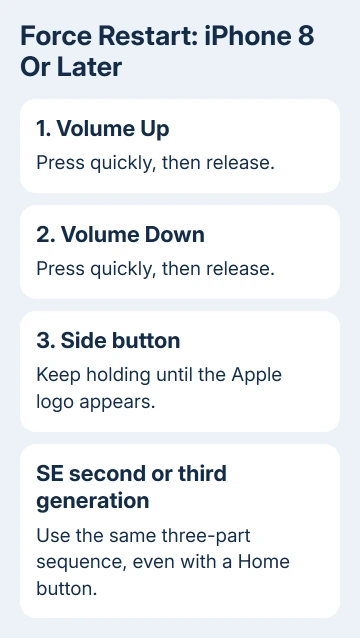
On iPhone 8 and newer, including second- and third-generation SE models, press Volume Up briefly and release it. Repeat with Volume Down. Press and hold Side. Once Apple's logo appears, let go.
That is the sequence for iPhones able to run iOS 26. For an older phone misidentified as an iOS 26 device, the controls differ: iPhone 7 uses Side + Volume Down; iPhone 6s or first-generation SE uses Home + Side or Top until the logo.
After the phone starts, try the app again and watch for freezing elsewhere on the iPhone. A successful restart gets control back; repeated freezing after a current update still needs diagnosis.
If the screen stays black or the phone won't start, contact Apple support about the startup failure. Describe what the screen shows and whether the Apple logo appears, rather than repeating restarts indefinitely.
5. Treat an unfinished update as an installation problem
An error while checking, downloading, or verifying is different from an installed system running badly. Keep the exact message and check the available storage in Settings > General > iPhone Storage.
If space is short, offload apps you can reinstall or remove content you've backed up, then retry. The update process can offer to remove apps temporarily; read that prompt before accepting rather than deleting unrelated files in a hurry.
If the update package repeatedly fails, find it in iPhone Storage, tap it, and choose Delete Update. Return to Software Update and download it again over a working connection.
A VPN or proxy can prevent the phone reaching the update servers. Try a suitable different network, or have the administrator review network access on a managed phone. Don't remove work management to get around an update restriction.
When wireless updating still fails, follow the computer update procedure in Finder for a current Mac, or Apple Devices for a Windows computer. On macOS Mojave or earlier, use iTunes instead.
Tell Apple support your model, installed version, error, free storage, and the result of updating through your computer. Ask for help with the update error before considering erasing the phone.
The Short Version
Confirm the version and get the newer compatible update. Check Battery for ongoing update work, repair one failing app separately, and force restart a nonresponsive phone. Treat download and verification errors as installation problems.
Checked November 13, 2026.