AO3 can open in its own app-style window on iOS 26 or later. Add it from Safari to the Home Screen with Open as Web App on. Replace an old website bookmark if that icon keeps launching Safari.
This creates a website app, rather than installing a separate AO3 reader. It changes how the Home Screen icon opens; links from other apps and links leaving AO3 can still follow different browser behavior.
In this guide
Check iOS before rebuilding the icon
Open Settings > General > About and check the iOS version. The all-websites Open as Web App choice arrived with iOS 26. On older iOS versions, a website's own setup affects whether its Home Screen icon opens in an app-style window.
That difference matters for an icon created months ago. Adding a bookmark on an older release isn't the same as choosing the web-app option on iOS 26 or later. Check the current version before following a screenshot from another phone.
If your iPhone supports a newer release, check Settings > General > Software Update for the update offered to that phone. Back up the iPhone before installing a system update, especially if it has important local information.
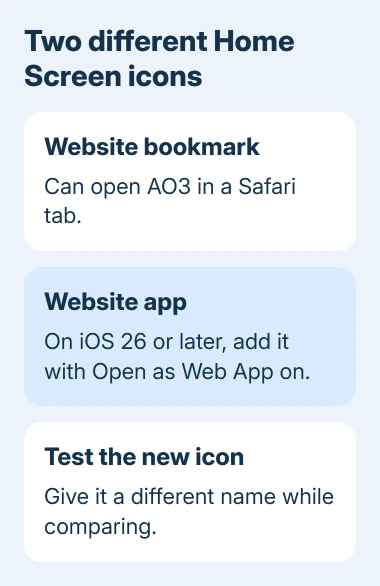
An iPhone that can't install iOS 26 can't gain this particular switch by renaming its icon. You can still make a useful Safari bookmark, but changing its name or picture won't make it open like the newer website app.
Add AO3 again with Open as Web App enabled
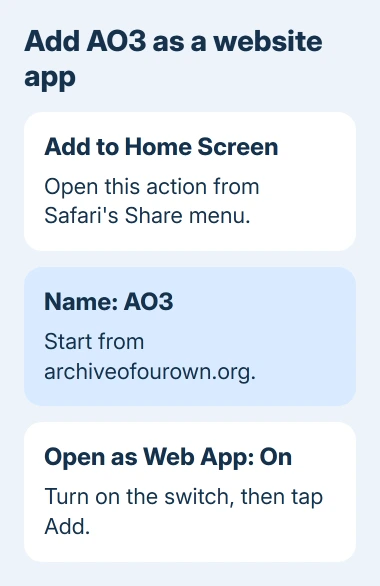
Open Safari itself and visit https://archiveofourown.org. Wait until the site loads. Start from the site you want the icon to open, rather than a search result, a link preview or another app's built-in browser.
Open Safari's Share menu. With the Compact tab layout, tap More, then Share. With the Bottom or Top layout, use the Share control shown in the toolbar. Find and select the action named Add to Home Screen.
On the confirmation screen, choose a short name such as AO3, turn on Open as Web App, and tap Add. Apple's website app instructions describe this option.
Tap the newly added icon after leaving Safari for the Home Screen. A separate app-style window should open rather than the usual Safari tab view. Use the new icon for this check, especially if an old one has the same label.
If it works, remove the old website bookmark from the Home Screen so you don't mix up the two. Touch and hold the old icon and use its removal option. Don't remove the Safari browser itself to change a website shortcut.
The Safari Home Screen guide distinguishes the browser's own icon from a website icon. Adding Safari back and creating an AO3 web app are separate tasks.
Find Add to Home Screen when it is missing
Use the full Safari app for this step. A page displayed inside a social, email or messaging app may show a smaller browser sheet with different controls. Open the same address directly in Safari instead.
In Safari's Share menu, scroll through the action list to its end. Tap Edit Actions, then add Add to Home Screen to the available actions. Return to the Share menu and select it.
If Add to Home Screen appears but Open as Web App doesn't, check the iOS version again. The menu from an older iOS release may only create the kind of website icon that the site itself supports.
For a managed iPhone, ask the administrator about a missing or restricted Home Screen action. Use the controls your device offers rather than installing a configuration profile from a website promising an AO3 app.
I'd make the new icon with its own temporary name, such as AO3 New, while checking it. The distinct name tells you which icon launched: your new website app or the earlier bookmark.
Check which action sends the page back to Safari
Close the AO3 window and launch its new icon again from the Home Screen. Compare that with tapping an AO3 link inside Messages or another app. Opening from the icon and opening from a message can take you to different windows.
The Open as Web App setting controls the added Home Screen website app. It doesn't force every AO3 link on your phone to open in that window. Use that Home Screen icon to resume reading in its app-style window.
Compare an AO3 page link with one leaving the site, such as an author's social profile. That link can open the browser because it leaves AO3. It's different from an AO3 icon that launches Safari immediately.
A standard Safari toolbar appearing immediately after tapping the new icon means it's opening in Safari from the start. A browser window appearing only after an outside link means that link sent you to the browser instead.
If the new icon works but a particular link opens Safari, save the starting page address and the link's destination for support. Those two addresses show support exactly which link sent you to Safari.
Sign in within the new window and keep reading data safe
If the new AO3 window asks you to log in, sign in through that window. A new website app can have a different session from the Safari tab you were using. A sign-in request by itself doesn't mean the icon failed.
Confirm that your username appears and open an account page such as your bookmarks. That confirms you're signed into your account inside the new window. Don't assume a familiar site skin means the new session is already signed in.
Avoid clearing all Safari history or website data to change how the icon opens. That can remove other sessions while leaving an incorrectly created icon unchanged. Adding the icon again lets you change its Open as Web App setting.
Keep an unfinished comment copied somewhere safe before closing a reading session or changing its website app. Adding a Home Screen icon doesn't turn unsent page text into a saved AO3 draft.
For a crowded Safari session, the Safari tab-closing guide explains its separate tab controls. Closing those tabs doesn't convert a bookmark into a web app.
When the new icon still won't stay in its own window
Restart Safari and the website app, then check for an available iOS update. If the new Home Screen icon still immediately launches Safari with Open as Web App enabled, contact Apple Support about Safari Home Screen web-app behavior.
Include the iOS version, the address added, and whether the change happens on launch or after a specific link. If AO3 itself won't load in either window, report the page error to AO3 Support once its support page is accessible.
The Short Version
On iOS 26 or later, add AO3 from Safari using Add to Home Screen with Open as Web App on. Test the new icon, then remove the older bookmark. Links from other apps or outside AO3 may still open a browser.
Checked November 13, 2026.