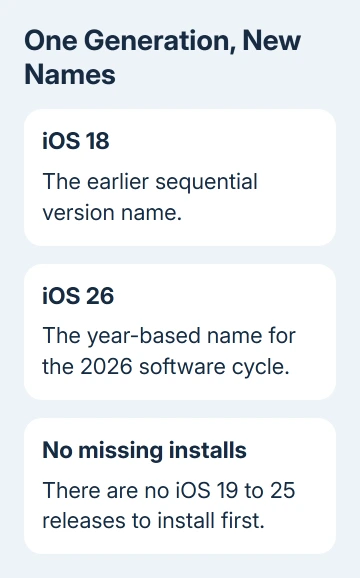
iOS went from 18 to 26 because Apple switched to year-based software names. The 26 refers to the 2026 cycle. Your iPhone hasn't missed seven upgrades; iOS 19 through iOS 25 aren't versions you need to install first.
Several Apple systems adopted the number 26 together in the June 2025 announcements. For an older iPhone, check whether it supports the update. There isn't a gap in releases for the phone to fill before installing it.
In this guide
Why the new name was 26 instead of 19
Under the previous sequence, the next major name after iOS 18 would have been iOS 19. Apple changed that naming system for the 2025 generation. It chose the two-digit year label 26 for the software cycle extending into 2026.
The numbering changed with the next major update after iOS 18. It was still just one generation later. Subtracting the two names gives a misleading impression of how many releases separated them.
Apple's June 2025 iOS announcement introduced iOS 26 as that year's major iPhone update. That date matters: 26 wasn't a claim that the software first launched in January 2026.
Think of it as a release-family name. The name lets you group the related updates together, but it doesn't tell you the exact day an update was installed or which smaller revision the phone is running now.
An iPhone still on iOS 18 therefore isn't seven major updates behind iOS 26. It's running the generation before iOS 26. Whether it can move forward depends on the model and the software currently offered in its own Settings app.
How matching platform numbers help
Previously, iPhone, iPad, Mac and Watch updates could arrive together with different major version numbers. Comparing the numbers didn't reliably tell you whether the releases belonged to the same generation.
The 2025 software announcements brought iOS 26, iPadOS 26, macOS Tahoe 26, watchOS 26 and tvOS 26 into the same naming family. The cross-platform design announcement lists those versions together.
Matching names don't mean you download the same software on every device. An iPhone installs iOS and a Mac installs macOS, each with its own compatibility requirements. The shared number tells you the systems belong to the same generation.
Matching versions don't give every device every feature. Many models get the new design, while features needing particular hardware work on fewer devices. Check that feature's hardware requirements as well as its major software version.
Check the version actually installed on your iPhone
Open Settings > General > About and read iOS Version. That's the software your phone is running. The separate Model Name entry identifies the iPhone itself, which you need when checking compatibility or asking for help.
Hardware names and iOS versions are separate. An iPhone 16 running iOS 26 remains an iPhone 16. An older supported model can share its software generation without gaining the newer phone's hardware features.
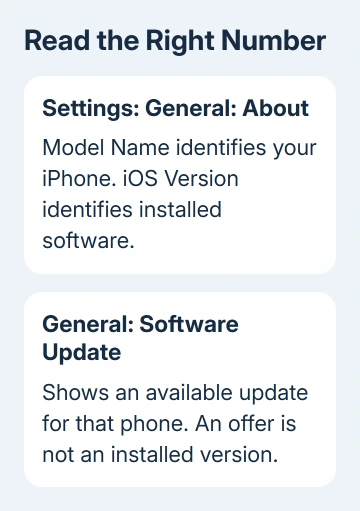
Next, open Settings > General > Software Update to see what's available for that phone. An update shown there isn't necessarily installed yet. Compare the About page with Software Update when you're trying to explain a mismatch.
Numbers after 26 identify smaller updates within that major version. They aren't additional skipped generations. For troubleshooting, give the full displayed version rather than saying only that the phone has the newest software.
If Software Update appears to offer a confusing iOS 18 label, the iOS 18 update-label guide covers that separate situation. The year-based naming change alone doesn't explain an incorrectly labeled update row.
Check whether an older iPhone supports iOS 26
Apple says the supported iOS 26 models include the iPhone 11 family, later supported iPhones, iPhone SE (2nd generation) and iPhone SE (3rd generation). Remember the SE models when someone shortens the list to iPhone 11 and newer.
The iOS 26 list excludes the iPhone XR, iPhone XS and iPhone XS Max, even though they ran iOS 18. Support for iOS 18 didn't promise support for every later major update. The new numbering didn't change which hardware can run iOS 26.
Use the iOS 26 model list with the Model Name from About. Don't judge compatibility by whether the device has Face ID or a Home button; supported SE models have a Home button.
If your device isn't eligible, install the updates actually offered for it in Software Update. Downloading something labeled iOS 19 won't bridge the gap. There isn't an intermediate iPhone release with that name waiting to unlock iOS 26.
For a supported phone, the offered version may now be newer than iOS 26. Follow the current offer and its compatibility information rather than looking for a historical release just to match an old explanation of the numbering.
Install an offered update without chasing missing versions
Back up your iPhone before a major upgrade. Use Wi-Fi and connect its charger, then open Settings > General > Software Update. Read the version details before choosing Download and Install or the displayed installation option.
The iPhone update procedure describes this Settings route. The phone checks its available update. You don't need separate installers for the unused numbers between 18 and 26.
If the update needs more room, the iPhone update storage steps explain your options. Lack of storage is an installation problem; it doesn't call for installing any of those unused numbered versions.
If a compatible phone shows no update or keeps failing, give Apple Support its Model Name, iOS Version and exact update message. For a managed work phone, ask whether the organization's update policy is delaying the offer.
The Short Version
The 2026 cycle naming put iOS 26 after iOS 18. There weren't seven public releases in between. Read About for the model and installed version, then check Software Update to see the phone's available upgrade.
Checked November 13, 2026.