
You have gone and looked, there are several gigabytes free, and your iPhone is still refusing to install an update that is smaller than that. The arithmetic does not add up and I would be annoyed too.
The number your phone needs is not the size of the update. It needs room to download it, unpack it and install it, all at once. That is a much bigger figure.
The good news is that fix 6 barely needs any free space at all. Work down these six, cheapest first. You will probably never reach the end.
Fix 1: Let your iPhone remove apps temporarily and put them back
Before you delete a single photo, look at whether iOS has already offered.
Apple, on updating your iPhone: "If a message asks to temporarily remove apps because the software needs more space for the update, tap Continue to allow the system to remove apps. After installation is complete, those apps are automatically reinstalled."
Temporarily. Automatically reinstalled. That is doing the work for you and putting everything back afterwards.
That prompt gets cancelled constantly, because it sounds like the phone is about to delete your apps. Apple spells out what happens if you do.
Apple: "If you tap Cancel instead, you can delete content manually from your device to add more space."
So Cancel is not a safety choice. It is you volunteering for the manual version of the same job.
If you already tapped Cancel, start the update again and take the offer this time.
Fix 2: Delete the half-downloaded update, which is often the whole problem
This one is quietly common and it costs you nothing.
A failed attempt leaves the downloaded update sitting in storage. Several gigabytes of it. And it does not always get reused.
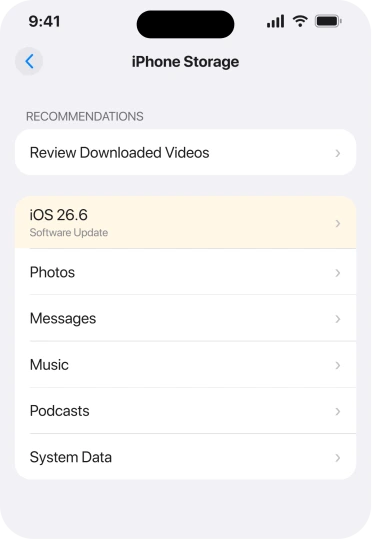
Go to Settings, tap General, tap iPhone Storage. Scroll down the list of apps until you find the iOS update itself. Tap it, then tap Delete Update.
Then go back to Software Update and start again. The phone re-downloads a clean copy, and you have freed the space the old one was holding.
Plenty of space but a message that the update is temporarily unavailable? That page covers Low Power Mode, VPNs and the computer route.
Fix 3: Empty Recently Deleted before you delete anything else
This is the trap that wastes people an entire evening, and it comes from owners rather than from Apple. You delete forty videos, watch the free space barely move, and conclude the phone is lying to you.
It is not. Deleted photos and videos sit in Recently Deleted for about thirty days and keep using storage the whole time.
So empty it first, then delete. In Photos, open Recently Deleted in the album list, tap Select, then Delete All. That part is permanent, so scroll it before you tap: anything in there is gone for good once you confirm.
Do this before fix 4 rather than after it, or you will delete a second round of things you did not need to lose.
Fix 4: Clear space in the order that actually frees the most
Fair enough, and there is a right order for it. Videos first, then photos, then large apps. A handful of 4K videos frees more than dozens of apps do, and they are the easiest thing to park somewhere else.
Offloading an app does not free as much as you think. Offload removes the app and keeps all its data, which is the point of it, but the data is often the bigger half. Delete rather than offload when you are hunting real space.
Podcasts and downloaded music are the quiet ones. So are movies and episodes downloaded inside streaming apps, which sit in the app rather than in Photos. All of them hold gigabytes and none shows up where you would think to look.
Our page on an iPhone whose System Data has swollen covers the category that eats space without being anything you chose to keep.
Fix 5: Aim for roughly double, because there is no published figure
Enough to hold the download plus the working room to unpack it. Which is why an update can refuse when the free space looks bigger than the file.
Apple does not publish a required figure anywhere I could find, and I read its update pages end to end looking for one. So there is no number to aim at, only more.
Ours, as a working rule: clear roughly double what Software Update says the update weighs, and the install goes through.
If that is out of reach on your phone, go back to the computer route. It sidesteps the whole calculation.
Fix 6: Update from a computer, which ends this rather than easing it
This is the one to reach for when the numbers are hopeless, and hardly anybody is told about it.
Update through a computer and the file downloads to the computer, not to your phone. Your iPhone then needs only the room to install, not to hold the download as well.
Apple: "If the update doesn't appear on your device, you can use your computer to update your device."
On a Mac, connect the phone with a cable and open Finder. On Windows, use the Apple Devices app. Select the iPhone, then choose Update rather than Restore.
Update keeps everything. Restore wipes the phone and puts a backup back, a completely different and far riskier operation.
One more line on that page changes how you should think about a computer. Apple: "Some software updates aren't available wirelessly."
So a computer is not only the workaround for space. Sometimes it is the only route there is.
What does not work
- Restarting and trying again. The space check runs the same way every time.
- Buying iCloud storage. iCloud is not the phone's storage, and the update installs locally. Our page on why those two numbers disagree explains the difference.
- Deleting photos that are in iCloud Photos. If they sync, deleting one on the phone deletes it everywhere, and it may free nothing locally.
- Deleting photos without emptying Recently Deleted. They keep using storage for about thirty days, which is fix 3 and the reason people think deleting does nothing.
- A cleaner app. Nothing from the App Store can reach the space iOS is asking for.
Status: iOS 26.6, checked 17 August 2026. Apple documents a temporary app removal that reinstalls afterwards, and states that some updates are not available wirelessly at all.
Why does my iPhone say not enough storage when I have space?
Because the update needs room to download, unpack and install at the same time, which is considerably more than the file size shown.
A leftover half-downloaded update from a failed attempt is often sitting in storage too, holding several gigabytes of what you thought was free.
How do I update my iPhone without deleting anything?
Update through a computer with a cable. The file downloads to the computer instead of the phone, so almost no free space is needed on the iPhone. Choose Update rather than Restore, and nothing on the phone is erased.
Should I let my iPhone temporarily remove apps to update?
Yes. Apple states the apps are automatically reinstalled after the installation finishes. Tapping Cancel does not protect anything, it simply hands the job back to you to do by hand.
The Short Version
- The update needs far more free space than the file size, because it downloads, unpacks and installs.
- If iOS offers to temporarily remove apps, accept it. Apple says they are reinstalled automatically.
- Delete a leftover half-downloaded update at Settings, General, iPhone Storage. It is often gigabytes.
- Empty Recently Deleted before deleting anything else, because deleted photos keep using storage for about thirty days.
- Updating through a computer needs almost no space on the phone, and it is the real answer here.
- Choose Update, never Restore, when you do it from a computer.
- Offloading an app keeps its data, so it frees less than deleting does.
- Apple publishes no required figure, so aim for roughly double the update size.
Where to Next
That message names a problem and then leaves you guessing at the size of it. Which is how an evening disappears into deleting holiday photos you wanted to keep.
Take the temporary-removal offer if it appears, clear any leftover download, and if the numbers are still hopeless, plug it into a computer and be done in twenty minutes.
And if a restore falls over with error 1109 rather than running out of room, that one points at the connection.
If the computer route refuses too, tell me what it says on screen when you press Update, because the wording there points straight at what is blocking it.

Isaac Smith is the founder and editor of PC Glance, a website that covers computers, laptops, and technology. He is a tech enthusiast and a computer geek who loves to share his insights and help his readers make smart choices when buying tech gadgets or laptops. He is always curious and updated about the latest tech trends.