
The iOS 27 update downloads, you tap Install, and the iPhone replies that the update is temporarily unavailable. You try again the next day and get the same message.
The thread I worked from has 21 Me too clicks, and five Level 10 volunteers answered it. I matched their advice to Apple's own update page. Nobody there has confirmed a fix yet, so the steps run from the quickest to the most thorough.
What the owner saw
Their iPhone 15 Pro Max showed the message, which they copied exactly: "ios 27 is temporarily unavailable".
The usual first fix had not helped. In their words: "I deleted and reinstalled the update, but it only downloads but doesn't install". It is not only iOS 27 either, since a later owner hit errors trying to install iOS 26.7.
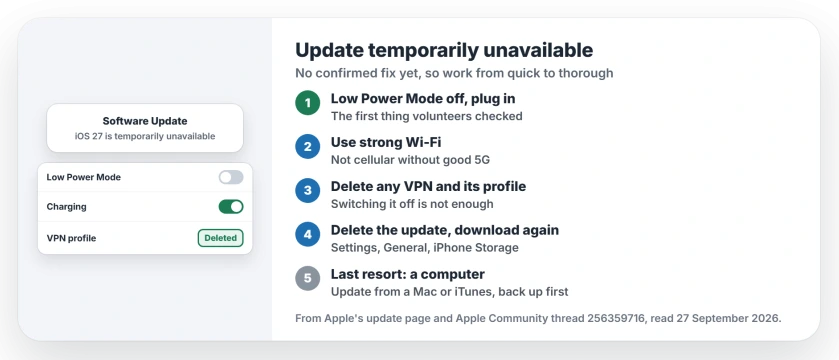
Status: iOS 27 and iOS 26.7, checked 27 September 2026. No working fix is reported yet. Apple's last resort is updating from a Mac or from iTunes on a PC.
1. Turn off Low Power Mode and plug in
This was the first answer in the thread, and the bluntest: the update "will never run" with the battery icon yellow in Low Power Mode.
Apple agrees on the power side. Its update page says: "It also helps to keep your device connected to a power source". So switch Low Power Mode off under Settings, Battery, and plug the phone in before you try again.
2. Use strong Wi-Fi rather than cellular
The same volunteer added: "Do not try to update using cellular data unless you have a good 5G connection".
Another Level 10 volunteer gave a rule for cellular upgrades: "ensure that you have updated your iPhone to iOS 26.6.2 (or later)".
Apple's own advice for a failed attempt is to try again, then "try updating using another network", or a Mac, or iTunes.
3. Delete any VPN, not just switch it off
Two volunteers pointed at VPNs, and one was firm that switching a VPN off is not enough. Delete its profile in Settings, then General, then VPN & Device Management, and remove the VPN app as well.
Force restart the iPhone next, then follow the rest of that volunteer's checklist: "Then make sure Low Power Mode is turned off, the phone is plugged in and connected to Wifi".
4. Delete the update and download it again
Apple's next step is a fresh download, and in its words, "you can download the update again".
Open Settings, General, iPhone Storage, scroll to the iOS update among your apps, tap it, and choose Delete Update. Then return to Software Update for a fresh download.
5. Update from a Mac or a PC
If the phone still refuses, or the update is missing from that list, Apple is clear about the last step: "you need to update your device using a Mac or using iTunes".
Back up the iPhone to iCloud or your computer first, then connect it with a cable and choose to update, not restore. The backup first is our advice.
Other iPhone update problems
If the update stalls on Verifying Update instead, the verifying update page covers that screen. And if the phone says there is not enough space, the storage page shows what to clear.
And if an iPad never offers iPadOS 27 at all, check the model first; the iPadOS 27 page has Apple's list.
What does update temporarily unavailable mean on an iPhone?
The iPhone downloaded the update but could not install it. Owners report it with iOS 27 and iOS 26.7, and the thread has not pinned down one single cause.
How do I fix an iPhone update that will not install?
Turn off Low Power Mode, plug in, use strong Wi-Fi, delete any VPN, then delete the update and download it again. If it still fails, update from a computer.
Does a VPN stop iPhone updates?
A Level 10 volunteer said it can, and that the VPN has to be deleted, not only switched off. Remove its profile under VPN & Device Management.
Can I update my iPhone with a computer instead?
Yes. Apple says to use a Mac or iTunes when the update keeps failing on the phone. Back up first, then choose Update, not Restore.
The Short Version
- Turn off Low Power Mode.
- Plug the iPhone in.
- Use strong Wi-Fi, not cellular.
- Delete any VPN and its profile.
- Delete the update, then download again.
- Last resort: update from a computer.
Where to Next
Plug your iPhone in now, switch Low Power Mode off, and try the install once more on Wi-Fi before moving through the steps.
Did one step finally get your update through? Leave a comment naming it, and I will move it to the top for the next reader.

Isaac Smith is the founder and editor of PC Glance, a website that covers computers, laptops, and technology. He is a tech enthusiast and a computer geek who loves to share his insights and help his readers make smart choices when buying tech gadgets or laptops. He is always curious and updated about the latest tech trends.