
Your iPhone has been sitting on Verifying Update for a while now and you are starting to wonder whether it has died halfway through. It almost certainly has not.
It is doing the slowest and least visible part of the job, with no progress bar to reassure you.
Before you touch anything, give me fifteen minutes of your patience. That on its own clears most of these, and Apple does not publish any figure for how long the step should take.
What Verifying Update actually means
Your iPhone has finished downloading the update and is now checking it before installing. It confirms the file is complete, that it is genuinely Apple's, and that it matches your exact model.
Apple's own guide to updating iOS walks the normal path but says nothing about this screen at all, which is why the advice you find for it is guesswork rather than documentation, including some of what follows here.
That check runs against Apple's servers, so it needs a working internet connection even though nothing appears to be downloading.
On release day, when millions of iPhones ask the same question at once, it can be slow for reasons that have nothing to do with your phone.
Nothing has been committed at this point. The file is downloaded and unpacked, but the version that boots your iPhone is still the one you are running.
If the process is interrupted, it rolls back to that. Nothing has been switched over.
A failed update can also leave a screen of two iPhones at startup, and a force restart cleared that for one owner.
Check two things before you start waiting
Both take seconds, and either can leave the screen sitting there with no error to explain it.
Is the iPhone actually online? Verification needs a connection even though nothing appears to be downloading. If Wi-Fi has dropped, the screen simply waits.
Ask Siri something trivial, or check the Wi-Fi icon is still in the status bar. Waiting an hour on a phone that is offline is an hour wasted.
Is it Apple that is busy? Apple publishes a live System Status page.
If the update service is showing an issue, nothing you do to the phone will help, and the answer is to come back later.
How long is normal, and when it is genuinely stuck
Apple gives no expected duration, so these figures come from what owners report rather than anything official.
Give it fifteen minutes before you touch anything. Five to ten is ordinary, and a major release can sit there longer still.
Plug it in. A low battery makes an iPhone defer heavy background work, and an update is about as heavy as it gets.
Give it an hour on release day. If Apple shipped the update in the last day or two, its servers are fielding requests from the entire installed base at once, which is the usual reason a perfectly healthy iPhone appears frozen.
The same update generally goes through far quicker a couple of weeks later.
Do not judge it by the battery or the screen dimming. An iPhone mid-update will dim, sleep and look inert. That is not a crash. Wake it and read what the screen actually says before deciding anything.
After an hour it is time to act. It is still not an emergency, and leaving the iPhone plugged in overnight clears a fair number of these on its own.
The other screens people mean by this
Several screens get called "stuck on the update", and they are different states with different answers.
Apple documents none of them, so what follows is what each one appears to mean rather than an official description, and the order you meet them in varies.
Update Requested. The iPhone has asked Apple for the update and is waiting to be let through. The most release-day-sensitive of the set, and the most likely to clear on its own. Leave it an hour.
Downloading. The file coming down, with a progress bar and a size. Ordinary, and a dropped connection stalls it.
Preparing Update. The download is complete and the iPhone is unpacking it locally. Mostly on-device work, and usually the longest wait of the lot.
Verifying Update. The last screen before the install.
The iPhone asks Apple's servers to confirm the unpacked file is genuinely Apple's and allowed on your exact model, so it needs a live connection. This is the screen this page is about.
Plenty of people meet this one before Preparing Update rather than after, so do not read the order as fixed.
Unable to Verify Update. Not a stage at all, but an outright refusal, usually blaming your connection. That exact wording is what owners report rather than a string Apple publishes.
Check for a VPN first. A VPN is the single most reported cause of this exact error, and turning it off and retrying clears it for a lot of people, which is why our page on the iOS 18.7.8 update row flags it too.
If there is no VPN, reconnect to a network you trust and start again. If it repeats, the downloaded file is damaged, and deleting it is your answer.
The install comes after Verifying, and it is not on this list because it is not in Settings at all. The iPhone reboots to a black screen with an Apple logo, and that is the one to leave alone.
Which screen are you actually looking at
Read this before holding any buttons.
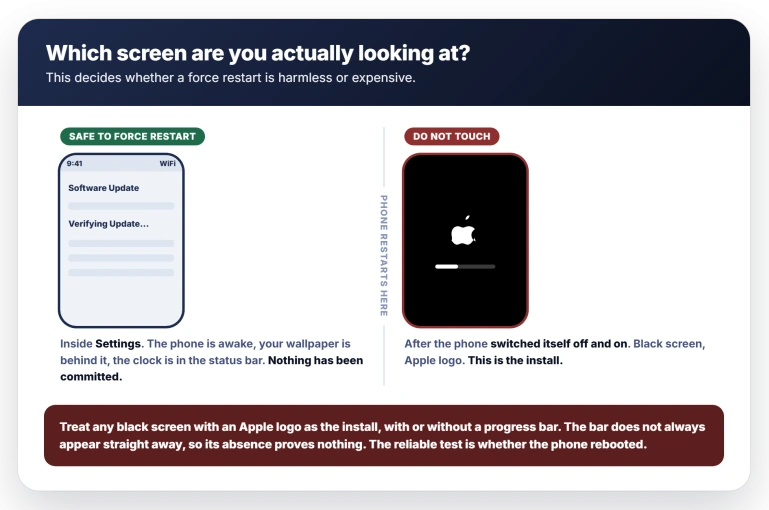
If you can see the Settings app, you are safe. Verifying Update is a line of text on a Software Update screen, on a phone that is awake, with your wallpaper behind it and the clock in the status bar.
Nothing has been written to the system at that point.
If the phone has switched itself off and on, stop. The install runs after a reboot, on a black screen with an Apple logo.
That is the stage not to interrupt, and it is what leaves people needing a computer to recover the phone.
Treat any black screen with an Apple logo as the install, with or without a progress bar. The bar does not always appear straight away, so its absence proves nothing.
The reliable test is not the bar, it is whether the phone rebooted.
If unsure, wait. Waiting has never broken a phone.
How to force restart, once you are sure
Apple's instruction for an unresponsive iPhone, on an iPhone 8 or later:
> "Press and quickly release the volume up button. Press and quickly release the volume down button. Press and hold the side button. When the Apple logo appears, release the side button."
Do it once, not repeatedly. A single forced reset does not touch your data. Hammering it three or four times is the one thing that can corrupt the part-written file, turning a wait into a re-download.
After the restart, go to Settings, General, Software Update and see what it says. Often the update simply resumes and installs normally.
When this update was prompted by an old browser warning, Safari follows the iOS update. Check the finished system release before looking for another installer.
Delete the downloaded update and fetch it again
If it fails at the same point twice, assume the downloaded file is damaged. A partial or corrupted download will fail verification every time, and no amount of restarting fixes it.
This is Apple's own instruction rather than folk wisdom.
From its page on iPhones that will not update: go to Settings, General, iPhone Storage, find the update in the list of apps, tap it, then tap Delete Update.
Then go back to Settings, General, Software Update and download it fresh.
If the phone says the update is temporarily unavailable instead, the temporarily unavailable page works through the checks that come before this one.
Free some space while you are on that screen. An update needs working room to unpack, so a nearly full iPhone can stall instead of finishing. iOS usually says so outright, but not always.
Do not assume you are fine because the download fitted. That said, owners with tens of gigabytes free have hit the same wall, so rule storage out rather than assuming it.
Our pages on System Data eating your storage and apps stuck on Waiting cover where space hides and how a stalled download behaves.
Update from a computer instead
This is Apple's documented alternative rather than a workaround, and it works when the phone cannot manage alone.
Connect the iPhone to a computer with a cable. On a Mac running macOS 10.15 or later, select the iPhone in the Finder sidebar, then click General at the top of the window.
On Windows, or an older Mac, open iTunes and click the iPhone button near the top left, then Summary.
Then click Check for Update, and Update to install it.
On a Windows PC, Apple's newer Apple Devices app does the same job. In Apple's Apple Devices guide, you select the device in the sidebar, then "Select General in the sidebar." Then select Update, or Check for Update first.
An iPad 10 owner whose update kept failing on the tablet did exactly that in September 2026. They put the Apple Devices app on an old Windows 11 laptop and wrote: "I connected my iPad to the PC and successfully installed iOS 27.0".
A computer supplies the whole file in one go over a cable, sidestepping both a flaky connection and a damaged download. If the phone has failed twice alone, come here rather than trying again.
Three things to get right before you start. Back the iPhone up, which is where Apple's own update guide begins.
Use a cable you trust, because a marginal one that charges fine can still drop a multi-gigabyte transfer.
And when the computer offers Update or Restore, take Update: it reinstalls iOS and leaves your data alone, while Restore erases the phone.
If none of that worked
Two endings, and they need different things.
The phone still boots and still will not update. Leave it for a day and try once more, ideally on a different network.
If it fails again on both the phone and a computer, that is an Apple Support case rather than another attempt, and nothing has been lost in the meantime because nothing was installed.
The phone will not start up normally at all. If you see a black screen with a cable and a computer on it, that is Recovery Mode, and the phone is asking to be restored from a computer.
Connect it, open Finder or iTunes, and choose Update rather than Restore when offered, because Update reinstalls iOS while leaving your data alone. Restore erases it.
Status: Apple documents no fault and no expected duration. Verification is slowest just after a release. Recheck if Apple publishes a timing, or if it starts failing outside release windows.
What does not help
- Tapping the screen or the update repeatedly. Verification is a background check with no interface to hurry.
- Turning Wi-Fi off and on mid-verification. It needs the connection it is currently using. Only change it if you have established the phone is offline.
- Resetting the iPhone. Nothing has been installed, so there is nothing to undo, and you would be erasing a phone over a stalled download.
Is it safe to force restart while it says Verifying Update?
Yes, provided you can still see the Settings app. Verifying happens on an awake phone, before anything is written to the system.
What you must not interrupt is the stage after the phone reboots, on a black screen with an Apple logo, which is the install.
Treat any black screen as the install, whether or not a progress bar has appeared.
Why does my iPhone keep failing at the same point?
Almost always a damaged or incomplete download, or not enough free space to unpack it. Delete the update under Settings, General, iPhone Storage, free some room, then download it again.
If it fails a third time, update from a computer instead.
The Short Version
- Wait fifteen minutes before doing anything, and an hour if the update came out in the last day or two.
- Nothing has been installed yet. Verifying happens before the install, so the state is recoverable.
- Check the phone is online. Verification needs a connection, and a dropped one produces no error at all.
- Force restart is safe at this screen: volume up, volume down, then hold the side button until the Apple logo.
- Do not interrupt the next stage, the Apple logo with a progress bar. That one is the install.
- Failed twice? Delete the update under Settings, General, iPhone Storage, free some space, and download it again.
- Failed three times? Use a computer, through Finder or iTunes with a cable.
- A reset is never the answer here. There is nothing installed to undo.
Where to Next
The single most useful thing here is patience, which is a rotten thing to be told when you are staring at a stuck screen.
Fifteen minutes, and an hour if the update only came out in the last day or two. Nothing has been installed yet, so nothing is at risk while you wait.
If it is still on Verifying after that hour with a good connection, tell me in the comments which iOS build you were installing, because that detail matters more than people think.

Isaac Smith is the founder and editor of PC Glance, a website that covers computers, laptops, and technology. He is a tech enthusiast and a computer geek who loves to share his insights and help his readers make smart choices when buying tech gadgets or laptops. He is always curious and updated about the latest tech trends.