Repeated iPad restarts at the Apple logo need a force restart, then a computer's Update option if startup still fails. A return straight to the Lock Screen may just be sleep and wake. Check the cover and Auto-Lock setting for that.
Check which screen returns before choosing a repair. A moving cover or a short Auto-Lock timer needs different attention from an iPad that can't stay powered long enough to unlock.
In this guide
1. Remove the cover if only the screen switches off
Take the iPad out of its cover and set it on a flat surface. Wake it with the top button. If it returns to the Lock Screen or the same app without showing an Apple logo, it hasn't gone through a full restart.
Smart Folio, Smart Cover, and Magic Keyboard covers can wake an iPad when opened. Try it without the cover to see whether moving the cover is what wakes the screen. Also check that your case isn't pressing the top button.
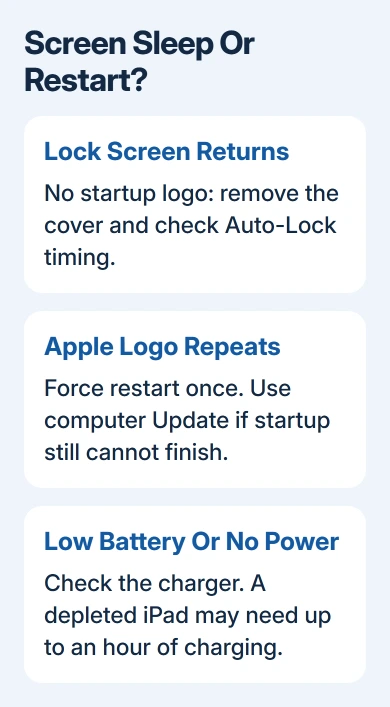
If the screen turns off after a predictable period without touch, open Settings > Display & Brightness > Auto-Lock. Choose a longer interval for the task you're doing, then check whether the unexpected interruption stops.
That's a display setting, so it won't repair a repeated Apple-logo loop. If removing the cover and adjusting the interval fixes the behavior, you can leave the recovery tools alone.
2. Force restart using your iPad's buttons
For a repeated startup logo or a frozen display, use the sequence for the physical buttons on your iPad. Choose the steps that match whether your iPad has a round Home button.
Without a Home button: quickly press, then release, the volume key nearest Top. Quickly press and release the other volume key. Hold Top and release once the startup logo shows.
With a Home button: hold Home + Top together, then release them after the Apple logo shows. Allow startup to finish.
Apple says to choose the sequence for your model in its unresponsive-iPad procedure. A force restart doesn't ask you to erase the device or remove its accounts.
Use the button positions rather than assuming the first volume button is always the one you use to raise sound. The no-Home-button procedure names the button nearest the top button first.
If the lock screen appears and stays usable, continue with the software checks. If the logo keeps returning before you can unlock, move to the computer Update procedure rather than repeating the button sequence indefinitely.
3. Charge an iPad that cannot stay running
Leave the iPad connected to a reliable wall adapter and cable. A deeply depleted device may need up to an hour before it will turn on. Check the cable, adapter, and outlet if no charging response appears.
Try another compatible cable and power adapter when available. If your iPad only stays on while plugged in, have its charging connection and battery checked, even if a restart briefly gets it to the Home Screen.
Our iPad battery-drain guide covers the different case where the iPad starts normally but loses charge rapidly during use.
I'd try another charger before erasing the iPad. If power isn't reaching the iPad reliably, wiping its storage won't repair the cable or battery.
If the casing is swollen or damaged, stop using and charging the device and arrange service. That physical condition takes priority over software troubleshooting.
4. Update when the iPad stays open between restarts
Back up while the iPad remains usable, then connect it to power and Wi-Fi. Open Settings > General > Software Update and install the available update. Enter your passcode when asked and leave the update to finish.
If only one app closes and the Home Screen remains available, update that app too. The whole iPad hasn't restarted in that case. Test another app before treating one crashing program as a startup failure.
For an app that still closes after updating, tell its developer what you opened or tapped when it failed. Tell them whether other iPad functions still work, since that helps them check the app's failure.
During installation, a bar beneath the startup logo can advance slowly or appear motionless. The bar can even complete and start again. A changing installation screen isn't the same as a device repeatedly losing power.
The update progress-bar guidance explains that behavior. Leave an ongoing installation connected to power rather than interrupting it just because progress looks slow.
5. Use a computer to update a repeating startup loop
Use this route when the iPad turns on but gets stuck during startup. A computer can offer an update when the iPad restarts before you can open Settings.
For macOS Catalina 10.15 or later, open Finder. On macOS Mojave or earlier, open iTunes. On a Windows PC, use the current Apple Devices app, or iTunes if that's the app installed for managing your iPad.
Connect the iPad using a cable that carries data, then find it in the app. Keep it connected while putting it into recovery mode.
Without a Home button: quickly press and release the volume button nearest Top, then quickly press and release the remaining volume button. Keep Top held past the startup logo, releasing when recovery appears.
With a Home button: keep Home + Top pressed while connected. Release once the recovery-mode screen shows.
For this procedure, don't stop at the first Apple logo as you did for a force restart. Wait for the recovery screen before letting go, and releasing early can simply start the same loop again.
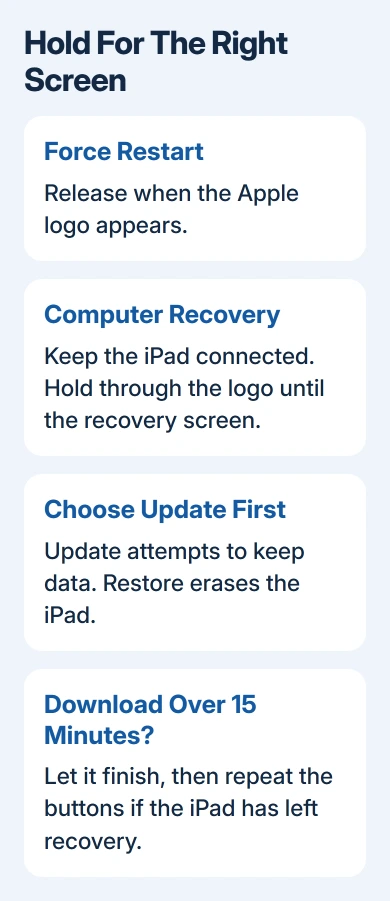
When the computer offers Update or Restore, choose Update first. Update attempts to reinstall the software while keeping personal data; Restore erases the iPad. Read the selected option before confirming.
If the software download takes more than fifteen minutes, the iPad can exit recovery mode. Let the download finish, then use the matching buttons again to reopen recovery and complete the update.
For a frozen iPad where the button sequence never seems to work, the iPad force-restart checks cover that specific failure.
6. Get service when Update can't keep it running
If Update fails, save the exact computer error and note whether the iPad stays in recovery or returns to the logo loop. Check the cable connection before another attempt.
Book an iPad assessment with Apple Support for persistent startup failure, damaged buttons, or shutdowns on a working charger. Before accepting Restore or a replacement, tell them which files still need backing up.
The Short Version
Separate screen sleep from a repeated Apple logo. Remove a troublesome cover, use the matching force-restart sequence, and check charging. A persistent startup loop needs a computer's Update option before a Restore that erases the iPad.
Checked November 11, 2026.