A cable-and-computer picture means the iPad is waiting for help from a computer. Force restart it first; if that screen returns, connect it to Finder or Apple Devices and choose Update to reinstall iPadOS while keeping your data.
Restore is the later, erasing option. A forgotten-passcode message and an Apple-logo screen with a progress bar aren't the same as recovery. Check which screen you're seeing before choosing the next step.
In this guide
1. Try the restart for your iPad's buttons
Leave the iPad connected if it's already attached to a computer. A restart using the buttons can clear a temporary startup problem. You won't need the touchscreen or an erase command.
Without Home: find the volume control nearest the top button. Tap it briefly and release. Repeat using the farther volume control. Next, keep the top button down. Release when the screen displays the Apple logo.
With Home: keep the top button pressed along with Home until the logo shows. If your model has a side button instead, hold it with Home.
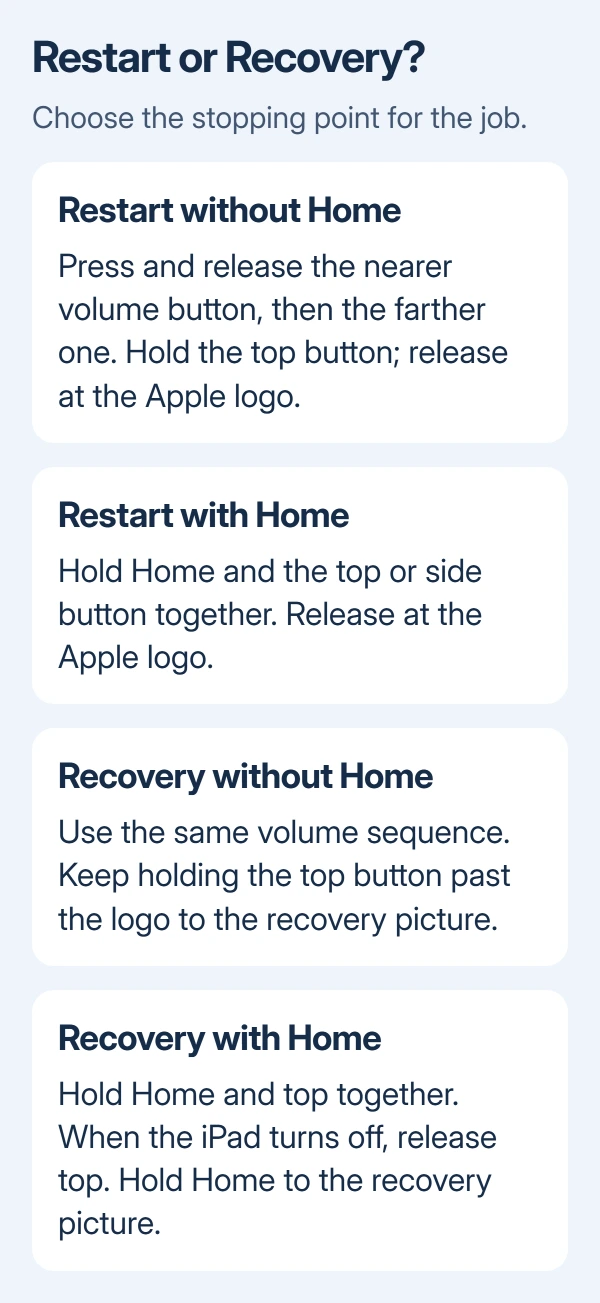
The Apple logo is your release point for a restart. If your iPad reaches the Lock Screen, unlock it and back it up before using it normally. An iPad that now starts correctly doesn't need a restore.
If the cable-and-computer picture returns, move to the computer update. Apple says to select Update in its Restore-screen procedure, which keeps your personal data at this stage.
An unresponsive black display needs the iPad power and charging checks instead. If a progress bar is moving under the Apple logo, don't interrupt it with the button sequence just because startup is slow.
2. Have the computer reinstall iPadOS with Update
Connect a suitable USB data cable straight to the computer. A cable can charge the iPad from a wall adapter without being able to carry data to a computer.
On macOS Catalina 10.15 or later, open Finder and choose the sidebar's iPad entry. On macOS Mojave 10.14 or earlier, use iTunes. On Windows, use the current Apple Devices app, or current iTunes if Apple Devices isn't installed.
When the computer offers Update and Restore, select Update. It downloads and reinstalls iPadOS without erasing the iPad. Keep the iPad connected until the update completes.
Look for the iPad to start normally instead of returning straight to the cable picture. Once the iPad opens, check that your apps and files are present and back it up.
I'd try this before an erasing restore, especially if the iPad stopped starting after an interrupted update. It gives the installed system a chance to start again while keeping your data.
If the computer doesn't show the iPad at all, check the USB connection next. If it sees the iPad but gives an error number, keep that number and follow the error checks rather than repeating the same download blindly.
3. Fix a missing connection or a failed download
Update macOS, Apple Devices, or iTunes before retrying. Use another USB port directly on the computer, then a different suitable data cable. Leave USB hubs and keyboard ports out of this attempt.
The device-detection checks also suggest repeating the attempt on a second computer. If the second computer sees your iPad, check the first computer's software and USB connection. The iPad can still communicate with a computer.
For a software-download error, check the computer's internet connection. An office firewall or security tool can block the update connection; ask IT to check the blocked connection instead of changing managed security settings yourself.
Error 1671 means the computer is still downloading the software. Wait for that download to finish before retrying. Error 10 means the computer software or Apple Devices/iTunes is too old for the device software. Update it.
For another number, follow its entry in the update and restore error list. A connection error and a failed software download need different repairs, even though both can leave the iPad on the same recovery picture.
4. Re-enter recovery if the iPad leaves it
The iPad can leave recovery mode before a long download finishes. If the download takes longer than 15 minutes and your iPad leaves recovery mode, let the computer finish downloading. Then put the iPad into recovery again.
Keep it connected. On a model without Home, quickly press the nearer volume button, then the farther one, and hold the top button. Continue pressing through the logo; release at the cable-and-computer picture.
For a Home-button model, keep Home pressed along with top. Release top when the screen goes off, and keep holding Home until the recovery picture appears.
For recovery, hold until the cable picture appears. For the earlier restart, you released at the logo. Retry Update if it hasn't completed yet. A timeout in recovery mode doesn't mean your iPad needs erasing.
5. Restore only when the update cannot recover it
If Update fails to get the iPad started, the iPad recovery instructions explain how to use Restore. Before selecting it, understand that Restore reinstalls iPadOS and deletes the data on the device.
Have your existing backup and the linked Apple Account details ready, if you have them. A backup can restore saved information afterward; files that exist only on the iPad won't be rescued by erasing it.
Select Restore in Finder, Apple Devices, or iTunes and let the computer complete the process. When the Hello screen appears, complete setup, choosing a saved backup if you have one.
A tablet that says Disabled or asks you to connect to iTunes after forgotten passcode attempts needs the iPad passcode recovery procedure. Updating its software isn't a way to remove that passcode.
If recovery keeps failing, ask Apple Support about iPad update/restore service. Give your model, error number, and the cables and computers you've tried. Broken buttons or failures on multiple computers may need repair.
The Short Version
Start with your model's button restart, then the computer's Update option if recovery returns. Re-enter recovery after a long download when needed. Choose Restore only if you accept that it erases your iPad; repeated failures need service.
Checked November 13, 2026.