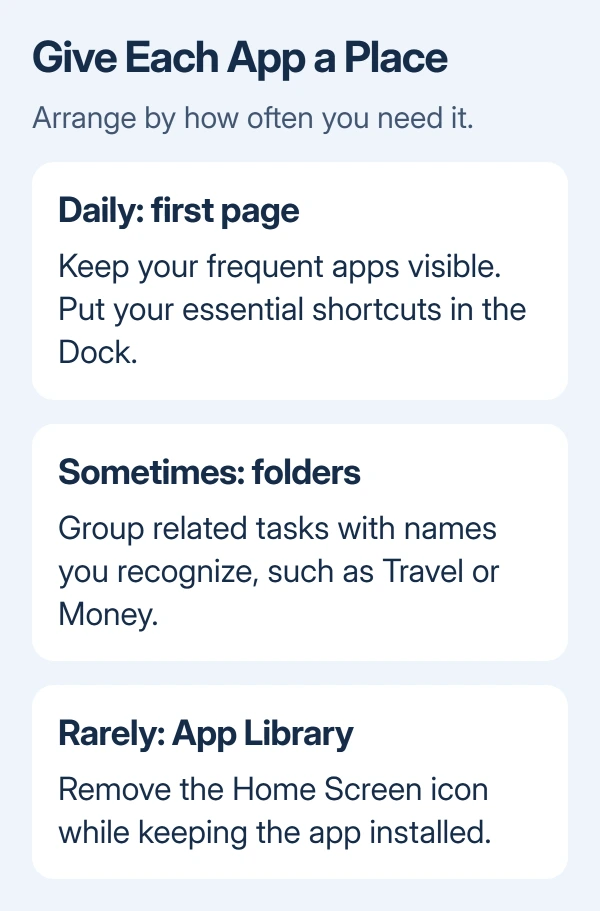
Keep daily apps on your first Home Screen, group occasional ones in folders, and leave the rest in App Library. Removing an icon from a page keeps the app and its contents on your phone.
Start with one page rather than rearranging everything at once. Moving an icon changes where you find it; deleting an app removes it from your phone.
In this guide
Build a first page around the apps you actually use
Choose the apps you open without thinking: messages, maps, camera, calendar, or whatever fits your day. Give those a place you can remember. Put apps you use less often on another page instead of squeezing everything into tiny folders.
I'd choose task names, such as Travel or Money, instead of grouping icons by color. A color scheme looks tidy until you need an app whose icon recently changed.
Use the Dock for apps you want to reach from any Home Screen page. An app doesn't need to remain in its original position, and moving its icon doesn't move or reset the information inside it.
Before changing a layout you might want back, take screenshots of your pages. Those pictures give you something to follow if a new arrangement feels slower after a day of use.
There isn't one correct number of pages. A separate work page can make sense; several pages filled with apps you never open usually make the next app harder to find. Decide where you want each app before you start dragging icons.
Move icons, then group the occasional apps
Hold the Home Screen's empty background to start editing. The icons begin to wiggle. Drag an icon to its new spot. On current iOS, icons can sit at different positions on a page, including near the bottom where they're easier to reach.
To move an app to another page, hold its icon at the screen's edge until that page appears. Moving against the right edge of the final page creates another page when needed. Drop the icon once the page you want appears.
Finish by tapping the Home Screen background on a current iPhone without a Home button, or pressing Home if your iPhone has that button. Some versions also show Done. The icons stop jiggling when editing ends.
To group apps, drag one icon onto another while editing. Give the folder a useful name, then add related apps. The folder controls cover renaming, removing an app from a folder, and emptying one.
Keep daily apps outside folders if opening a folder feels like an unnecessary extra tap. Folders help when they shorten your search, such as putting travel apps together before a trip; they aren't a requirement for every icon.
If icons refuse to move or snap back repeatedly, use the Home Screen dragging fixes. That points to a touch or layout problem, so rebuilding the same folders again won't help.
Clear a page without deleting its apps
To keep an app installed without showing it on a page, touch and hold its icon. Choose Remove App > Remove from Home Screen. The icon leaves that page while the app stays in App Library.
Apple says this choice keeps the app installed in its Home Screen and App Library help. Delete App removes it instead. Read the final choice before confirming, especially for an app with files stored only on the phone.
Swipe left through your Home Screen pages until App Library appears. Its categories are automatic, so you can't rename those groups to match your own folders. Use Home Screen folders to choose your own group names and the apps inside them.
Tap App Library's search field and type an app name to open it. After removing an icon, try finding and opening the same app here. You won't need to download it again.
To put the app back on your Home Screen, hold it inside App Library, then drag its icon out onto a page. Place it where you want it, then finish editing. Do this for an app you discover you use more often than expected.
Hide a whole page before taking it apart
A page full of work apps or old travel tools doesn't have to appear every time you swipe through your Home Screen. Hiding it keeps the layout intact, which helps when you aren't ready to decide where every app belongs.
- Keep a finger on an empty area to start Home Screen editing.
- Open the page overview by tapping its dots near the Dock.
- Tap the checked circle under the page you want to hide.
- Tap Done to finish.
Repeat the process and check the circle to bring the page back. Hiding a Home Screen page doesn't put its apps into the Hidden folder, which requires authentication, or stop someone finding them in App Library.
The page overview also lets you change page order on iOS 15 and later. Hold a page preview, drag it to the place you want, and finish with Done. Move the useful page first instead of relocating each of its icons.
You can also remove a page from that overview. Its apps remain in App Library, but hiding is the easier option when you want to preserve the page for later.
Choose where future downloads go
Open Settings > Home Screen & App Library. Under the new-download choices, select App Library Only to stop new installations filling your arranged pages. Choose Add to Home Screen if you prefer each new app to appear there.
This choice controls future downloads. It won't gather icons that are already scattered across your existing pages, so arrange those pages yourself before choosing where new downloads should go.
If the layout becomes unmanageable, Settings > General > Transfer or Reset iPhone > Reset > Reset Home Screen Layout starts it over. It removes your folders and arranges downloaded apps alphabetically after the built-in apps.
I'd save that reset for a layout you're ready to give up. If editing itself keeps failing, ask Apple Support about your installed iOS release and explain whether moving icons, opening folders, or saving page order fails.
The Short Version
Give daily apps the first page, use a few useful folders, and remove occasional apps from the Home Screen while keeping them in App Library. Hide pages you may want back, then set new downloads to the destination you prefer.
Checked November 13, 2026.