
Two app icons are enough to make a folder on an iPhone. Enter Home Screen editing by holding the background, then drag one app onto another. The folder groups those apps without uninstalling either one.
Put the first two apps together
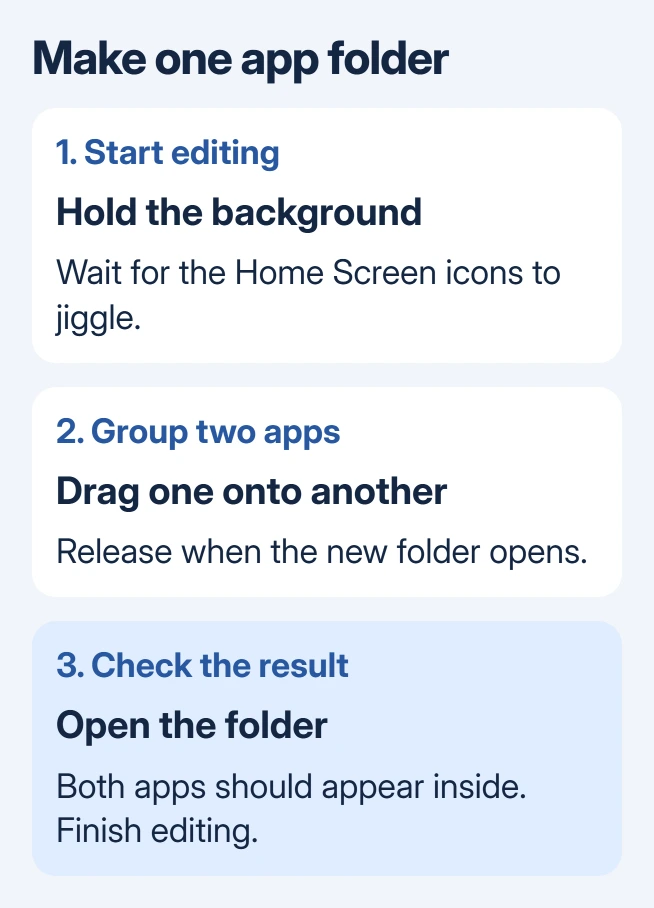
Start on a Home Screen page containing both apps. Keep a finger pressed against the page's empty background until the icons jiggle. Move the first icon directly onto the second.
Apple documents that gesture in its folder creation steps. Release the dragged app when the folder appears, then open it to check that both apps are inside.
Status: Apple's Home Screen folder and App Library instructions checked October 31, 2026. This is an app-organizing procedure; no iPhone layout was changed during research.
Finish with Done when that control appears. Apple's instructions for older iPhones with a Home button use that button to finish editing instead.
If an app opens instead of moving, a tap registered rather than a hold and drag. Go back to its Home Screen page and hold the background again. For icons that still refuse to move, use the Home Screen drag checks.
Rename the folder and add more apps
After leaving editing mode, hold the folder until its menu appears. Tap Rename, enter a useful name, then tap Done. If the icons start jiggling instead, tap the background and try the folder's menu again.
To add another app, enter Home Screen editing and drag its icon into the folder. Keep it over the folder until it opens, then release. Open the folder afterward to confirm the app joined the intended group.
A folder can hold more than one page. Swipe within the open folder when an app is not visible on its first page; moving into a folder does not guarantee that every icon fits in its initial view.
Bring an app back from App Library first
If the needed icon is absent from the Home Screen, swipe left past its final page to reach App Library. Find the app, then hold it until it can be moved onto the Home Screen.
Apple says Home Screen folders do not change App Library's automatic categories. Those categories are managed separately, so dragging apps together on a Home Screen will not rename an App Library group.
An app in the authenticated Hidden collection needs the permanent unhide procedure before ordinary Home Screen placement. Creating a folder does not undo that privacy setting.
Take apps out or remove an empty folder
Open the folder and hold an app until editing begins. Drag its icon out to the Home Screen, repeating for any others that should remain outside the group.
Apple states that removing the final app deletes the empty folder automatically. This removes the container while leaving the apps available. There is no need to choose Delete App to dismantle a folder.
For repeated dragging failures, tell Apple Support which iOS version is installed and how the icon behaves upon release. Avoid resetting the entire Home Screen merely to remove one unwanted group.
The Short Version
Group two apps with a drag, rename the folder through its menu, and add further icons as needed. To undo the grouping, move its contents back onto the Home Screen until the folder disappears.

Isaac Smith is the founder and editor of PC Glance, a website that covers computers, laptops, and technology. He is a tech enthusiast and a computer geek who loves to share his insights and help his readers make smart choices when buying tech gadgets or laptops. He is always curious and updated about the latest tech trends.