
Unhide an iPhone app by opening App Library's Hidden collection. Authenticate, touch and hold the app, choose Don't Require Face ID (or the Touch ID or passcode equivalent), then authenticate again.
The app returns to the ordinary App Library. Moving its icon back onto a Home Screen is a separate final step, so a successful unhide does not need to put the icon exactly where it used to be.
Open the Hidden folder with authentication
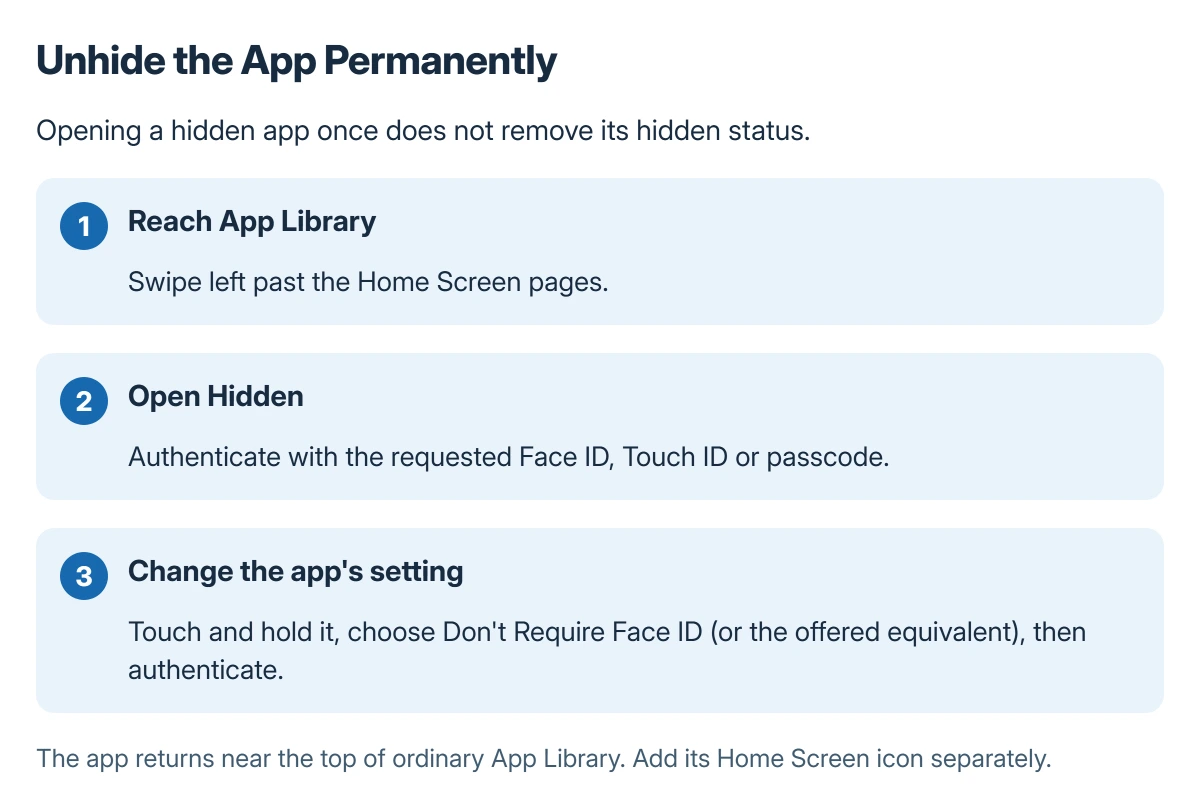
Swipe left past the last Home Screen page to reach App Library. Tap Hidden at the bottom, then complete the Face ID, Touch ID or passcode check.
Apple documents this authenticated folder in its app-locking and hiding guide. Searching the normal app list is not a substitute for opening that folder.
Status: iPhone Hidden-folder access, permanent unhiding and Home Screen placement checked in Apple's current guides on 22 October 2026. No app privacy setting was changed locally.
For a phone with a missing icon that was never hidden, use the missing-app checks instead. That guide covers offloading, hidden Home Screen pages and restrictions without assuming an app is in this folder.
Stop hiding the selected app
Touch and hold the intended app inside Hidden. Tap Don't Require Face ID, Don't Require Touch ID or Don't Require Passcode, as shown on the device, and complete the authentication.
Apple says the app then appears near the top of App Library. This is a permanent unhide action, unlike opening a hidden app for one authenticated session.
Check that the correct app has moved out of Hidden. Only change its privacy setting if ordinary visibility and access are what the owner intends.
Return its icon to a Home Screen
Find the app in ordinary App Library. Apple's App Library instructions describe holding an app until it moves to the Home Screen, then lifting the finger.
Place the icon where it should remain and finish editing the layout. If holding or dragging does not behave normally, the Home Screen touch and layout checks cover that separate issue.
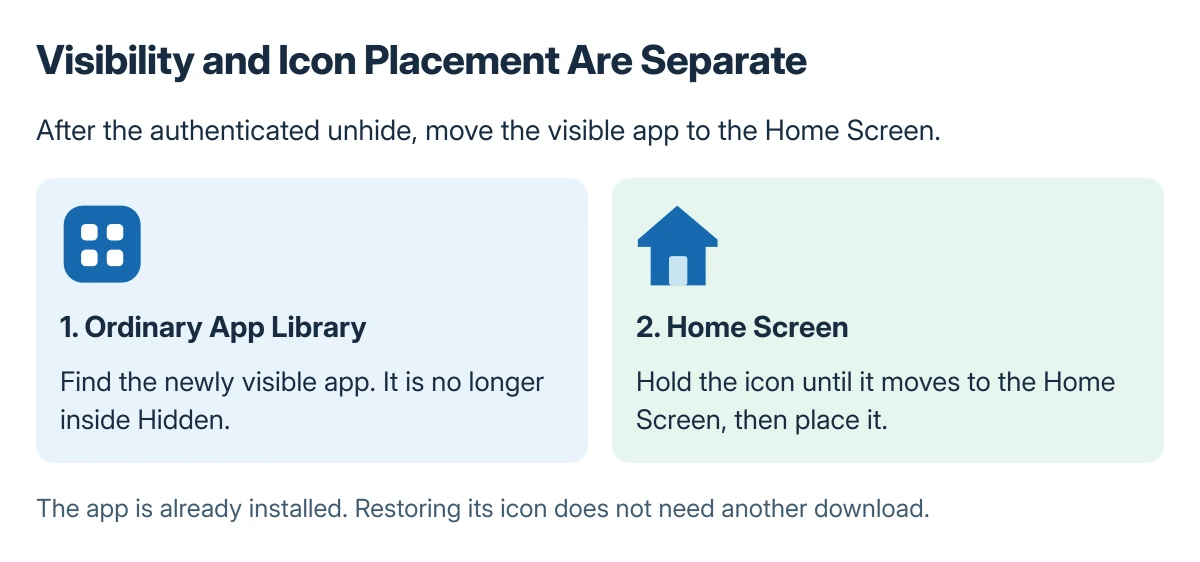
Do not reinstall the app just to restore its shortcut when it is already present in App Library. The unhide and icon-placement actions address visibility without deleting the app's local information.
Check the right iPhone and the right restriction
Apple states that an app's hidden or locked status applies to the individual iPhone and does not synchronize through iCloud. Check the setting on the phone where the app needs to appear.
If Hidden cannot be opened, use the legitimate device authentication or ask its owner. This procedure does not remove a passcode or override a family or organization restriction.
For an app that remains absent after the authenticated unhide, tell Apple Support which app is missing, the iOS version and where it still appears: ordinary App Library or the Settings hidden-app list.
The Short Version
Open Hidden in App Library, authenticate and use the app's Don't Require command. Authenticate again, then look near the top of ordinary App Library.
Move the visible app's icon to a Home Screen if needed. Opening it once, permanently unhiding it and placing its icon are three different actions.
Where to Next
Launch the newly visible app and confirm that this is the privacy arrangement its owner intended. Other iPhones using the same account keep their own hiding settings.

Isaac Smith is the founder and editor of PC Glance, a website that covers computers, laptops, and technology. He is a tech enthusiast and a computer geek who loves to share his insights and help his readers make smart choices when buying tech gadgets or laptops. He is always curious and updated about the latest tech trends.