
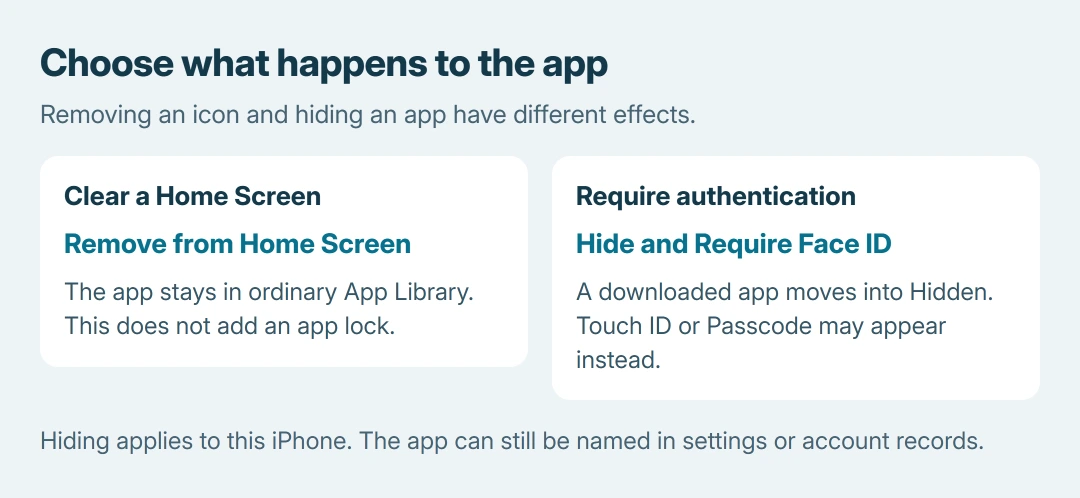
Hiding an iPhone app uses its Require Face ID menu, followed by Hide and Require Face ID. The downloaded app moves into an authenticated Hidden folder. Removing its Home Screen icon alone leaves it accessible in ordinary App Library.
Start with the app's icon on the Home Screen. The command may name Touch ID or Passcode instead, depending on the phone and its authentication setup.
Hide the app through its privacy command
- Keep a finger pressed on the app icon until its quick-actions menu appears.
- Select Require Face ID, or the equivalent Touch ID or passcode option.
- Choose Hide and Require Face ID. Complete the authentication, then confirm Hide App.
The icon should disappear from the Home Screen. Apple documents these app privacy controls in its hiding instructions. The app remains installed in the Hidden folder.
Status: Apple's current iPhone app-hiding, personal-safety and removal guides checked October 26, 2026. App and family restrictions apply. No app was hidden during research.
Choosing the second Require Face ID option without Hide locks the app while keeping its icon visible. Use that when access should require authentication but the app should remain easy to find.
Check whether that app can be hidden
Apple says hiding is available for apps downloaded separately from the App Store. Apps supplied with the iPhone cannot be hidden this way. This feature is available in iOS 18 and later.
An app selected as the default web browser cannot be hidden either. Apple's guide also excludes an app marketplace set as the default in the EU. A missing Hide choice can therefore reflect the selected app's role.
For a Family Sharing child account, age matters. Children under 13 cannot lock or hide apps. Ages 13 to 17 can, but a parent or guardian can still see downloads and usage and apply Screen Time restrictions. Regional age limits vary.
Do not switch accounts or delete an app to force an unavailable menu. Check the app type, iOS version and family settings first, then ask Apple about a control that remains missing on an eligible device.
Keep icon cleanup separate from app privacy
To clear space on a Home Screen without adding an app lock, hold the icon and choose Remove App > Remove from Home Screen. Apple states that this keeps the app in App Library in its app-removal guide.
That app can still be found normally. Delete App is a separate choice that removes it from the iPhone, so read the confirmation before proceeding.
For an icon that vanished unexpectedly, use the missing iPhone app checks. Offloading, hidden pages and app hiding leave different results and need different controls.
Open Hidden and understand the visibility limits
Swipe left beyond the Home Screen pages into App Library. Open Hidden at its bottom and authenticate, then select the app and complete any further authentication request.
When ordinary visibility is needed again, unhide the app permanently. Opening it for one session does not remove its hiding setting.
Apple's personal-safety guide explains that hiding applies to this iPhone. It does not synchronize the hidden status to other devices through iCloud.
The name can still appear in places such as Screen Time, battery usage and purchase history. Settings > Apps > Hidden Apps also provides an authenticated list. Hiding does not remove every record of the app.
Someone able to authenticate with the phone's permitted credentials may open it. If Hidden refuses the correct authentication or the app never moves despite an eligible command, contact Apple with the iOS version and app name.
The Short Version
Use the app's Require authentication menu and choose Hide, then complete the confirmation. Check app eligibility and family limits. Hidden lives in App Library, applies to this phone, and does not remove all usage or account records.

Isaac Smith is the founder and editor of PC Glance, a website that covers computers, laptops, and technology. He is a tech enthusiast and a computer geek who loves to share his insights and help his readers make smart choices when buying tech gadgets or laptops. He is always curious and updated about the latest tech trends.