
Apps keep vanishing from your Home Screen overnight, and it looks for all the world as though your iPhone is uninstalling them behind your back.
It is not. Offloading, hiding and restrictions all leave the same gap where an app used to be, and none of them is a deletion.
Let me show you how to tell which one is happening to you, because the fix is different for each.
The cloud symbol means iOS offloaded it
Apple's storage guide describes it exactly.
"When storage is low, iPhone removes the app but keeps your documents and data. The app icon stays on your Home Screen with a cloud symbol", and tapping it reinstalls.
Two details there do the work. It happens when storage is low, so it arrives in a rush as the phone fills up rather than steadily. And it keeps your documents, so the app that comes back is not a fresh install.
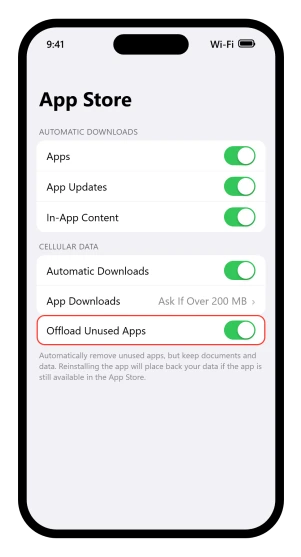
The switch is at Settings > Apps > App Store > Offload Unused Apps. Note that the low-storage condition appears only in Apple's guide, never on the screen itself.
Apple describes the same thing elsewhere without naming any switch at all: when a device is low on storage, "it frees up space by removing items that you can redownload or aren't needed, like unused apps and temporary files".
So do not assume you must have turned something on for this to have happened.
Our guide to an iPhone that says storage is full while iCloud has space lists this switch under what actually frees space, and tells you to turn it on.
It was right. This page is what that looks like a month later.
Our System Data guide goes further and suggests letting iOS do it automatically, which is where a lot of these cloud icons come from.
Tapping the icon downloads it again.
If it sticks on Waiting instead, our guide to apps stuck on Waiting opens with the fix for exactly that: tap the icon once so it reads Paused, then tap it again.
No cloud, no icon: it is probably in App Library
Which of the two things in that menu did you actually tap? They sit in the same menu, one after the other, and one of them keeps the app.
Apple's wording: "Touch and hold the app on the Home Screen, tap Remove App, then tap Remove from Home Screen to keep it in App Library, or tap Delete App to delete it from iPhone."
So Remove from Home Screen keeps the app. It stops being on any Home Screen page and lives in App Library, the screen you reach by swiping left past your last page.
Do not scroll looking for it.
Apple's App Library page gives a faster route: tap the search field at the top and type the name.
A name that comes up is proof the app was never deleted. A name that does not come up proves less than it looks, for reasons two sections down.
There is a settings version of the same confusion.
New downloads can go straight to App Library instead of the Home Screen, so an app installs, never appears where you expected, and looks like it failed.
That choice lives at Settings > Home Screen & App Library, where Apple offers Add to Home Screen or App Library Only.
A whole page of apps can be switched off at once
If a dozen apps went missing together and they have nothing in common, look at the Home Screen pages rather than the apps.
Apple documents hiding entire pages: touch and hold the wallpaper until the icons jiggle, then tap the row of dots at the bottom of the screen.
Thumbnails of every Home Screen page appear with a checkmark under each one, and clearing a checkmark hides that whole page. Tap Done, or press the Home button on models that have one.
The apps on a hidden page are not deleted, moved or blocked. Apple confirms they "still appear in the App Library" and that Search still finds them.
Tick the checkmark again and the page returns exactly as it was, which makes it the quickest of the lot to undo.
There is a knock-on effect Apple notes on the same page, and it catches people out later: with Home Screen pages hidden, new apps you download "may be added to App Library instead of the Home Screen".
Hide a page today, and next month's downloads land somewhere else.
The Hidden folder is a real place
Unlock the bottom of App Library before deciding an app has gone.
Apple: "The app disappears from your Home Screen and moves to the Hidden folder at the bottom of App Library." Getting into that folder needs Face ID, Touch ID or your passcode.
This is the exception to that search trick. A hidden app is not in the ordinary App Library grid and cannot be found with Search, so an empty search result does not mean the app was deleted.
Apple's own tip is the faster audit: to view a list of your hidden apps, go to Settings > Apps > Hidden Apps.
One limit before you go looking: only apps you downloaded yourself can be hidden. The apps that came with the phone cannot be, so if Calculator or Clock is missing, hiding is not your answer.
To restore an app from that authenticated folder, unhide it permanently and then place its visible icon on the Home Screen if needed.
To put a downloaded app there deliberately, use the iPhone app-hiding control and review what remains visible in system records.
Screen Time takes apps off the screen without deleting them
Safari is gone. So is Mail. Nobody in the house has deleted anything, and searching the App Store for Safari does not help, because Safari is not in the App Store.
Apple states the outcome: "If you turn off an app, it isn't deleted; it's temporarily hidden from your Home Screen until you turn it back on." Mail is the example Apple itself uses.
The route is Settings > Screen Time > Content & Privacy Restrictions > Allowed Apps & Features. Apple files it under removing an app or feature from the Home Screen, a fair description of what you are seeing.
Check that screen even if you never set it up yourself, because a limit put on the phone years ago can still be enforcing itself today.
If the screen asks for a Screen Time passcode nobody remembers, that is its own problem and no setting on this page gets around it.
When the app really has gone
"If they're still available in the App Store." Everything in this section turns on that clause.
That is Apple's only promise about redownloading a deleted app, and it says nothing about what happens when an app is not still available.
Developers do withdraw apps, and in practice one that has been pulled will not come back, but that last step is our reading rather than Apple's wording.
Be careful with purchase history as a test, because it can mislead.
Apple documents that a hidden purchase "will no longer appear in your list of purchases in the App Store" while still appearing in your complete purchase history in Settings.
So an app missing from the App Store list may simply have been hidden by you or a family member rather than withdrawn.
One thing not to rule out: plenty of built-in apps can be deleted outright, including Calculator, Contacts, Mail, Maps and Weather.
If one is missing and restrictions are off, someone may have deleted it, and the App Store will put it back.
Telling the cases apart
Match what you can see against what actually happened.
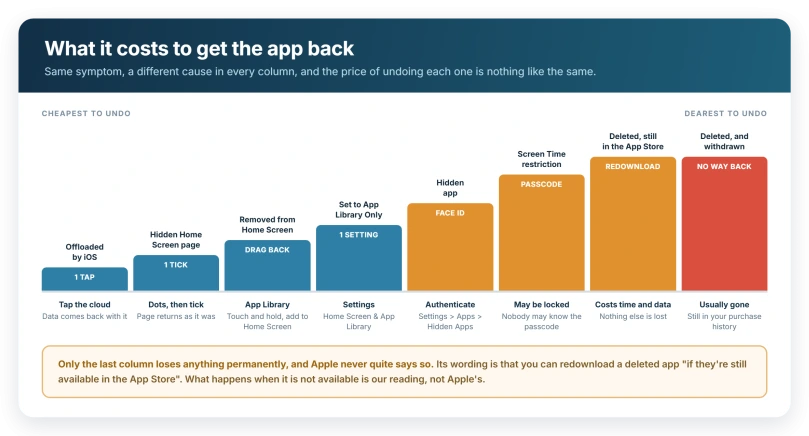
A cloud beside the name. Offloaded because storage ran low. Tap it, and let the badge clear before testing anything else.
Gone from every page, but in App Library. Removed from the Home Screen only, and nothing was deleted.
A dozen unrelated apps went at once. A hidden Home Screen page rather than the apps themselves.
Nothing in App Library search, but listed in Settings > Apps > Hidden Apps. Hidden, in the locked folder at the bottom of App Library.
Several Apple apps went together. Screen Time restrictions, which hide rather than delete.
New downloads never land on the Home Screen. Either App Library Only is set, or a page is hidden.
Gone everywhere and the App Store cannot find it. Deleted, and quite possibly withdrawn.
One check settles most of that list. Swipe left to App Library and search the name. If it comes up, nothing was deleted. If it does not, you are down to hiding, restrictions, or an app that has genuinely gone.
If none of these is your phone
Check the top of Settings. A phone managed by an employer or school says so under the search field, and an administrator can add and remove apps without asking you.
Apple's device management documentation describes unenrolling a device as something that "removes any custom apps and books on the device", so there an app really can go, and nothing on this page reaches that.
If it is the App Store itself that has gone rather than an app you downloaded, that has its own set of causes and none of the ones on this page apply, because the App Store cannot be offloaded, hidden or, outside the EU, deleted.
Our page on a missing App Store icon works through them.
The other gap is manual offloading. If an icon has a cloud but your storage is nowhere near full, somebody offloaded it by hand rather than iOS doing it for space.
That button is at Settings > General > iPhone Storage, tap the app, then Offload App.
What does not help
- Restarting the phone. None of these is a glitch, so a restart changes none of them.
- Signing out of your Apple Account and back in. Apple says most data, including apps, stays on the device when you sign out, so this moves nothing.
- Turning off Offload Unused Apps and expecting apps to return. It stops future offloading. Apps already offloaded still need a tap each.
- Deleting other apps to make room. Sensible for storage, but it does not bring back what has already gone.
- Assuming a missing built-in app was removed by iOS. Nothing on Apple's storage pages describes iOS deleting its own apps to make room, so check restrictions first.
Status: current for iOS 26.6. Every route on this page is documented by Apple, and none of these outcomes is a deletion except the last one.
Why does my iPhone keep deleting apps by itself?
Usually it is not deleting them. With Offload Unused Apps on, iPhone removes the app when storage is low but keeps your documents and data, leaving the icon in place with a cloud symbol. Tap that icon to reinstall, and visit Settings, Apps, App Store to turn the setting off.
How do I stop my iPhone offloading apps?
Go to Settings, tap Apps, tap App Store, then turn off Offload Unused Apps. That prevents future offloading but does not restore anything already offloaded, so tap each cloud icon to bring those apps back. Freeing storage another way makes it less likely to trigger again.
Where do apps go when they disappear from my iPhone?
Most of the time they are still on the phone. Remove from Home Screen leaves an app in App Library, hiding an app moves it to a locked Hidden folder at the bottom of App Library, and Screen Time restrictions temporarily hide apps from the Home Screen without deleting them at all.
Why can I not redownload an app I deleted?
Apple only promises you can download deleted apps again "if they're still available in the App Store", and it does not say what happens when they are not. In practice an app its developer has pulled stays in your purchase history without coming back. Check that history in Settings rather than the App Store list.
The Short Version
- Your iPhone is not uninstalling apps on its own. Offloading, hiding and restrictions all leave the app installed.
- A cloud beside the name means offloaded. Tap it to get the app back with your data intact.
- Offload Unused Apps lives at Settings > Apps > App Store, and Apple ties it to low storage.
- Remove from Home Screen keeps the app in App Library. Swipe left past your last page.
- Hidden apps cannot be found by search. They are listed at Settings > Apps > Hidden Apps.
- Only apps you downloaded can be hidden, never the built-in ones.
- Screen Time hides apps rather than deleting them, at Content & Privacy Restrictions > Allowed Apps & Features.
- A work or school phone can have apps removed by whoever manages it.
Where to Next
Your iPhone is not uninstalling anything behind your back. Offloading, hiding and restrictions all leave the same shaped hole, and none of them throws your data away.
Look at what is left behind rather than what is gone, because that is what tells the three apart.
If the app is nowhere at all, not in App Library and not in search, tell me whether the phone belongs to a family organiser or an employer, because that changes everything.

Isaac Smith is the founder and editor of PC Glance, a website that covers computers, laptops, and technology. He is a tech enthusiast and a computer geek who loves to share his insights and help his readers make smart choices when buying tech gadgets or laptops. He is always curious and updated about the latest tech trends.