
Offloading an iPhone app removes the app itself while keeping its documents and data on the phone. Open Settings > General > iPhone Storage, choose the app, and tap Offload App to free the space the app itself uses.
The app must download again before you can use it. Choose something you don't need immediately, and check how much space belongs to the app rather than its saved data before deciding whether offloading will help.
Choose an app in iPhone Storage
Open Settings, select General, then tap iPhone Storage. Wait for the app list and storage totals to finish loading. Select an app to open its detailed storage page.
Look at App Size and Documents & Data separately. Offloading removes the installed app and keeps its data, so the total beside its name isn't all space you'll get back.
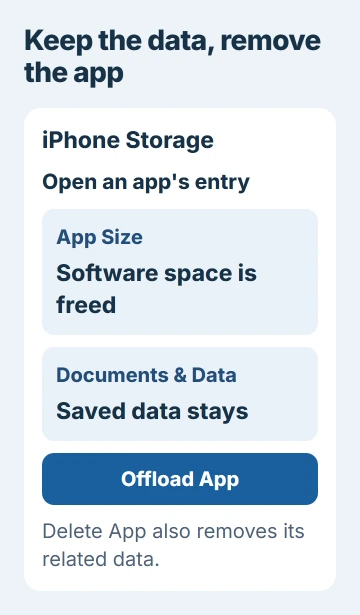
Apple describes offloading and deletion in its device storage instructions. Choose between them based on whether you want to keep the app's data.
For example, offloading a small app with a large Documents & Data entry won't free much space. Its saved content can still take up most of the total, so choose something else if you need a lot of space immediately.
An app with a much larger installed size than saved data can be a better choice. Compare the figures on your phone; offloading doesn't free the same amount of space for every app.
If this page stays on a loading indicator, use the iPhone Storage loading checks. Let the figures load before choosing an app based on its place in an unfinished list.
Offload that app and confirm the change
Tap Offload App, then confirm Offload App when the phone asks. Read the button carefully so you don't choose Delete App, which removes the app and its related data instead.
Afterward, the storage page offers a way to reinstall the app. The Home Screen icon can remain with a cloud symbol, showing that the app needs a download before it opens again.
Go back to iPhone Storage and wait for the numbers to refresh. Compare the space freed with the app size you checked, rather than expecting the app's saved data to disappear too.
Offloading isn't the same as Remove from Home Screen. Hiding the icon doesn't save storage; the installed app still opens from App Library.
If this app is already offloaded, choose another installed app to free more space. Reinstalling it downloads software again, using space when you're trying to free it.
I'd start with a large game or other app you can comfortably leave unused for a while. Keep travel, work or communication apps installed when you'll need them before another download is practical.
Reinstall the app when you need it again
Tap the Home Screen icon with a cloud symbol to download the app again. You can also return to its page in Settings > General > iPhone Storage and use Reinstall App when that control is available.
Let the download finish before opening it. The reinstalled app keeps its saved documents and data, though an account-based service may still ask you to sign in or complete its usual checks.
The iPhone app download guide covers downloads stuck at Waiting. If this one stalls, work on the download first instead of deleting the saved data.
Don't offload an essential app just before going somewhere without a usable connection. Keeping its documents on the phone doesn't make its removed software available offline.
If you can't download the app again, check whether it's still in the App Store and contact its developer or Apple Support. The saved data and cloud icon can't replace the app's software.
Let iPhone offload unused apps automatically
To let your iPhone offload unused apps automatically, open Settings > Apps > App Store and enable Offload Unused Apps. This is separate from choosing one app manually in iPhone Storage.
The current storage guide explains how this removes unused apps when storage runs low, while keeping their data and Home Screen icons.
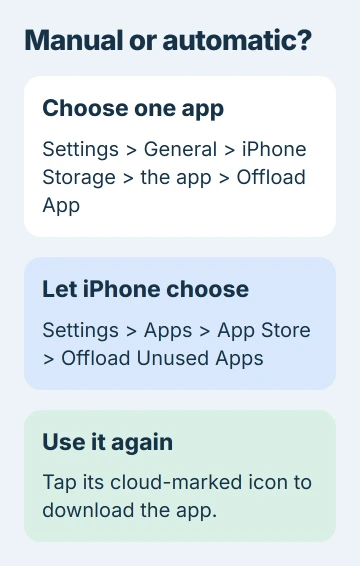
Turn this on if you're happy to download rarely used apps again when you need them. Leave it off and offload apps manually if you want to choose exactly which ones are removed.
On older iOS releases without the separate Apps section, look for App Store directly in Settings. An app's storage page is separate from this App Store setting.
If apps have been gaining cloud symbols unexpectedly, the guide to disappearing iPhone apps distinguishes offloading from hidden apps, removed icons and Screen Time restrictions.
Turning this off stops automatic offloading in the future. Apps already offloaded still need to be reinstalled when you need them; the switch doesn't download them again.
Pick another cleanup when retained data is the large part
When Documents & Data accounts for most of an app's storage, look inside that app for downloaded media or files you no longer need. Use its own content controls so you can choose what to keep.
Removing a downloaded movie in a streaming app is different from removing the app itself. In a document app, check the storage location for important files before deleting content or choosing Delete App.
More iCloud capacity doesn't give your iPhone more built-in storage. The iPhone and iCloud storage explanation helps when the phone remains full despite unused cloud space.
Offloading doesn't erase every cache or fix every storage problem. It removes the installed app software and keeps that app's documents and data.
If the storage totals still don't make sense after they refresh, ask Apple Support to review the app's two size entries. If one app's content stays large, its developer can explain which files you can safely remove.
The Short Version
Use Offload App in iPhone Storage after checking its installed size. Your saved data stays, but you'll need to download the app again. Offload Unused Apps handles this automatically. Clean up large saved downloads separately.
Checked November 5, 2026.

Isaac Smith is the founder and editor of PC Glance, a website that covers computers, laptops, and technology. He is a tech enthusiast and a computer geek who loves to share his insights and help his readers make smart choices when buying tech gadgets or laptops. He is always curious and updated about the latest tech trends.