
To save a scan as a file, use your scanning software rather than the printer's Copy button. Load the original, open your HP scanning software, choose the printer's scanner and a file format, then preview and save the result.
On Windows, use HP Scan if it's included in your printer's full software package, or try Windows Scan. HP printers don't all have scanners, and their software differs by model.
Choose the scanning app and the right HP device
Check your printer's model and whether it has a scanner glass or document feeder. A print-only LaserJet can't scan an original just because it appears in Windows' printer list.
Open HP Scan from Start if it's installed. In some full software packages, open the printer's app first, then select Print, Scan & Fax > Scan > Scan a Document or Photo.
HP's OfficeJet Pro 9010e manual shows this route through the printer software. Follow the controls in your installed package; HP Smart and the newer HP app look different.
For supported Enterprise and Managed models, the Universal Scan guide also covers HP Scan on Windows 11. Check its supported-model list before using that package with a home printer.
If the app lists both the computer's Camera and the printer's scanner, choose the printer to use its glass or feeder. Choosing the camera takes a photo of the page with your device instead.
If you don't have a scanning app, follow the Windows Scan section to get one from Microsoft Store. For HP Scan, ask HP Support which full software package works with your printer model and Windows version.
Load the original on the glass or in its feeder
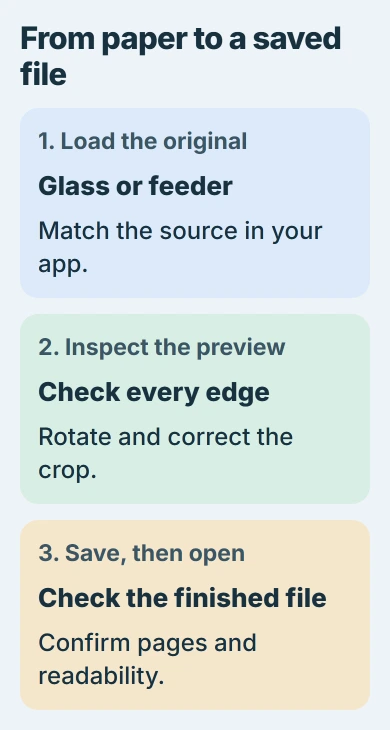
For one sheet, a photo or a book page, lift the scanner lid and put the side you want captured against the glass. Align it with the corner mark on your printer, then close the lid without moving it.
Use the marking on your own model rather than guessing a corner. On the 9010e, it's the rear-left corner. Another scanner's guides can be positioned differently.
For a supported stack of ordinary paper, use the automatic document feeder if your printer has one. Follow its printed loading diagram and move the width guides gently against the pages.
On the 9010e, load originals print-side up in the feeder. Check which paper your model supports before loading your originals.
Photos can be damaged in the feeder, so scan them on the glass. Remove staples and paper clips, keep sheets flat and within your feeder's capacity, and don't force in thick originals or extra sheets to try to fix a failed scan.
The bottom input tray holds blank paper for printing and copying. Put the document you're scanning on the glass or in the feeder.
Pick the source and file format before scanning
In HP Scan, choose the shortcut that fits the result you want. Save as PDF creates a document file, while Save as JPEG creates an image file. Check which shortcut is selected before pressing Scan.
Choose the scanner glass or document feeder as the source when the app offers that setting. If paper is in the feeder but the app reads the empty glass, you'll get an empty scan from the wrong place.
Check the paper size and color choice. Match the original instead of leaving a smaller size that can crop off an edge. Use color when colored notes or marks matter to the finished document.
Open More in the scan dialog for extra HP Scan options. The choices depend on your printer and installed package, so a missing feature doesn't necessarily mean the installation failed.
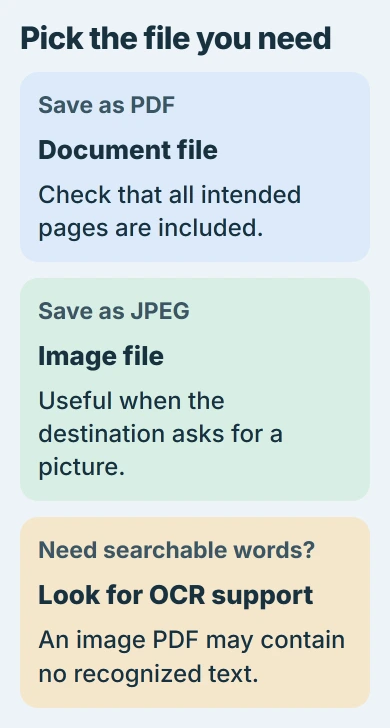
For editable words, look for an OCR or searchable-PDF option if your software has it. OCR turns printed letters into text the software can search or edit. A normal PDF scan can hold page images without searchable or editable words.
I'd pick the format before scanning a long document. That way, you won't reach the save screen with separate images when you need one document.
Preview the captured page, then save it
Select Scan and wait for the scanner to finish. If the app offers Show Viewer After Scan, enable it when you want to review and adjust the capture before saving.
Check all four edges in the preview. Rotate a sideways page and correct an unwanted crop before saving. Zoom into small print and signatures to check that they remain readable.
Before saving, use the app's add-page or continuation control for more pages if it has one. Check whether it puts them in one document or saves a separate file for each page.
Choose Save, give the file a name you'll recognize, and pick a folder you can find again. Check the location in the save dialog; scanning apps don't all use the same default folder.
Locate the scan by its filename and open the saved copy. Check its page count, order and readability before sending it or putting the paper away. Seeing a preview in the scanning app isn't the same as having a saved document.
Use Windows Scan when HP Scan isn't available
Open Microsoft Store, search for Windows Scan, and install the Microsoft app if you don't already have it. Open Scan from Start and select your HP scanner from its scanner list.
Windows Scan lets you choose the source, file type and save location. Its available formats differ from the HP software, so check the list before starting.
Choose the flatbed (scanner glass) or feeder to match where you put the original. Use Show more for extra choices such as the destination folder, then start the scan and inspect the saved image.
If the scanner isn't listed, follow the Windows scanner discovery checks. Windows can list the printer even when its scanning function hasn't been set up.
When the preview is blank or the scanner won't connect
For a blank scan, check which side faces the glass, which source you've selected and where the original sits. If only the glass or feeder fails, tell support which one.
For a wireless printer, check that the computer and printer are on a network that allows them to communicate. If the printer has lost its Wi-Fi connection, use the HP wireless setup checks.
A working printer doesn't tell you whether its scanner's moving parts or software work. If scanning still fails, give HP Support your model, app, connection type and exact message, and say whether you ever see a preview.
The Short Version
Load the original, choose the scanner source and file type, then scan and save. Inspect the saved result before sharing. Use Windows Scan or model-specific HP software when the expected app isn't available.
Checked November 5, 2026.

Isaac Smith is the founder and editor of PC Glance, a website that covers computers, laptops, and technology. He is a tech enthusiast and a computer geek who loves to share his insights and help his readers make smart choices when buying tech gadgets or laptops. He is always curious and updated about the latest tech trends.