

A clear copy made from the HP printer's own controls means its scanner can read a page without your computer. Try that before reinstalling drivers: a failed copy or scanner error points to the glass, feeder or hardware instead.
A working printout can't tell you whether scanning works. The printer can still put ink on paper when it can't read your original, which is why the copy test helps.
In this guide
1. Make a copy from the glass
Place an ordinary printed page against the glass, printed side down, using its corner mark. Close the lid, load paper, and start Copy on the printer's control panel.
Use the glass first, even if you normally scan a stack through the feeder.
Look at the copied page. A readable copy tells you the scanner read the page from the glass without help from the HP app, Windows or your network.
If it looks right, go to the connection and app checks rather than cleaning a glass that's already giving a clear image.
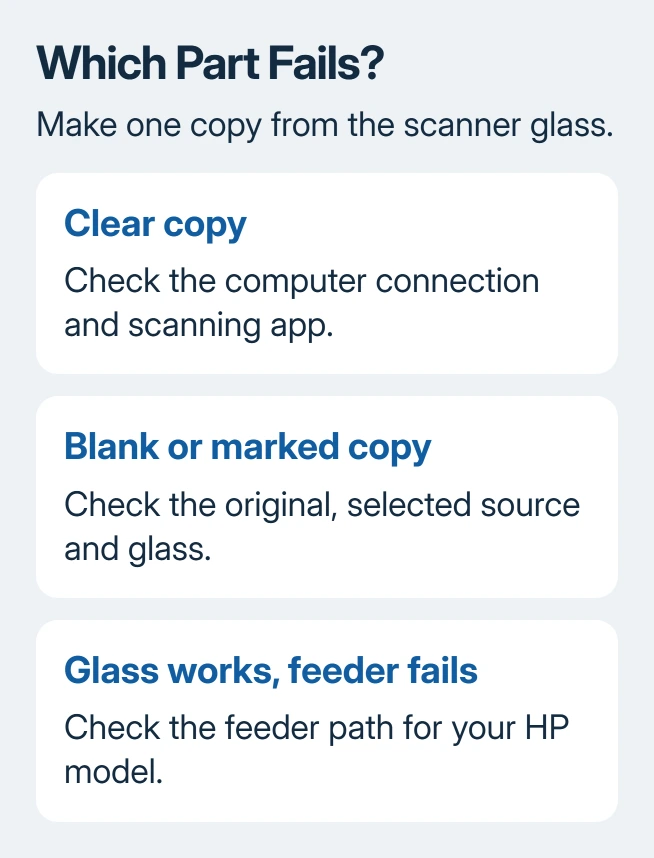
A blank page calls for checking which side of the original faces the glass and where it's positioned. A copy with marks in the same place every time calls for inspecting the scanning surface.
If the printer displays an error, record the message word for word.
An ink or paper error can prevent the copy from completing, too. Clear that displayed problem before using the copy result to judge the scanner. A copy that never started isn't the same as a scanner that captured a blank image.
2. Compare the feeder with the glass
If your model has an automatic document feeder, try the same original there after testing the glass.
Follow the feeder's loading symbol for the printed side, straighten the stack and move the guides against its edges without bending the sheets.
If copying works from the glass but fails from the feeder, focus on the feeder. Don't reinstall the computer app to fix sheets that aren't being pulled in. Remove the originals and check the feeder for accessible scraps or an obvious jam.
Some printers scan only from the glass. Others have a feeder but can't scan both sides automatically. Choose a source and one-sided or two-sided option your model supports; another OfficeJet or LaserJet can handle originals differently.
For a scan made in software, choose Flatbed or Document Feeder to match where the original sits. The HP scan-to-file steps cover selecting a source and checking the saved result once the scanner is responding.
3. Clean an image problem without soaking the scanner
Turn the printer off with its power button and unplug it before cleaning. For an OfficeJet Pro 9010e, use a soft, lint-free cloth moistened with mild glass cleaner for the scanner glass and lid backing.
Apply the cleaner to the cloth, not directly to the glass. Wipe away dirt and fingerprints, then close the lid and reconnect power. Use your own model's cleaning instructions if its approved cleaner or feeder procedure differs.
I'd compare one clean sheet on the glass before opening the feeder cover. That gives you a simple image to judge, and it avoids treating a stain on the original as damage inside the machine.
Repeat the copy. If the marks disappear, the surface needed cleaning. If only feeder copies still have a line or fail to feed, use the model's feeder-cleaning instructions; the 9010e manual has a separate roller and separator-pad procedure.
4. Restart a printer that reports a failure
For an OfficeJet Pro 9010e showing a printer failure, turn it off, disconnect and reconnect the power cord, then turn it on again. Let startup finish before requesting a new copy. This is a power restart, not a factory reset.
HP's own failure procedure says to record a persistent error and contact support if that restart doesn't clear it. Keep the full message, including any code, rather than reporting only that scanning is broken.
For another HP model, use its instructions for the displayed scanner or printer error. Don't move the scanner bar by hand or dismantle its mechanism.
A recurring mechanical error needs a service assessment, particularly when copying fails without a computer attached.
If copying now works, check whether your computer can reach the scanner. If it still fails, skip the computer reinstalls and tell the service team what happened with both the glass and feeder.
5. Check whether Windows can reach the scanning function
For USB, leave out the hub and use a working data cable to connect your computer and printer. For Wi-Fi, both devices need to be on a local network that lets them communicate.
Guest Wi-Fi can allow internet access while blocking contact with other local devices.
In Windows 11, open Settings > Bluetooth & devices > Printers & scanners. Select the HP device and look for scanning options. In Windows 10, start at Settings > Devices > Printers & scanners instead.
Microsoft's scanner setup instructions explain that an all-in-one may appear as a printer. The scanning app still needs to be able to find its scanner.
Open Windows Scan and check the scanner selector. If your HP is missing, follow the Windows scanner discovery checks. Tell support that copying worked: the scanner can read a page, but the computer can't reach it.
6. Try a scan in another supported app
Select the HP scanner in Windows Scan, choose the glass or feeder, and scan one page. Use Show more to check where the file will be saved.
Open the saved file to check that the scan actually saved, rather than just appearing in a preview.
If Windows Scan succeeds but your usual HP software fails, the problem is in that app or its setup. Use the current software offered for your exact printer and operating system. Don't use a software package for a different model.
On a Mac, check System Settings > Printers & Scanners, select the printer and use Open Scanner when available. If scanning works there, tell HP which app fails and which Mac scanning route succeeds.
7. Give support the comparison that changes the repair
Ask HP Customer Support about scanner service if copying still fails with a correctly loaded original after you've followed your model's restart steps. Provide the model, error code, and whether the glass, feeder or both fail.
For a software-only failure, provide the operating system, scanning app, USB or Wi-Fi connection, and the result in the second app.
With those details, support can choose between a connection fix and scanner software, without sending you through another printing test.
The Short Version
Copy from the glass, compare the feeder if fitted, and clean only the path showing an image problem. Restart a printer failure using the model's instructions. A clear copy followed by failed computer scanning needs connection or app checks.
Checked November 16, 2026.
 If you have any business, I can build it online






