
You open Settings, General, iPhone Storage, and then nothing happens. The bar at the top draws itself, a spinner sits where your app list should be, and there is nothing on screen to tap.
Apple's documentation for that screen is two sentences long. None of it mentions the spinner, how long the screen should take, or what to do when it never finishes.
So I will start with what Apple does say, then cover the two things iOS 26 changed here without telling anybody.
What Apple documents, in full
This is the whole thing, from the iOS 26 user guide:
"Go to the Settings app, tap General, then tap iPhone Storage."
"The available storage is shown at the top of the screen."
That is it. Two sentences for the screen, and a short section on removing apps.
There is no stated load time, no troubleshooting, and no acknowledgement that the screen can sit there calculating.
Ours, and worth being plain about: when a vendor documents a screen in two sentences, a slow one is not covered by anything.
That is genuinely all of it. So if you have been hunting for an official answer and coming up empty, you were not looking in the wrong place.
The screen is doing real work, and it starts over
The bar at the top appears immediately. The app list underneath does not, because those are two different jobs.
The bar is a figure the system already has. The list requires walking every app's container and adding up documents, caches and data, app by app.
Ours, reasoned from what the screen shows: the reason it can feel stuck is that the top of the screen has already succeeded while the part you actually want is still counting.
Nothing on screen tells you those are separate.
Leave it on that screen. Backing out and returning is the one thing that guarantees you start again, because nothing has been cached yet.
If the phone is also mid-backup, mid-update or downloading apps, it is competing for the same file system. Finishing those first is not a fix so much as getting out of the way.
So the worst thing you can do is back out and try again, which is exactly what most of us do. I would put the phone down and leave the screen open instead.
The setting moved, and this is why older instructions fail
The first thing iOS 26 changed quietly is where the setting lives.
If you have followed a guide that told you to turn on Offload Unused Apps from the iPhone Storage screen, you did not misread it. That is where it used to be.
iOS 18, in Apple's words: "Go to Settings > General > iPhone Storage", then "Tap Enable next to Offload Unused Apps."
iOS 26, in Apple's words: "Tap Apps, tap App Store, then turn on Offload Unused Apps."
It is now Settings, Apps, App Store, Offload Unused Apps. Two menus away from where every older guide sends you, including Apple's own until recently.
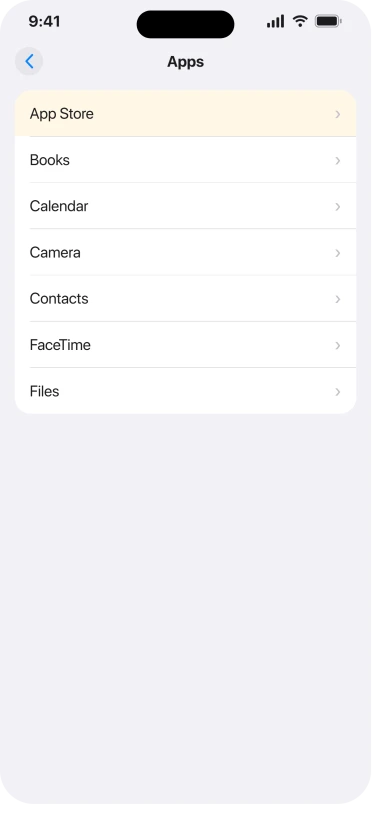
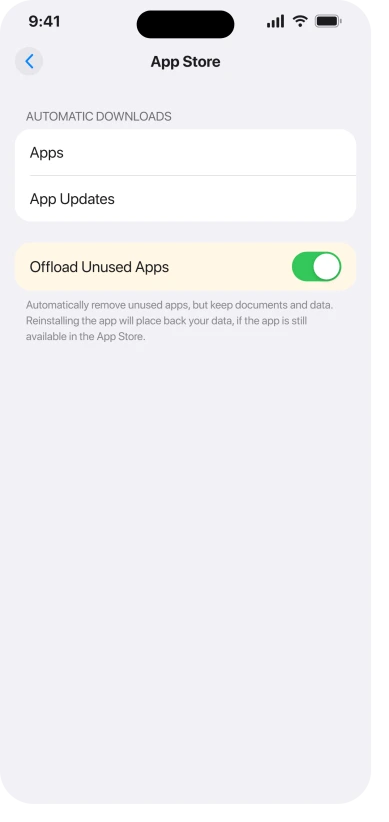
That matters here for a practical reason. If the storage screen will not finish loading, you cannot reach the old switch anyway. The new location does not depend on that screen loading at all.
The bigger change: Apple was wrong, and has quietly fixed it
This part takes a minute to check for yourself, and it changes what the setting is actually promising you.
Apple's own guide used to tell you where offloaded apps went. The iOS 18 page is still live, and it still says it:
"The unused apps move to iCloud Drive. You can find them in iCloud Drive in the Files app."
That was not true. Offloading has never moved an app into iCloud Drive, and an offloaded app has never appeared in the Files app.
The binary is deleted from the phone and re-downloaded from the App Store when you tap the icon.
Apple has now replaced that sentence.
The iOS 26 page says: "When storage is low, iPhone removes the app but keeps your documents and data." It adds that the icon stays on the Home Screen with a cloud symbol, and that tapping it reinstalls the app.
No note, no correction, no changelog. The old wording is simply gone from the current page and still sitting on the iOS 18 one.
Why this matters to you: if you went hunting in the Files app for offloaded apps and found nothing, you were following Apple's instructions correctly and they were wrong. You did not miss a folder.
What actually frees space, in the order that works
Offload is the gentlest option and it keeps your data, so it goes first. Beyond that, Apple's page points at the Files app and at removing apps manually, and stops.
Two things are worth knowing that Apple does not connect for you.
Deleting photos does not free space immediately. They move to Recently Deleted and sit there.
Our page on storage that stays full after deleting covers that trap properly.
System Data is not a folder you can open. If the large bar is the grey one rather than apps, that is a different problem with a different answer, and what System Data actually is is the page for it.
Status: checked on iOS 26.6, 14 August 2026. The route change and the withdrawn iCloud Drive sentence are both visible right now, by opening the same Apple guide page at iOS 18 and at iOS 26.
What does not work
- Cleaner apps that promise to fix a stuck storage screen. None of them can make the count finish faster. The counting is the operating system walking its own app containers, and an installed app is not given access to that.
- Resetting all settings. It does not touch app data, which is what is being counted.
- Backing out and reopening the screen. This is the common instinct and it is the one thing that reliably makes it take longer.
Why does iPhone Storage take so long to load?
Because the app list is calculated fresh each time by walking every app's stored data, while the bar at the top is a figure the system already has. Apple publishes no expected duration for it. Leave the screen open rather than backing out, because leaving restarts the count.
Where did Offload Unused Apps go in iOS 26?
Settings, then Apps, then App Store, then Offload Unused Apps. In iOS 18 it lived on the iPhone Storage screen itself, which is why older instructions send you to the wrong place.
Do offloaded apps go to iCloud Drive?
No, and Apple's older guide saying so was wrong. The iOS 18 page still says offloaded apps "move to iCloud Drive" and can be found in the Files app. The iOS 26 page has replaced that with the accurate version: the app is removed, your documents and data stay, and the icon remains with a cloud symbol.
The Short Version
- Apple documents this screen in two sentences and says nothing about it hanging.
- The bar at the top and the app list are separate jobs. The bar finishing does not mean the list is close.
- Leave the screen open. Backing out restarts the calculation.
- Offload Unused Apps moved in iOS 26. It is now Settings, Apps, App Store, not the storage screen.
- Apple's iOS 18 guide claimed offloaded apps move to iCloud Drive and appear in the Files app. That was wrong, and the iOS 26 page has quietly replaced it.
- No cleaner app can speed up the calculation. It is the operating system doing it.
Where to Next
Give the screen time and stay on it. The bar and the list are two separate jobs, and backing out sends the calculation back to the start, which is what turns a slow screen into one that never finishes.
If it is still spinning after a good while with the phone plugged in and on Wi-Fi, that is worth a restart and then one more patient attempt.
Tell me in the comments how long yours took to fill in, because Apple publishes no figure at all and I would like a real one.

Isaac Smith is the founder and editor of PC Glance, a website that covers computers, laptops, and technology. He is a tech enthusiast and a computer geek who loves to share his insights and help his readers make smart choices when buying tech gadgets or laptops. He is always curious and updated about the latest tech trends.