

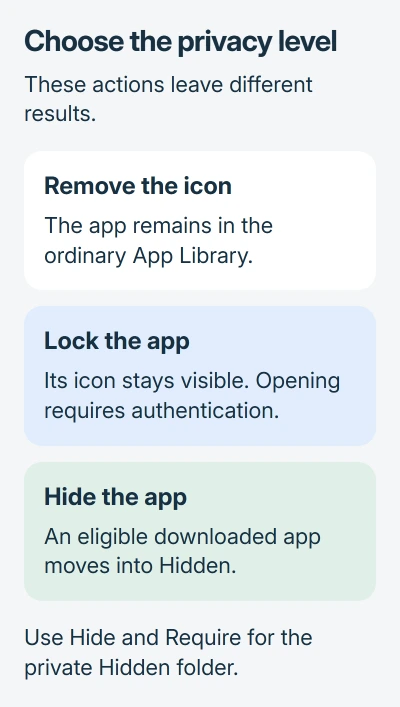
Hold an app's Home Screen icon, choose Require Face ID, then select Hide and Require Face ID and confirm Hide App. On Touch ID models, choose the matching Touch ID commands; the menu can also offer a passcode.
The app stays installed in a protected Hidden folder, where you'll need Face ID, Touch ID or a passcode to open it. Removing only its Home Screen icon leaves it in the ordinary app list, without that protection.
Start with an app that supports hiding
Choose an app you downloaded from the App Store. Apps that came with your iPad can't be hidden. Neither can your current default browser or, in the EU, your default app marketplace.
Apple explains those limits in its iPad app-hiding instructions. Their missing Hide option isn't a problem with your iPad.
In Family Sharing, children under 13 can't use these locking or hiding controls. For ages 13 to 17, parents can review downloaded apps, check usage and set Screen Time restrictions. Regional ages vary.
If an app you should be able to hide has no privacy command, check your iPad's software version. Install available updates, then check that app again. Leave the app installed during these checks.
Hide the app through its authentication menu
Find the app on your Home Screen and hold its icon until the quick-actions menu opens. Choose Require Face ID, Require Touch ID or Require Passcode, whichever your iPad shows.
Next, choose the option that begins with Hide and Require. Confirm it's you with Face ID, Touch ID or your passcode, read the confirmation and choose Hide App. The app's ordinary icon should disappear.
If the icons start moving before you see the menu, finish editing the layout and try a shorter hold. Use the privacy command in the app's quick actions. Putting its icon in a normal folder won't lock it.
Don't choose Delete App instead. That removes the app and its data from your iPad. Hiding keeps it installed so you can still open it after confirming it's you.
Hide other apps the same way if you want them protected too. You don't need to hide a whole category because one app contains private information; choose the setting for each app separately.
Open the hidden app without changing its privacy setting
Keep swiping left from your Home Screen until App Library opens. Find Hidden at the bottom, open it and confirm it's you with Face ID, Touch ID or your passcode.
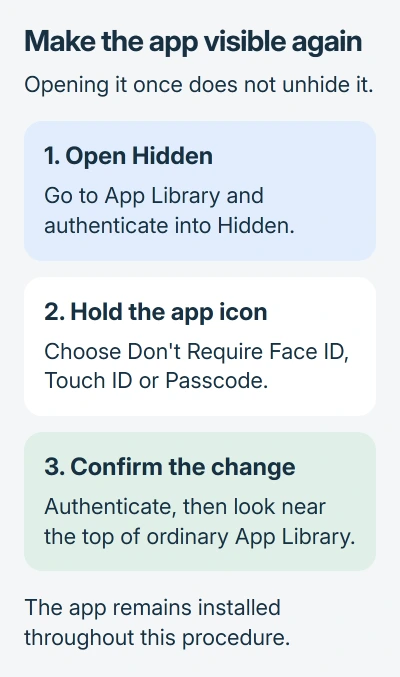
Tap the app inside the folder and confirm it's you again if asked. The app then opens normally. Opening it this way keeps it hidden from the ordinary app list afterward.
To check which apps are hidden, you can also look at Settings > Apps > Hidden Apps. That gives you a list instead of having to judge by which icons are missing from your Home Screen.
I'd check Hidden before downloading a missing app again. If it's already in that folder, open it from there instead of reinstalling it or clearing storage to get it back.
If the identity check fails, you'll need Face ID, Touch ID or a passcode your iPad accepts. Ask the owner for access if it isn't your iPad. Changing an App Store setting won't get past that check.
Restore the app to the ordinary app list
Open Hidden in App Library and confirm it's you. Hold the app's icon, select Don't Require Face ID or the matching Touch ID or passcode command, then confirm it's you again when asked.
Look near the top of the normal App Library list for your app afterward. If it's there, it's no longer hidden, even if it hasn't returned to its old Home Screen position.
On a phone, the iPhone unhide procedure also explains how opening a hidden app differs from unhiding it. Use that device's own setting to change its app list.
Hiding applies only to that iPad. The choice doesn't sync through iCloud, so an iPhone or another iPad on the same account keeps its own app arrangement.
Keep the icon visible but require a check to open it
Lock an app when you want its icon easy to find but its contents protected. Hold the icon to open the same menu and choose the Require command, without choosing Hide.
The icon stays visible, but you'll need Face ID, Touch ID or the allowed passcode to open the app. It locks again after you quit, so opening it once doesn't turn off the lock.
Information from locked apps stays out of notification previews, search and Siri suggestions. That helps when you're showing someone your tablet while keeping your usual app layout easy to use.
To remove the lock later, hold the visible icon and choose the Don't Require command. Confirm it's you, then try opening the app again. This removes the identity check and keeps the app installed.
Remove only the Home Screen icon for layout cleanup
If privacy isn't the aim, hold the app and choose Remove App, then Remove from Home Screen. The iPad removal instructions keep it installed in App Library.
You can still open the app from that list. Use this option to tidy your Home Screen, or follow the iPad app-deletion guide if you want to uninstall it or free up storage.
If an app that supports hiding still won't move into Hidden, contact Apple Support. Give its name and your iPadOS version, then explain where it stopped: the command was missing, the identity check failed or hiding didn't finish.
The Short Version
Use Hide and Require for an eligible downloaded app. Open it later in App Library's Hidden folder, or use Don't Require to restore ordinary visibility. Locking keeps the icon visible; removing the Home Screen icon only tidies the layout.
Checked November 5, 2026.

Isaac Smith is the founder and editor of PC Glance, a website that covers computers, laptops, and technology. He is a tech enthusiast and a computer geek who loves to share his insights and help his readers make smart choices when buying tech gadgets or laptops. He is always curious and updated about the latest tech trends.