
Deleting apps on iPad takes more than removing their Home Screen icons. Hold the app, choose Remove App, then Delete App and confirm. Choosing Remove from Home Screen keeps the app installed in App Library.
Before deleting, save any documents that exist only inside that app. Cancel an unwanted subscription separately, because removing the app does not stop its billing.
Delete the app from its icon
Find its Home Screen icon. Keep a finger on it until the menu opens, choose Remove App, and select Delete App. Finish with Delete in the confirmation.
Apple documents that sequence in its app deletion instructions. If the icons start moving instead, tap the small removal control on the app, select the deletion option and confirm. Tap Done afterward.
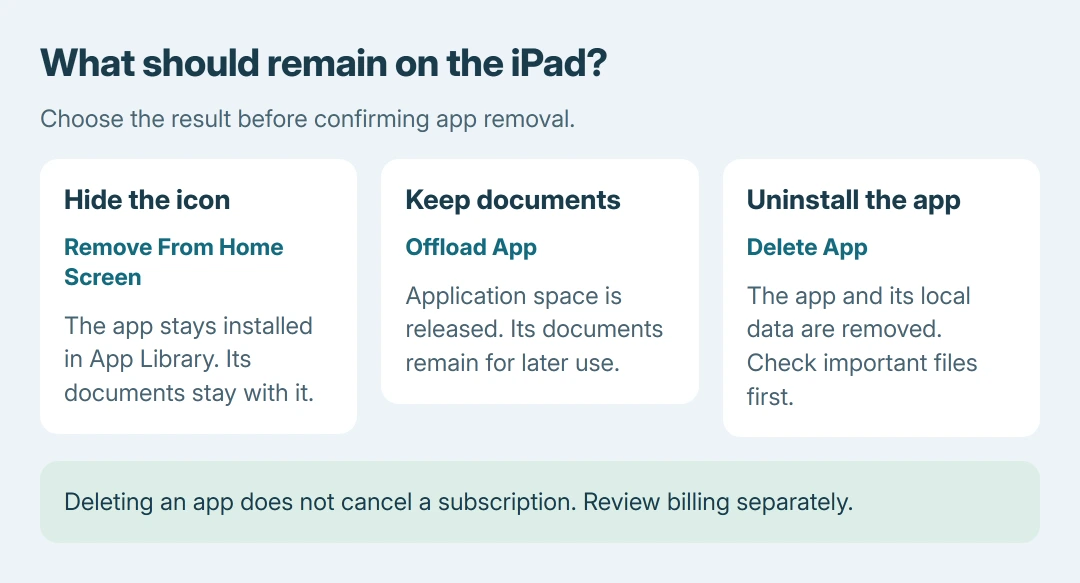
Status: iPad app removal checked October 26, 2026, against Apple's current iPadOS guide. Deleting, offloading and hiding have different results. No app was removed here.
If the icon is absent, swipe left through the Home Screen pages to reach App Library. Find the app there and hold its icon to open its deletion control. Apple also permits deleting an app found through Spotlight search.
Closing an app is another task entirely. Use the iPad closing controls when the aim is to stop an unresponsive window rather than uninstall the software.
Choose Delete App or Offload App in storage
Open Settings > General > iPad Storage, then select the app. This view is useful when the reason for removing it is storage: it shows the app alongside its documents and data.
Apple says Offload App recovers the space occupied by the application while retaining its documents. Delete App removes the application and its associated local data. Pick the option that matches what should remain.
Offloading is suited to an app that may be needed again. It requires downloading the application later, so do not depend on it being available offline after offloading.
Apple's iPad removal guide distinguishes local data from material already stored in iCloud. Its iCloud documents and photos remain after app removal. Check where important files are saved first.
Return to iPad Storage after removing a large app. Apple states that the free-space figure can take a moment to refresh. An unchanged number immediately after confirmation does not mean the app returned.
Deal with a missing deletion control
Some built-in Apple apps cannot be uninstalled. If the control is missing only for one Apple app, check the supported-app list linked from Apple's deletion page before changing restrictions.
For a downloaded app, check whether Screen Time permits app deletion. Apple's instructions require Deleting Apps to be set to Allow. A parent may control this permission on a child's iPad.
The Screen Time deletion restriction guide explains the related iPhone setting. On the iPad, follow the restriction controls shown for its installed iPadOS version rather than assuming an app is damaged.
A school or employer can prevent removal through device management. Ask the administrator to review its app policy. Our recommendation is to resolve that permission first; reinstalls or resets do not grant it.
Cancel billing and check how to reinstall
For a subscription billed by Apple, open Settings, tap your name and choose Subscriptions. Open the subscription and use its cancellation control if the service is no longer needed.
A service billed elsewhere needs that provider's cancellation process. Check the bill or account page to identify who collects the payment.
Reinstalling an available App Store app is possible later. In the current iPad guide, the route starts with the account picture in App Store, then Apps & Purchase History > Your Apps. Find the app and use its download control.
Reinstallation does not promise to restore documents deleted from local storage. The file check before removal is ours: confirm a usable copy in the app's account or chosen storage location before discarding the local one.
If an ordinary downloaded app still cannot be deleted with restrictions allowed, contact Apple Support. Give the app name, iPadOS version and whether the deletion control is missing or its confirmation fails.
The Short Version
Choose Delete App to uninstall, Remove from Home Screen to hide the icon, or Offload App to retain documents while reclaiming application space. Review local files and subscriptions before confirming removal.

Isaac Smith is the founder and editor of PC Glance, a website that covers computers, laptops, and technology. He is a tech enthusiast and a computer geek who loves to share his insights and help his readers make smart choices when buying tech gadgets or laptops. He is always curious and updated about the latest tech trends.