
A macOS update can leave your MacBook showing the Apple logo for a long time. Leave it connected to power overnight if an update is underway; repeatedly forcing it off can interrupt the installation.
If your MacBook is stuck on the Apple logo during a normal startup, restart once, disconnect accessories, then open macOS Recovery to check the startup disk. Try reinstalling macOS only after checking that disk.
1. Decide whether this is an update or a stalled startup
Think back to what happened before the logo appeared. If you accepted an update or started a macOS installation, a slowly moving bar and long pauses can be part of the installation. The screen may also go blank between stages.
Keep the charger connected and leave the lid open. Apple's Apple-logo startup guidance says an update may need overnight to finish. It doesn't set a fixed wait before treating a progress bar as stuck.
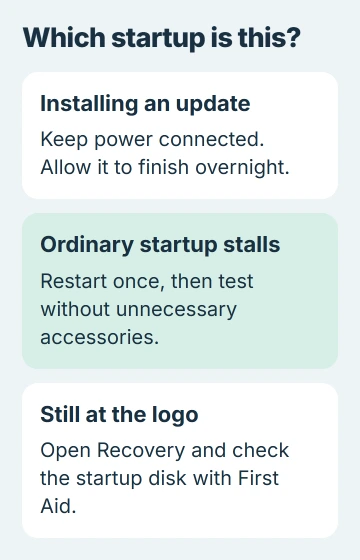
If this was a normal startup, or the same screen is still there after an overnight wait, try the shutdown step next. Note whether the progress bar stays in one place or your Mac keeps restarting at the logo.
A completely black, unresponsive laptop needs the separate MacBook power checks. If the logo appears, your Mac has reached a later startup stage, so changing chargers alone won't fix every possible cause.
2. Restart once with unnecessary accessories removed
Hold down power until your MacBook turns off, allowing up to 10 seconds, then release it. On a Touch ID model, use that button. Press power normally to start the MacBook again.
If it stops at the logo again, shut it down with the same power-button method. Disconnect hubs, printers, external storage and other accessories you don't need for startup. Connect the charger directly to the laptop where possible.
Start it again. If startup completes, reconnect the accessories separately after login. A return of the problem with one device attached points you toward that device or cable rather than an immediate macOS reinstall.
If you normally start your Mac from an external disk, keep that disk attached and remove the other accessories. Disconnecting it would change which system your Mac is trying to load, so it wouldn't be the same startup check.
If your Mac still stops at the logo while starting from its built-in disk with accessories removed, try Recovery next. Repeating the same forced restart won't tell you much more at this point.
3. Open the Recovery tools for your Mac's processor
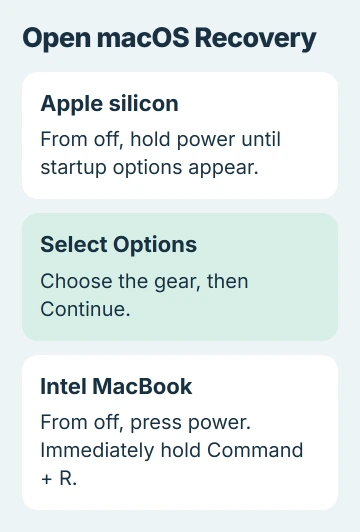
macOS Recovery gives you built-in repair tools, including Disk Utility and the macOS installer, without opening your normal desktop. Start with your MacBook fully off.
For Apple silicon, press power and keep holding it while startup options load. Release it when the options appear, select the Options gear, then choose Continue.
For an Intel MacBook, press and release power, then immediately hold Command + R. Continue holding those keys as the Apple logo or a rotating globe appears. Use the built-in keyboard for this startup shortcut.
If asked, select the startup disk and a user whose password you know, then enter that user's Mac login password. Once you see the window with Disk Utility and Reinstall macOS, you're in Recovery.
If an Intel Mac can't open its local Recovery, Option + Command + R can start Internet Recovery. Connect to a working network when asked. A globe with a warning needs network troubleshooting before the disk tools can load.
If Apple-silicon startup options never appear, or neither Intel Recovery route works, use the support advice at the end. Being unable to open Recovery isn't a reason to erase the disk another way.
4. Run First Aid through the startup disk's hierarchy
In Recovery, select Disk Utility > Continue. Choose View > Show All Devices, if offered. The sidebar should show the physical drive, its storage groups called containers, and the volumes inside them.
Follow the Disk Utility repair sequence from the last volume upward. Select the lowest listed volume on the startup device, choose First Aid, and start the check with Run or Repair Disk.
Check each volume and volume group, then each container, and finally the physical drive. The names and number of items vary. Many Macs show Macintosh HD and Macintosh HD - Data inside one container.
If a volume needs unlocking, enter the Mac administrator's password. If you can't select First Aid for an item, skip it as the repair guide instructs and keep working through the remaining items.
Read the final result. If the checks complete, quit Disk Utility and choose Restart from the Apple menu. Check whether your Mac now reaches the login window and desktop.
If the disk is missing or can't be repaired and you need files that aren't backed up, stop before choosing Erase. Tell support exactly what Disk Utility reports and ask about saving your files before a repair that would delete them.
5. Reinstall macOS when repair doesn't restore startup
If First Aid finishes but the logo stall returns, open Recovery again and choose Reinstall macOS. Follow the installer and select the existing system disk. When offered Macintosh HD and Macintosh HD - Data, choose Macintosh HD.
This macOS reinstall is designed to keep your apps and personal data. Back up first if you can access your files. Disk Utility's Erase command deletes data, so don't use it for this reinstall.
Let the installation finish with the lid open and power connected. Your Mac may restart several times, show different progress bars or briefly go blank. The first restart doesn't have to reach the desktop for installation to be progressing.
After it starts successfully, copy important files and check for software updates. If it reaches the desktop reliably but your account still loads slowly, try the login-item checks for that later stage.
Arrange service if Recovery or reinstallation fails
Give Apple Support the MacBook model, the last update attempted, the First Aid result and whether Recovery opens. Mention any storage device that disappeared from Disk Utility and any repeated installer error.
For Apple-silicon or T2 models, support may suggest using another Mac to revive the firmware, the software that helps your Mac start. A restore is different and erases the affected Mac. Ask which one is planned before agreeing.
I'd stop reinstalling if the same failure keeps returning. If the disk keeps disappearing or your Mac still can't finish starting, ask for a service assessment and explain what you have backed up.
The Short Version
Give an update time to finish. If startup stays stuck, remove extra accessories and open Recovery. Check the disk with First Aid before reinstalling macOS. Tell support about files you haven't backed up before agreeing to erase the disk.
Checked November 5, 2026.

Isaac Smith is the founder and editor of PC Glance, a website that covers computers, laptops, and technology. He is a tech enthusiast and a computer geek who loves to share his insights and help his readers make smart choices when buying tech gadgets or laptops. He is always curious and updated about the latest tech trends.