

A MacBook that won't turn on gives you nothing but a black screen, while your files are still inside it.
I'll help you separate missing power from a Mac that starts without showing a picture. That decides whether you need charger checks, an Intel power reset, or macOS Recovery.
1. Check the charger and its connections
Connect your MacBook to a working outlet using an undamaged, compatible charger and cable. Check both ends of the cable. Apple documents trying another compatible adapter or cable in its Mac power instructions.
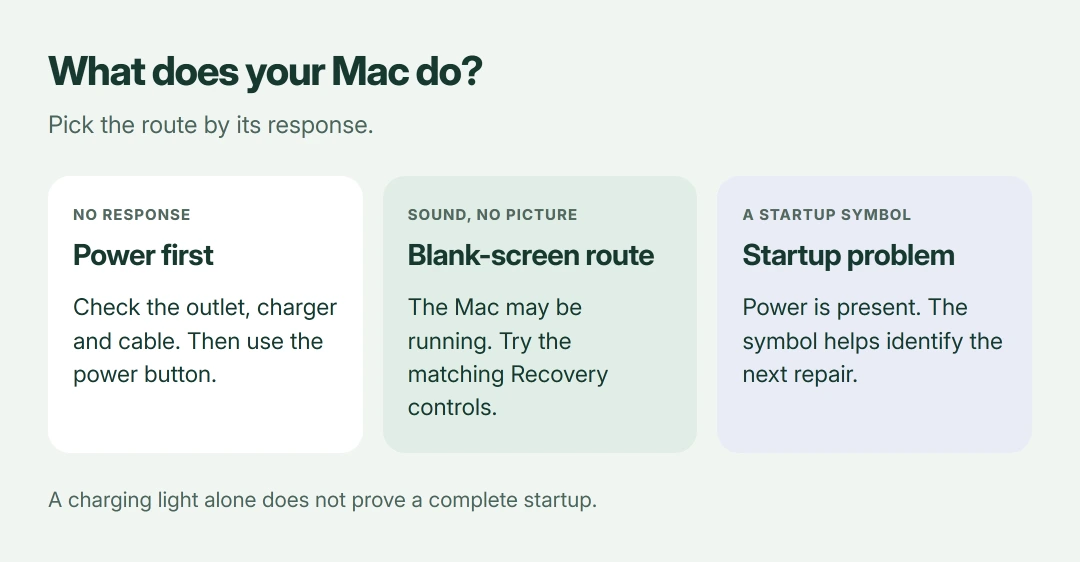
Try a suitable spare before blaming the battery. Even when the charger shows a light, that alone doesn't establish that your Mac can finish starting.
Status: Apple's Mac power, SMC and Recovery guidance checked 18 October 2026. The Intel key combinations differ from Apple silicon. No Mac was repaired here.
I would start at the outlet. It is much easier to change a power connection than to recover software on a machine that cannot stay powered.
2. Hold the power button, then press it normally
Apple says to keep your Mac's power button held for around 10 seconds, release it, then give it a normal press. On a Touch ID keyboard, press the Touch ID button down firmly.
A light fingertip touch isn't enough. This power-button check applies to both Intel MacBooks and models with Apple silicon.
If it starts, let it finish loading. If you only wanted to change automatic lid startup, our MacBook lid-opening controls cover that separate setting.
3. Remove connected accessories
Disconnect your hubs, external drives, printers and other accessories, leaving the Mac's charger connected directly. Repeat the power-button check from the previous section with those devices removed.
Apple includes this because an accessory or its cable can interfere with startup. If your Mac now starts, reconnect the accessories separately to see which connection brings the trouble back.
Keep the working arrangement for now. You don't need to reinstall macOS to test whether a disconnected hub was involved.
4. On Intel, use the matching SMC reset
Apple states that an SMC reset can help certain Intel power faults. Its SMC instructions separate T2-equipped laptops from other Intel models.
Skip these key combinations on Apple silicon. Its power management resets through shutdown or restart while connected to power; there is no equivalent keyboard ritual.
Your Intel MacBook has T2? Shut it down, then use its built-in keyboard to hold left Control + left Option + right Shift for seven seconds.
Keep those keys held and add the power button for seven more seconds. Release everything, wait a few seconds, then press power to start the Mac.
For an Intel laptop without T2, start shut down and hold left Shift + left Control + left Option + power together for ten seconds. Release the keys, then press power.
The Shift key's side matters here. I would identify the model from its purchase details or Apple's model information before choosing between these two sequences.
5. Charging but still black? Try macOS Recovery
If your Mac makes startup sounds or otherwise appears powered, follow Apple's blank-screen guidance. A dark display alone doesn't prove the battery or logic board has failed.
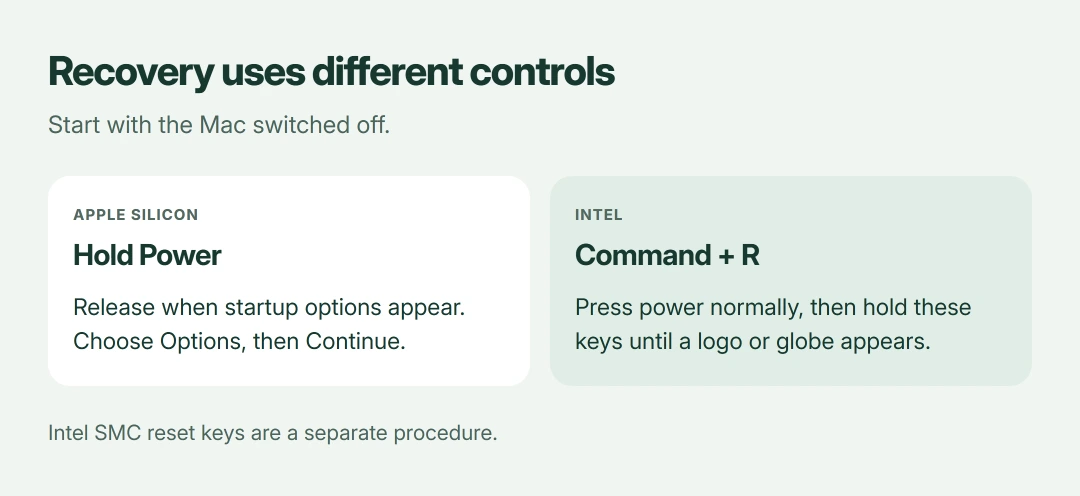
Apple's Recovery startup steps depend on the processor. Begin with the Mac off, then use the matching route:
- Apple silicon: keep power pressed until startup options appear, then choose Options > Continue.
- Intel: press power normally, then immediately hold Command + R until a logo or spinning globe appears.
If Recovery opens, Apple directs you to repair the startup disk with Disk Utility, then restart. If the black startup screen returns, its next software step is reinstalling macOS from Recovery.
Choose repair, not Erase. If you cannot find the disk or have irreplaceable files without a backup, ask Apple about preserving your data before going further.
6. Know when the next step needs help
For Apple-silicon and T2 Macs that cannot open Recovery, Apple lists firmware revival or restoration as a possible next step. This needs another compatible Mac and the correct cable.
Revive and restore have different consequences. Apple says a revival preserves data, whereas a restoration erases the Mac, so discuss that distinction before authorizing service.
If your Mac remains unresponsive after the power checks, arrange service rather than buying a battery on a guess. Once it starts normally but takes ages to become usable, our slow-startup guide takes over.
The Short Version
Check the power supply, hold power, and disconnect accessories. Reserve the SMC combinations for Intel. A powered Mac with a blank display follows Apple's Recovery route, while persistent failure may need service.
Where to Next
Does your Mac make a startup sound, show a charging indication, or display anything in Recovery? Tell me its model and which of those responses you get. That helps narrow the next useful check.

Isaac Smith is the founder and editor of PC Glance, a website that covers computers, laptops, and technology. He is a tech enthusiast and a computer geek who loves to share his insights and help his readers make smart choices when buying tech gadgets or laptops. He is always curious and updated about the latest tech trends.