
One AirPod is not charging, but your case still shows a light when you open it. The other earbud works perfectly.
I'll help you check which battery the light describes, get power into the case, and choose the right reset for your AirPods model.
Start with a cable and a fifteen-minute charge
Apple documents charging both earbuds inside their closed case for at least 15 minutes in its AirPods charging repair guide. Connect the case to a working outlet through its compatible cable and adapter.
Check that each connection is firm. Use the cable connection for this check even if you usually leave the case on a wireless pad.
Status: AirPods charging and model-specific reset instructions verified 18 October 2026. Apple's newer cases use front taps instead of the older rear setup button.
I would check actual battery readings next. Compare all three batteries separately. A light changing color doesn't tell you whether the left earbud, right earbud and case are all gaining charge.
Read the light for the battery it represents
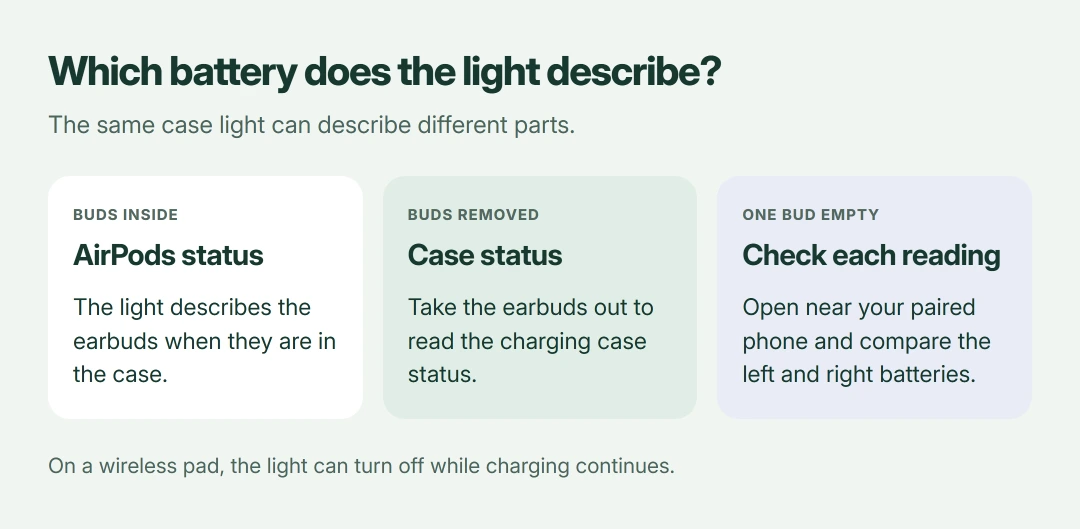
Apple says the light describes your AirPods when they're inside the case, and the case when they're removed. Its charge-status guide explains that distinction.
Green means fully charged. Amber means less than a full charge remains; supported newer models can also pulse or briefly flash amber to show particular battery levels.
On a compatible wireless charger, the light can go out after a few seconds while charging continues. That darkness isn't automatically a fault.
Open the case near your paired iPhone or iPad and check the battery display. You can also open Settings > Bluetooth, then the information control beside your AirPods, to inspect their status.
If only one earbud stays empty
Apple's single-AirPod instructions start with a charged case. Seat both earbuds inside, allow 30 seconds, then open it near your phone and check whether each earbud is charging.
Pay attention to the individual readings. If one stays empty while the other rises, note which side it is before cleaning or resetting.
If the affected bud has charge, test it alone in your ear while its partner stays in the closed case. That separates a charging complaint from an earbud that has power but produces no sound.
For earbuds that charge but lose audio during use, our AirPods dropout checks cover the connection side. A reset isn't the only explanation for silence.
Remove debris without scraping the contacts
Apple states that a clean, dry, soft brush can remove debris at the case's charging port. Its cleaning instructions warn against inserting objects into charging ports or getting liquid inside them.
Use a soft, lint-free cloth on accessible case surfaces. Don't dig at the metal contacts with a pin, and let any cleaned parts dry completely before charging.
I would stop if a contact looks damaged. Cleaning can't repair a bent or corroded part, and pressing harder can turn a small problem into a replacement.
Case charges by cable but not wirelessly?
Check that your particular case supports wireless charging. Apple lists different charging options for different models, even within the same AirPods generation.
For a compatible Qi case, close the lid and position the case with its status light facing upward. Reposition it if the light never appears; Apple's charging guide suggests cable power when this still fails.
Keep using the working cable meanwhile. If the case battery rises through that connection, you have a useful distinction to report about the pad or wireless charging path.
Reset using the controls your case actually has
Apple's reset procedure clears custom AirPods settings. Put both buds inside, close the case for 30 seconds, then forget the AirPods in your paired device's Bluetooth settings if listed.
Open the lid again. The next action depends on your model:
- AirPods 1, 2 or 3; Pro 1 or 2: hold the rear setup button for about 15 seconds, watching for amber followed by white.
- AirPods 4 or 5; Pro 3: double-tap the case front while its light is on, again when white flashes, then again when flashing speeds up.
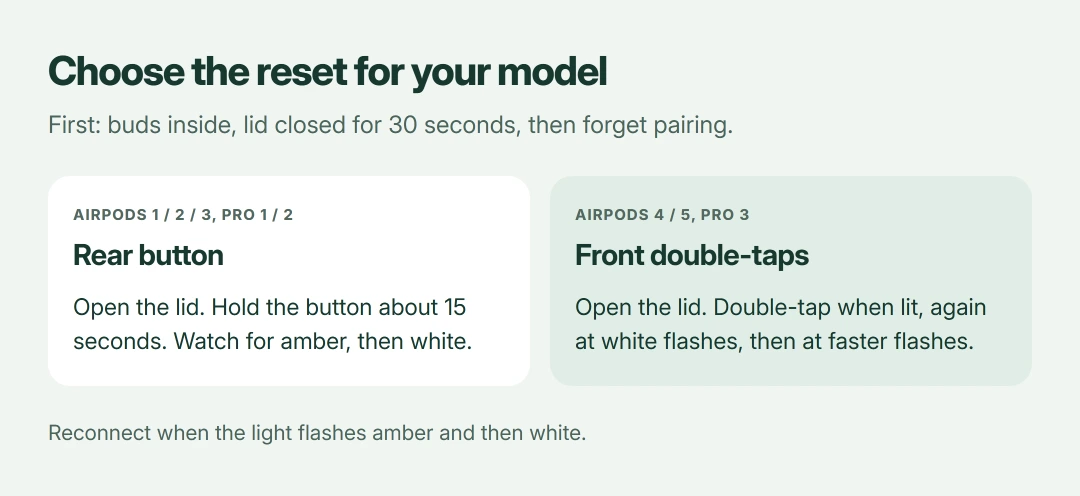
When the newer case flashes amber and then white, reconnect through your device's prompts. Check the troublesome battery again after pairing.
AirPods Max, and pairing again with a Mac, Android or Windows afterwards, are in the full AirPods reset guide, model by model.
Firmware comes after reliable charging
Apple delivers firmware while AirPods charge near a paired Apple device with Wi-Fi and Bluetooth available. Its firmware directions call for the powered case to remain closed for at least 30 minutes.
This isn't a substitute for restoring power. If charging works but a beta build won't change, our AirPods beta-firmware guide addresses that specific situation.
If a bud or the case still takes no charge, ask Apple for service with the model and the failed battery identified. Report whether cable charging works and whether the reset light sequence completes.
The Short Version
Charge through a cable, then compare the two buds and case separately. Interpret the light by whether earbuds are inside, clean gently, and follow your model's reset controls. A battery that never gains charge needs further assessment.
Where to Next
Which part stays empty: the left bud, right bud, or case? Leave a comment with your AirPods model and whether a cable changes the result. Please include the separate readings if your phone displays them.

Isaac Smith is the founder and editor of PC Glance, a website that covers computers, laptops, and technology. He is a tech enthusiast and a computer geek who loves to share his insights and help his readers make smart choices when buying tech gadgets or laptops. He is always curious and updated about the latest tech trends.