
A left AirPod that won't play sound needs a charging check before a reset. Charge both earbuds in the case for 30 seconds, check their batteries, then listen with only the left one in your ear and the right one in the closed case.
That tells you whether the left earbud has no power or has charged but still won't play. If you can hear it faintly, take the sound-balance route instead.
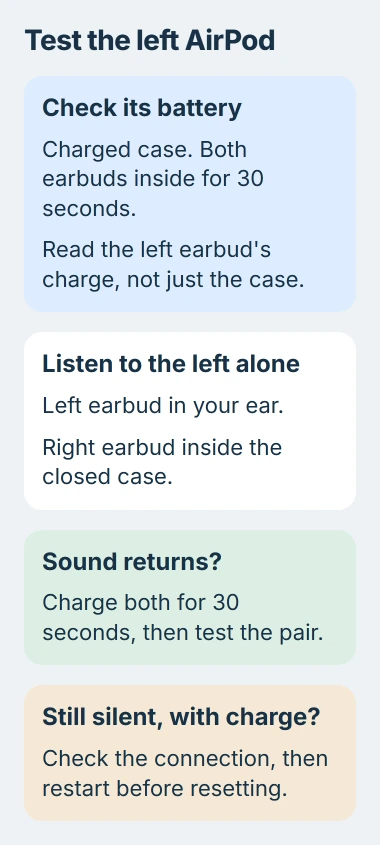
1. Check whether the left earbud actually charges
Charge the case first, then put both AirPods in their matching slots. Close the lid briefly, then open it near your unlocked iPhone or iPad. Check the battery display for the left earbud's reading as well as the case's.
A charged case doesn't mean both earbuds have charged. If the left side stays empty while the right gains power, work through the single-earbud charging checks before changing audio settings.
Remove and reseat the left AirPod gently if it isn't sitting properly. Check for visible debris around its slot. Don't push a pin or another metal object into the case to scrape the charging contacts.
Check the battery reading after putting it back. If the left battery starts rising, move on to the listening test. If it still won't charge, its charging connection or battery needs attention.
I'd check the charge first. Repeatedly forgetting and pairing an earbud with no usable power won't tell you why it went silent.
2. Play audio through the left AirPod by itself
Leave the right AirPod in the charging case. Put the left one in your left ear and close the case lid. Keep the iPhone or iPad nearby and confirm that the AirPods are connected in Bluetooth settings.
Play familiar music or spoken audio at a comfortable volume. Apple recommends this one-earbud listening test in its procedure for a silent left or right AirPod.
If the left earbud now plays, return both earbuds to the case for another 30-second charge. Open the lid near your device, put both earbuds in, and check whether normal two-earbud listening has returned.
If it stays silent alone despite showing a charge, continue with the connection checks. If neither earbud plays, check where your phone is sending the sound before focusing on the left speaker.
Use the same audio for each comparison. Switching between a phone call, a music app and a video with different sound levels makes the result harder to judge.
3. Separate silence from quiet or moving sound
Notice whether the left side is silent, faint, muffled, or changes as you move your head. That tells you what to try next. A balance setting favoring the right side can make the left earbud quieter even when it works.
For faint or shifting sound, use the AirPods balance and head-tracking checks. That guide handles sound leaning to one side; it doesn't replace the charging check for an empty earbud.
Look at the speaker mesh if audio is muffled. On AirPods Pro, remove the ear tip to see the opening clearly. Follow the cleaning method for your AirPods model rather than forcing debris through the mesh.
If music plays through both earbuds but callers can't hear you, the speakers are working in that test. Check which microphone is selected and the call settings rather than repeating the silent-earbud steps.
If sound pauses whenever an earbud moves, check the connection or whether the phone still detects it in your ear. Note whether playback stops on the phone or keeps going while only the left side cuts out.
4. Restart the earbuds and check another audio source
Return the pair to their charging case and close its lid for at least 10 seconds. Open it again, reconnect, and repeat the left-only listening test. This restarts the earbuds without removing the saved pairing.
Try another audio app if you've only had trouble in one. If the left side works there, check the first app's playback and output settings. One recording playing on just one side doesn't call for a reset.
If you have another device, try the same audio there. A charged earbud staying silent on both devices tells support more than a failure in just one video or call.
If the earbuds work on a second device, return to the first phone or computer's audio settings and connection. Check those before buying a replacement earbud.
Keep the test short: use the same left earbud, familiar audio and a comfortable volume. Turning it up sharply can make the working right earbud unexpectedly loud when it reconnects.
5. Reset once using the correct case controls
If charging and restarting haven't restored sound, follow the AirPods reset instructions for the model you own. The newer tap-controlled cases use a different sequence from cases with a rear setup button.
On a rear-button case, let the earbuds rest inside before holding the button to reset them. AirPods 4 or 5, or Pro 3, cases use three timed double-taps on the front. Those cases don't have a rear button.
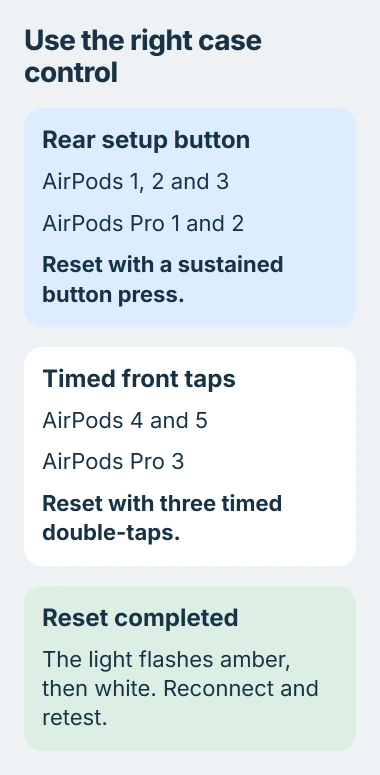
The reset finishes with the status light flashing amber and then white. Reconnect when the setup prompt appears, then repeat the left-only audio test before changing more settings.
If you recently replaced one earbud, follow the replacement setup process instead. Tell support that these two earbuds weren't originally a pair, since that detail matters to the setup.
When the left side still has no sound
Contact support with the AirPods model, the left battery reading and the result of the closed-case test. Mention whether a reset completed and whether the left side also failed on another device.
Ask support to check the earbud and your coverage before you order parts. A left earbud that won't charge and one that charges but never plays need different repairs, even though both first appear to be a silent AirPod.
The Short Version
Check the left battery, listen with the right earbud in its closed case, then compare quiet sound with complete silence. Restart before resetting, use your case's actual controls, and seek service if the charged left earbud stays silent.
Checked November 5, 2026.

Isaac Smith is the founder and editor of PC Glance, a website that covers computers, laptops, and technology. He is a tech enthusiast and a computer geek who loves to share his insights and help his readers make smart choices when buying tech gadgets or laptops. He is always curious and updated about the latest tech trends.