
Unable to activate your iPad after a reset or update? Setup then won't let you reach the Home Screen.
I'll help you separate a server problem from Activation Lock, a connection failure, or an error that needs computer recovery. Another reset isn't always the right next move.
Read the message before changing anything
Apple documents these activation failures. Its guidance specifically covers iPhone and Wi-Fi + Cellular iPad activation, with separate directions for carrier warnings and SIM errors.
An account lock needs its own approach. For any iPad, write down the exact message so you can distinguish that screen from an unreachable server, keeping account details private.
Status: Activation, account-lock and iPad recovery documents reviewed 18 October 2026. SIM guidance applies to cellular models; restoring erases local data.
I would keep that wording beside you. A SIM warning, password request and server warning can all stop setup, but they don't have the same solution.
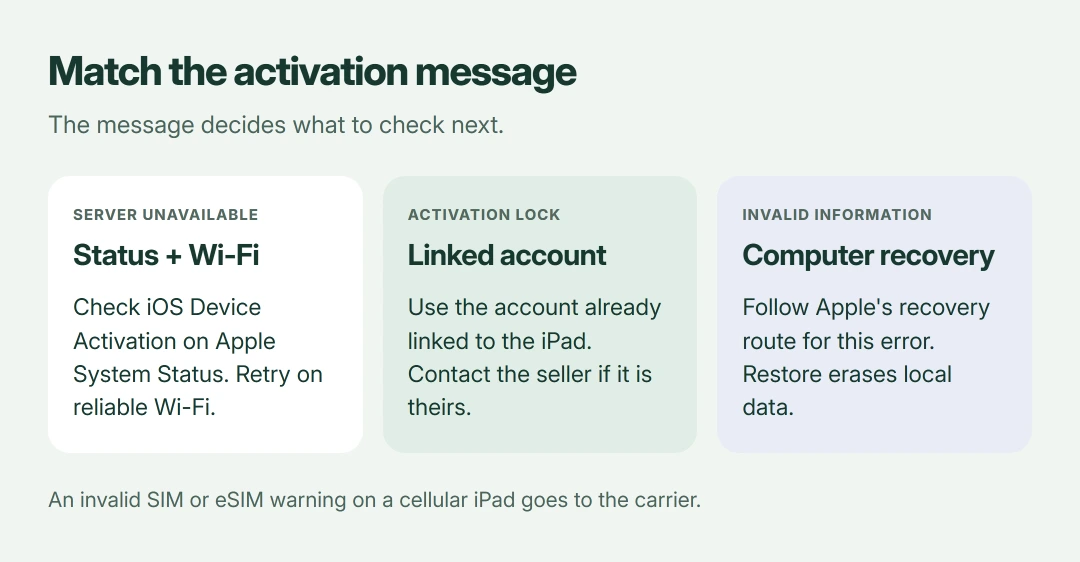
Server unavailable: check Apple's status first
Apple says to check iOS Device Activation using Apple System Status on another device before continuing with your own connection checks. Not green? Wait and try activation later.
The status can change during the day. A green indicator means you can continue checking your connection; it doesn't prove that every activation attempt must succeed.
For an unavailable or unreachable server message, Apple recommends waiting a few minutes before trying again. Repeatedly erasing your iPad won't restore Apple's service.
Restart and retry on reliable Wi-Fi
Apple includes a restart and reliable Wi-Fi in the activation sequence. If you're using cellular data on a supported iPad, switch to Wi-Fi for the next attempt.
Its iPad restart instructions separate Home-button iPads from models that use only the top and volume buttons. You can do this without reaching Settings.
- Without Home: hold the top button together with either volume button until the shutdown slider appears.
- With Home: hold the top button alone until you see that slider.
Slide to shut down and allow 30 seconds, then hold the top button to start again. Retry activation after reconnecting to your network.
If the iPad won't join Wi-Fi at all, our iPad connection guide covers that fault. Some of its Settings checks require you to finish setup first.
Activation Lock: use the linked account
An Activation Lock screen is an ownership check. Apple states that you should follow its prompts using the linked Apple Account credentials or device passcode when that option appears.
Apple provides account-recovery help for credentials you cannot remember. Follow that route; a fresh account won't replace the one tied to your iPad.
For a used iPad still linked to its seller, ask them to remove the device from their account. Apple's web route uses icloud.com/find, with the offline device selected, followed by Remove This Device.
School or business ownership needs the organization's help. If you have purchase documentation, Apple also offers an Activation Lock support request, subject to its checks.
I would resolve this before restoring again. A software reinstall is not an account-lock removal procedure.
Try activation through a connected computer
Use a computer with working internet and updated Apple software, then connect your iPad by a data-capable USB cable. For a current Mac, open Finder; on Windows, open the Apple Devices application to locate your connected iPad.
Apple's device-recognition instructions show where the iPad appears. Older supported setups may use iTunes; install its offered updates before trying activation there.
Wait for the computer to detect it. An offer to set the device up as new or restore a backup means activation has succeeded.
If your iPad doesn't appear in the computer's sidebar, try another data cable or USB port. A charging cable may carry no data.
If the computer instead reports an invalid or incompatible SIM or eSIM, Apple directs you to the carrier. That branch applies to your cellular model, not a Wi-Fi-only iPad.
Invalid activation information: understand Restore first
Apple recommends a recovery-mode restore when the computer says activation information is invalid or cannot be obtained from the device. Restore erases local data and reinstalls iPadOS, so check your existing backups before accepting it.
Follow Apple's iPad recovery procedure with the iPad connected and Finder or Apple Devices open. Its recovery-button sequence is different from an ordinary restart.
For a model without Home, tap and release the nearer volume button first, then tap and release the farther one, measuring from the top button. Hold top until the recovery screen appears.
With Home, hold Home and top together. When the iPad turns off, release top while continuing to hold Home until recovery appears.
Select Restore for this specific activation-information error. If a download exceeds 15 minutes and recovery closes, Apple says to finish downloading, then enter recovery again.
If you only have a frozen screen rather than an activation error, use our unresponsive-iPad guide to identify that situation first.
The Short Version
Match the error before taking action. Check service status and Wi-Fi for server trouble, use the linked account for Activation Lock, and try computer activation. Reserve erasing recovery for Apple's specified error or support instructions.
Where to Next
What exact activation message appears, and is your iPad Wi-Fi-only or cellular? Tell me whether the computer recognizes it too. Those details distinguish the account, carrier and recovery routes without sharing your credentials.

Isaac Smith is the founder and editor of PC Glance, a website that covers computers, laptops, and technology. He is a tech enthusiast and a computer geek who loves to share his insights and help his readers make smart choices when buying tech gadgets or laptops. He is always curious and updated about the latest tech trends.