
Offline AirPods can still show their last location in Find My, but they can't play a locating sound with a dead battery. Open Find My > Devices > your AirPods, check how old the location is, and start your search there.
Supported models can also share their location through the Find My network when they're away from your phone. It needed to be turned on before you lost them. What you can try now depends on what Find My still shows.
Read the location and time together
Open Find My on the iPhone or iPad you used with the AirPods. Select Devices, then your AirPods. Look for a location, Offline, or No location found, and check any time shown alongside it.
Apple says in its lost AirPods instructions that you can use the last known location even when the AirPods won't connect nearby. Directions can take you there while Play Sound or Find Nearby isn't available.
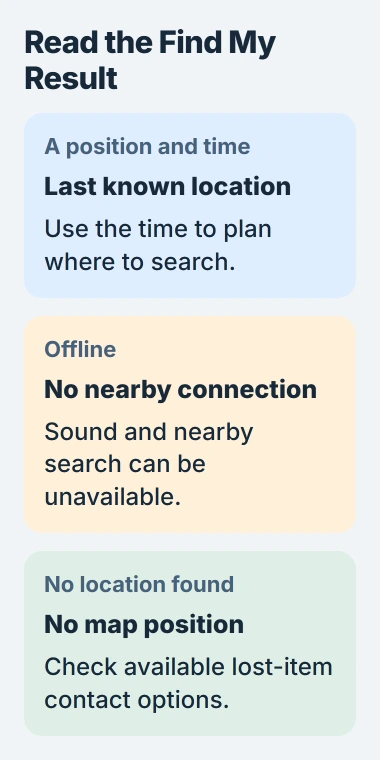
A location from yesterday tells you where to retrace your steps, but the AirPods may have moved since then. Think about the bag, vehicle or room where you last used them, and compare that with the map's time.
I'd save that location and time before traveling. If the entry changes later, you'll still have the earlier place to check, and you can tell a venue's lost-property desk when the AirPods were last seen there.
If you don't see a usable location, leave the AirPods in your account while you check the available lost-item options. Removing them won't bring their location back.
Know which offline search your model supports
All AirPods models can appear in Find My after pairing and setup, but their search options differ. Check your model before trying to find the case, track separate earbuds or get locations through the Find My network.
The AirPods finding guide lists Find My network support for AirPods 3, AirPods 4 with ANC, AirPods 5 (Wireless Charging Case), AirPods Pro and AirPods Max.
Without network support, or with it turned off, Find My shows when and where the AirPods last connected to your device. Turning it on after you lose them can't recover a location they never sent.
With network support, other nearby devices on the network can pass along your AirPods' location. The earbuds don't have their own mobile-data connection, and a dead battery still limits what they can do.
The network isn't available in every country and region. Use the options shown for your model and account; someone else's Find My screen may have controls your pair doesn't support.
Use nearby controls when the AirPods reconnect
Return with your iPhone to a last location that fits where you've been, then open the AirPods entry again. If they connect nearby, try Play Sound and listen for repeated beeps.
If Find Nearby appears, tap it and follow its prompts. The controls depend on your iPhone and AirPods model, so you won't always see a precise distance or direction.
If you know they're charged and nearby but the locating control won't connect, use the AirPods nearby-finding checks. That's a separate problem from a pair that's offline across town.
A sound helps in a quiet room, but you may still have to search carefully for a buried earbud. Check pockets, folds in a bag and around seats. A quiet earbud doesn't mean the map has sent you to the wrong spot.
When the app says Offline, pressing the sound control again won't make an earbud with a dead battery beep. Search around the location you have and watch for an update if the AirPods come back online.
Check the left earbud, right earbud and case
When AirPods are separated, Find My may ask which earbud you're trying to locate. Select the missing part and check its own result, rather than following the location of the earbud already in your hand.
On most models, you'll see the location of only one separated earbud at a time. Find it, put it in the case, then refresh the map to find the other one using the controls available for your pair.
Some newer models give each earbud and the case its own entry or controls. These include AirPods 4 with ANC, AirPods 5 (Wireless Charging Case), and AirPods Pro 2 and later.
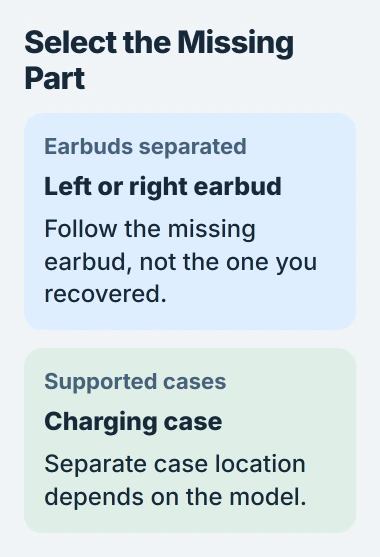
An empty case from another model may not have its own location in Find My. The earbuds' last connection can help you retrace your steps, but it won't let you track every case separately.
If one recovered earbud won't charge, check the earbud and case charge readings. A charging problem can leave that part offline even after you've found it.
Leave contact information for a supported lost item
In Find My, choose the AirPods and swipe up on their details. Under Lost [device], use Lost Mode or Show Contact Info, whichever appears, then follow the prompts to add contact information.
If your model lets you mark parts lost separately, select the missing earbud or case. Check the confirmation to make sure you're adding contact details to the right item.
This gives whoever finds them a way to reach you. It won't add a new location or revive a dead battery. Keep checking for an update; your paired device can notify you when the AirPods come back online.
If the map points to a workplace, airport or public building, contact its lost-property team. Give them the approximate place and time, and keep details that can help confirm a recovered pair is yours.
If they're still missing, ask Apple about replacing the lost earbud or case for your exact model. For your next pair, turn on Find My network and supported left-behind alerts while you have them connected.
The Short Version
Check Find My's last location and the time it was recorded. Network reports need a supported model and earlier setup; sound needs power and a connection. Add contact details where available, then watch for a new location.
Checked November 4, 2026.

Isaac Smith is the founder and editor of PC Glance, a website that covers computers, laptops, and technology. He is a tech enthusiast and a computer geek who loves to share his insights and help his readers make smart choices when buying tech gadgets or laptops. He is always curious and updated about the latest tech trends.