
An iPad that won't charge with a good cable may have a problem with the charger, USB power source, or its own charging controls. Connect it straight to a suitable wall adapter and look for the charging symbol.
The next check depends on what happens: no charging symbol, a completely black screen, or a battery percentage that stops around 80%. Those results call for different steps.
1. Test the power source while keeping your cable
Plug the cable directly into your iPad and a compatible wall adapter. Connect that adapter to an outlet you know works. For this check, leave out the dock, hub, keyboard, or monitor that normally sits between the charger and tablet.
Apple's iPad charging checks recommend trying another adapter as well as another cable. Since you've already checked the cable, change the adapter next while keeping the rest of the connection the same.
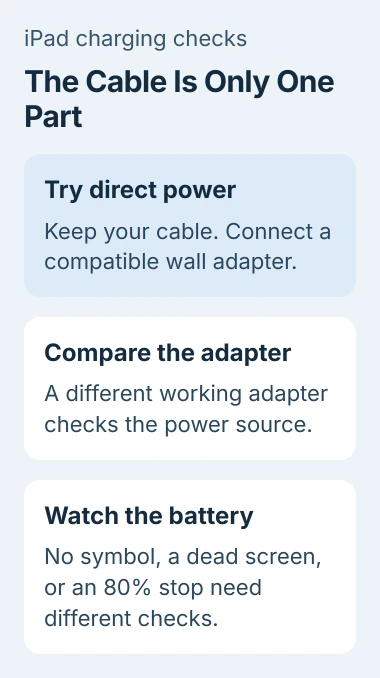
Look for a lightning symbol on the status-bar battery or a large charging battery on the Lock Screen. If it appears with the other adapter, check your original power source or the equipment connecting it to the iPad.
If you're charging from a computer, leave that computer on and awake. A sleeping computer may not supply the power your iPad needs.
Your cable may work with another device, but that doesn't check the iPad's socket or your other adapters. If a different adapter makes no difference, check the connection and what the screen shows next.
2. Check the connector and adapter match
USB-C iPads need a compatible USB-C charging connection; older Lightning models need a Lightning cable. Push the plug all the way in without forcing it, and check that your case isn't blocking it.
A compatible USB-C adapter with a higher wattage can charge a USB-C iPad, including a Mac laptop adapter. Apple's USB-C iPad guide covers this option. The adapter won't force its full rated power into the tablet.
I'd borrow a compatible adapter before buying a battery. With the cable already checked, trying another adapter can save you from replacing the wrong part.
Check the plug and the visible part of the socket for damage. Don't force a damaged or loose connection, or hold it sideways to keep it charging. If the socket only works when you move the plug, have it checked for repair.
If the same adapter and cable charge your iPad directly but fail through a hub, check the hub's power supply and charging specifications. You've narrowed the problem to that part of the connection.
3. Give a fully drained iPad time to respond
A black screen can mean your iPad lacks enough battery power to start, even with a working cable. Leave a working charger connected for up to an hour to give it time to turn on.
The black-screen startup instructions allow that time for a drained battery. If the battery or charging port is damaged, waiting an hour may not get the iPad working again.
If a battery image or Apple logo appears, leave the iPad to start. Once it opens, check that the percentage rises with the charger connected. Reaching the logo tells you it started, but you still need to check charging.
If your iPad runs but loses charge during demanding use, close the app and lock the screen, then check charging again. Compare the results before deciding it isn't charging at all.
If it still hasn't responded after that charging time, try the force restart for your model. This checks whether the iPad has frozen before you arrange a repair.
4. Check temperature and a stop near 80%
An iPad can pause charging when it's too hot or too cold. Move it to a comfortable indoor place, out of direct sun, and let it return to a normal temperature before trying again.
If the screen says charging is on hold, respond to that message first. The iPad temperature guide explains the heat-related pause and when repeated warnings need service.
Some newer models also have an intentional 80% Limit. Open Settings > Battery > Battery Health and look for it if the percentage repeatedly stops near that level.
This setting is available on iPad Pro with M4 or later, iPad Air with M2 or later, iPad mini with A17 Pro, and iPad with A16. Restarting an older model without Battery Health won't add the option.
If you need a full charge for the day, turn the limit off. Otherwise, stopping around 80% with it enabled is expected. A completely empty iPad that won't take power has a different problem.
The iPad may occasionally reach 100% even with the limit on, as the battery charging guidance explains. That helps keep the battery percentage accurate and doesn't mean the limit has stopped working.
5. Force restart using the right button sequence
Leave the charger connected and choose the steps for your iPad. Whether it has a Home button determines which sequence to use, not whether it charges through USB-C or Lightning.
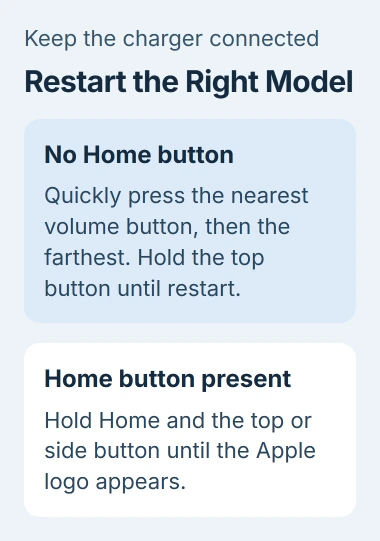
Without a Home button: find the two volume controls and note which is nearer the top button. Then use this sequence:
- Press the nearer volume control briefly and let go.
- Do the same with the farther volume control.
- Keep the top button pressed. Release it when the Apple logo shows.
With a Home button: press Home and the top button (or side button) together. Keep holding until an Apple logo appears, then let go.
Button positions vary between iPads, so use their distance from the top button to choose the order. Don't press both volume buttons together on a model without Home.
After startup, check for the charging symbol and a rising percentage. If the battery charges but then drains unusually quickly after unplugging, move to the iPad battery-use checks.
6. Arrange service when the comparisons still fail
Contact Apple Support if it still won't respond or charge after trying a suitable power source, normal temperature, and the correct restart. Tell them your iPad model, connector type, and which adapter and cable combinations you tried.
Tell support if the socket feels loose, whether a charging symbol appears, or if the battery stops at a certain percentage. Those details help them check whether the problem is the port, battery, or power supply.
I'd have the charging system checked before paying for a battery or erasing the iPad to restore its software. A charging failure alone isn't a reason to wipe the tablet.
The Short Version
Try a suitable wall adapter with your working cable first. Check that the plug fits, give a drained battery time, and look for a temperature pause or the 80% limit. Try your model's force restart before arranging service.
Checked November 4, 2026.

Isaac Smith is the founder and editor of PC Glance, a website that covers computers, laptops, and technology. He is a tech enthusiast and a computer geek who loves to share his insights and help his readers make smart choices when buying tech gadgets or laptops. He is always curious and updated about the latest tech trends.