An iPad Air 2 screen color problem can come from Color Filters, inverted colors or Night Shift. Check Settings > Accessibility > Display & Text Size first. A yellow tint that appears at scheduled hours needs the Night Shift check.
A tint across the whole screen differs from colored lines, blotches or one damaged corner. Settings can change the whole image; marks that stay in one area need a display inspection. The Air 2 has no True Tone, so that switch won't appear.
In this guide
1. Turn off an unwanted Color Filter
Open Settings > Accessibility > Display & Text Size > Color Filters. If Color Filters is on and you don't use it for your vision needs, disable the filter, then compare a familiar photo.
Grayscale makes the display black and white. Color Tint can shift the whole image toward a color you choose. Other filters change how particular colors appear, so the result doesn't always look like a simple yellow overlay.
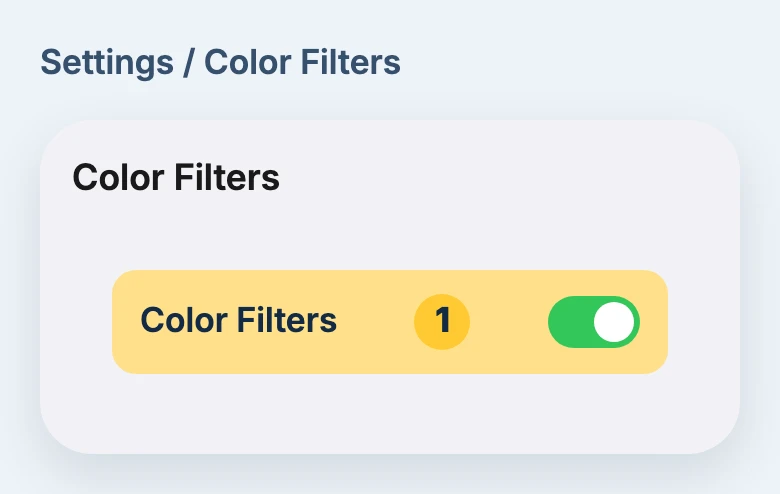
Apple's display accessibility controls explain these options. The colored samples in the settings page help show what the filter changes before you return to your pictures or apps.
If turning the filter off restores the expected colors, leave the other display settings alone. A filter you need for accessibility can stay enabled; adjust its intensity rather than treating its intended effect as a broken screen.
On much older software, look under Settings > General > Accessibility > Display Accommodations. The Air 2's later software uses the Accessibility section directly in Settings, so follow the layout you see on your iPad.
2. Switch off unintended color inversion
Return to Display & Text Size. Turn off Smart Invert and Classic Invert if either was enabled unintentionally. These are separate from the Color Filters switch.
Classic Invert reverses display colors. Smart Invert reverses much of the interface but leaves some pictures, media and dark-style content untouched. That's why one screen can look odd while another looks closer to normal.
After changing a switch, open Settings and a familiar photo. If the colors change as soon as you use the switch, the accessibility setting is causing that effect. You don't need a replacement screen to fix it.
If the effect keeps returning after a Home button triple-click, open Settings > Accessibility > Accessibility Shortcut. Uncheck any filter or invert option you don't want there; keep any shortcut you use for reading.
3. Disable Night Shift for a yellow or warm screen
Open Settings > Display & Brightness > Night Shift. Check both the schedule and whether it has been manually enabled. Disable it, then compare your familiar photo or the white Settings background.
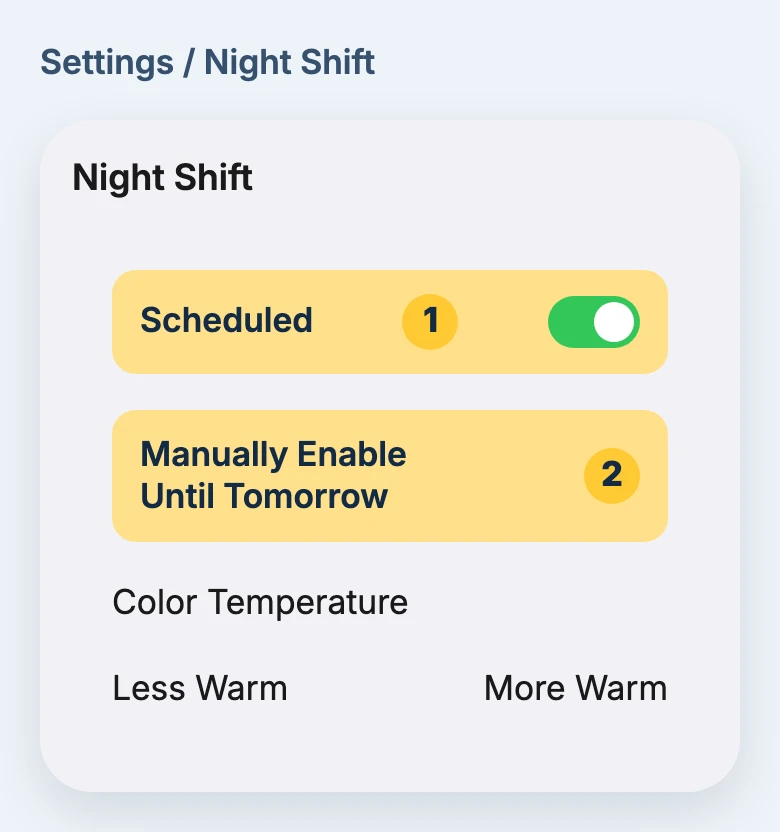
Night Shift changes the display toward warmer colors. A screen that becomes yellow in the evening and returns to its usual appearance in the morning fits that behavior better than a permanent patch of discoloration.
You can also open Control Center, touch and hold the brightness control and tap Night Shift. On iPadOS 15, pull down from the top-right edge of the display, even though the Air 2 has a Home button.
If the warmer appearance goes away, choose a schedule and color temperature that suit you or leave Night Shift disabled. Changing brightness alone doesn't turn the Night Shift schedule off.
4. Compare several apps and restart the Air 2
Open Settings, a familiar photo and another app. If only one app or one picture looks wrong, view that same content on a second device before arranging a display repair.
If every screen has the same problem after the color controls are off, restart the iPad. Hold down its top button. Once the power-off slider appears, drag it, then wait for shutdown to finish.
To turn it back on, hold its top button, letting go when you see Apple's logo. Check the same screen after startup. Use this ordinary restart when the buttons and screen respond. Force restarting is for a tablet that has stopped responding.
For a frozen Air 2, hold Home + top together until Apple's logo appears. Then release both buttons. It uses the Home-button procedure, not the volume-button sequence for newer iPads.
A stuck screen orientation is a separate issue. Use the iPad rotation checks if the picture's position is wrong but its colors are normal.
5. Check the available update without erasing the iPad
Back up important data, then open Settings > General > Software Update. Install the update offered for this model. The Air 2 stays on the iPadOS 15 software family and can't install later major versions.
An update can address software faults, but physical LCD damage still needs repair. A tint that changes with a switch and a permanent vertical colored line need different fixes, so match your next step to the symptom.
When Software Update has nothing available, stop trying to install a later major release. Give a repair provider the installed version and the display symptoms instead.
I'd skip a factory erase for a screen with lasting lines, patches or a problem that began after a drop. It removes your data and still leaves the physical panel needing an assessment.
6. Request a display assessment for persistent defects
Colored lines, flickering patches or discoloration that survives the settings checks and restart need hands-on inspection. Don't bend the tablet, press the panel or hit it as a repair attempt.
Mention any recent drop, liquid exposure or screen replacement when requesting the quote. Explain whether discoloration covers the panel or stays within one area, and say whether touch still responds.
For damage you can see, the cracked iPad screen guide explains how to prepare for a repair quote. Confirm Air 2 parts availability before booking a visit.
Both Air 2 models are on the obsolete product list, so Apple no longer provides hardware service. Ask an independent repair shop about Air 2 parts and compare its quote with replacement.
The Short Version
Check Color Filters and both Invert switches first, then Night Shift for a yellow display. Restart with the Air 2's button procedure. Lines or patches that won't go away need a repair assessment rather than more color adjustments.
Checked November 27, 2026.
 If you have any business, I can build it online