
An iPad screen that won't rotate may have Rotation Lock enabled or an app that stays in one orientation. Release the lock, then turn Safari sideways to check whether the problem also affects an app that supports landscape.
If Safari rotates normally, the iPad can still change orientation. If it stays upright too, check the lock control and restart before considering service.
Turn off the orientation lock in Control Center
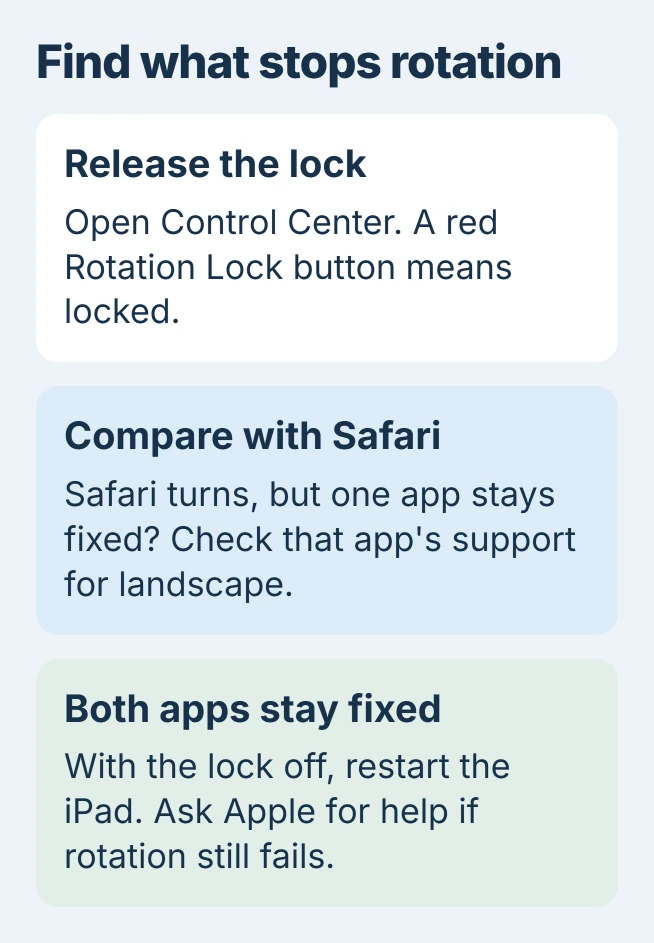
Open Control Center by swiping downward from the display's upper-right corner. Find the padlock surrounded by a curved arrow. Tap it if it is red, then close Control Center and turn the iPad sideways.
Apple says red means the orientation is locked in its iPad rotation guide. Gray indicates the unlocked state.
Status: Apple's rotation, side-switch and restart instructions reviewed November 2, 2026. App support varies. No iPad or motion sensor was tested.
Rotation Lock holds the viewing direction. It does not secure the tablet with a passcode; the iPad sleep and access controls handle that separate job.
For a missing control on current iPadOS, tap Control Center's upper-left plus symbol. Choose Add a Control, search for Lock Rotation, and tap the result to add it. Apple explains this in its control customization guide.
Check Safari before blaming the screen
Open Safari or Messages, then turn the device between portrait and landscape. Apple documents both as suitable comparison apps in its rotation troubleshooting instructions.
If they turn but the original app does not, check whether that app supports landscape. Some apps deliberately keep one orientation. The system lock cannot give an app a layout it does not provide.
For an app that previously rotated but now stays fixed, report the app version and affected screen to its developer. Describe whether Safari still rotates, since that changes which software needs attention.
A picture that turns normally while taps fail is another problem. Use the iPad display and touch checks for missed touches, stripes or discoloration.
Older iPads can use a physical side switch
Some early iPads have a switch beside the volume buttons. Open Settings > General and look for Use Side Switch To. Apple states that this switch can control either rotation locking or muting.
When Lock Rotation is selected, use the physical switch to release the orientation lock. When Mute is selected, the switch controls sound instead. Do not expect that control to appear on an iPad without the switch.
The presence of a Home button does not guarantee a side switch. Inspect the tablet itself rather than following old instructions that assume every iPad has the same controls.
Restart when the lock is off and both apps stay fixed
For models lacking a Home button, press and hold two buttons: the top one and either volume key. Release them when the shutdown slider appears. A Home-button model needs only a long press on the top button to show that slider.
Drag the shutdown slider, then wait 30 seconds for power-off to finish. To start again, keep pressing the top button until Apple's logo appears. Apple's normal restart procedure requires responsive touch controls.
A frozen tablet needs the model-specific forced restart instead. After restarting, reopen Safari and check whether turning the device changes its layout.
Contact Apple Support if multiple supported apps remain fixed with Rotation Lock released. Give the model, iPadOS version and comparison results. Those observations justify assessment without assuming a particular sensor has failed.
The Short Version
Release Rotation Lock and compare the affected app with Safari. Check the physical switch on older models. Restart for a failure across supported apps, then ask Apple to assess a problem that persists.

Isaac Smith is the founder and editor of PC Glance, a website that covers computers, laptops, and technology. He is a tech enthusiast and a computer geek who loves to share his insights and help his readers make smart choices when buying tech gadgets or laptops. He is always curious and updated about the latest tech trends.