
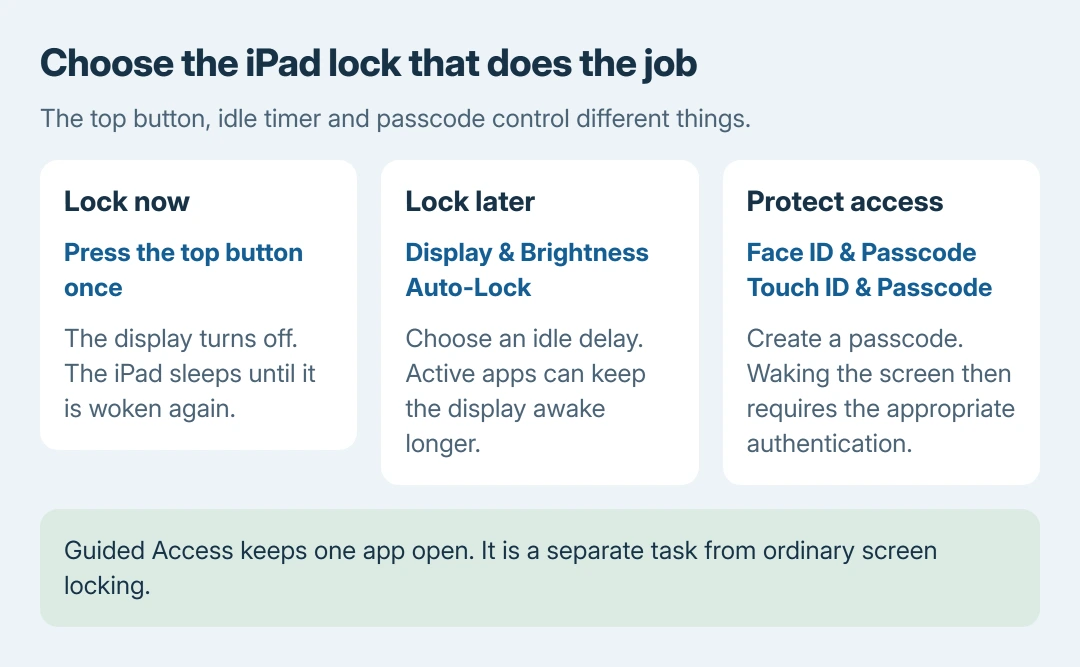
Locking the iPad screen takes one press of the top button. The display goes dark, and the iPad sleeps. For automatic locking, choose a delay in Settings > Display & Brightness > Auto-Lock.
A passcode protects access when the screen wakes. Keeping a child inside one app is a different task, handled by Guided Access rather than the ordinary screen lock.
Press the top button once to lock now
Find the button on the iPad's top edge and press it briefly. This works on models with a Home button and models without one. Apple documents the same locking action for both in its iPad lock instructions.
The screen should switch off immediately. Hold the button only when another action is intended: on newer models a long press can summon Siri. A short press is enough for locking.
Status: Apple's iPad locking, button, Auto-Lock and passcode instructions checked October 26, 2026. No iPad was operated or tested.
Locking leaves the iPad ready to wake again. For a complete shutdown, follow the iPad power-off steps instead of holding buttons while trying to lock it.
Choose an idle delay in Auto-Lock
Open Settings > Display & Brightness > Auto-Lock and select a time interval. Choose a timed option rather than Never when the goal is to have the screen lock after being left alone.
Return to the Home Screen and leave the iPad untouched to check its behavior. Apple says the Home Screen can reduce the selected Auto-Lock delay by half, so that particular check need not take the full interval.
Apple's display timing guide explains why active video, navigation and reading apps can keep the display awake. An attached external display or Stage Manager can also extend that time.
On a Face ID iPad, Attention Aware Features can prevent dimming or locking while it detects attention. Check Settings > Face ID & Passcode if looking at the display stops the timer from finishing.
If Auto-Lock cannot be changed while Guided Access is running, end that session first. If the session will not end, use the separate Guided Access exit checks.
Add a passcode before relying on the lock
Open Settings > Face ID & Passcode or Touch ID & Passcode, depending on the model. Select Turn Passcode On if a code has not been created, then complete the prompts.
Apple's passcode guide distinguishes protecting access from merely putting the screen to sleep. Supported models also let an enrolled face or fingerprint unlock the device.
To check the result, wake the display without offering the registered fingerprint or face. Try opening the Home Screen. A protected iPad should require authentication rather than open directly to the last app.
That check is ours, intended to confirm the protection actually wanted. A familiar face or a finger resting on the top Touch ID button can authenticate so quickly that the lock seems to have been skipped.
When the top button does not respond
Use the timed lock while arranging help for a button that remains unresponsive. Tell Apple Support whether a brief press wakes the screen, locks it, does neither, or works only intermittently.
If pressing once locks the screen but a video keeps it awake automatically, those are different results. Report the app and the Auto-Lock setting rather than requesting a button repair for an app-controlled display timer.
The Short Version
Press the top button briefly for an immediate lock. Set Auto-Lock for unattended time, and create a passcode for access protection. Apps, attention detection and external displays can change when the automatic lock happens.

Isaac Smith is the founder and editor of PC Glance, a website that covers computers, laptops, and technology. He is a tech enthusiast and a computer geek who loves to share his insights and help his readers make smart choices when buying tech gadgets or laptops. He is always curious and updated about the latest tech trends.