
Turning off an iPad takes a held button combination and the Power Off slider. On a no-Home model, hold top + either volume together. Older iPads with a Home button use the top button alone.
For a working screen and an awkward or broken button, Settings > General > Shut Down provides another route. A quick press that darkens the screen only locks the iPad.
Hold the buttons that match your iPad
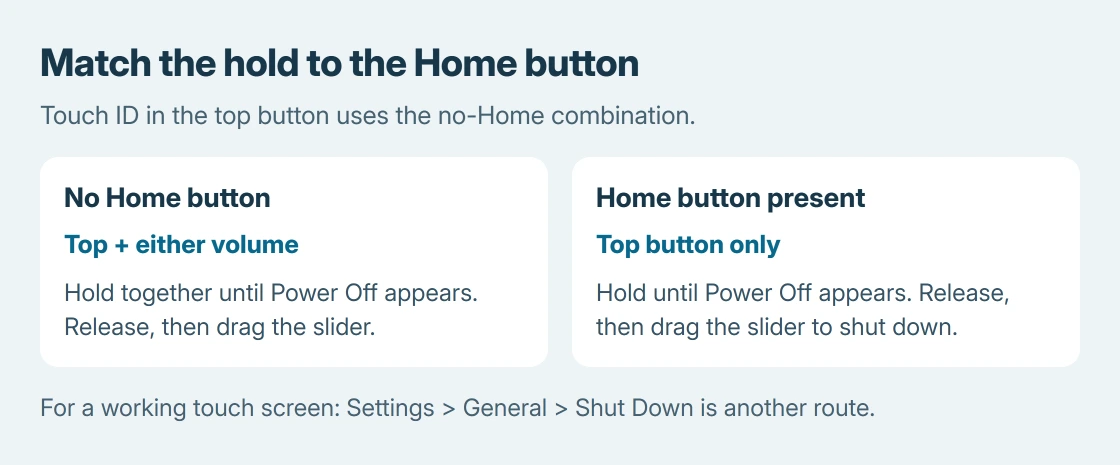
Look at the front of the iPad. A round Home button beneath the display means the older combination applies. Touch ID built into the top button does not count as a Home button.
Apple documents both sequences in its iPad restart instructions. Both finish with dragging a slider, rather than continuing to hold buttons indefinitely.
Status: Apple's iPad shutdown and restart instructions checked October 26, 2026. Button and Settings routes verified from documentation. No iPad was operated.
Without a Home button
Hold top + either volume together. Release them when the Power Off slider appears, then drag the slider. Apple says to allow 30 seconds for shutdown.
This applies to both Face ID iPads and models with Touch ID in the top button. Holding only the top button on these models is not the documented shutdown combination.
With a Home button
Keep the top button pressed until Power Off is shown. Release the button, drag the slider, and wait about 30 seconds. The Home button is not part of this normal shutdown procedure.
Pressing buttons briefly serves other functions. An iPad screenshot uses a brief simultaneous press instead of a continued hold.
Use Shut Down when the screen still responds
Open Settings > General, scroll to the end, and tap Shut Down. Drag the Power Off slider. Apple's iPad power guide documents this route without a physical button combination.
On iPadOS 18 and later, Control Center offers another option. Swipe down from the display's upper-right corner. Touch and hold the power control in the upper-right corner of Control Center, release it, then drag the slider.
Choose whichever route is accessible. If the display ignores touch, neither Settings nor a visible slider can finish the shutdown; that needs the frozen-device route instead.
Turn it back on when a restart is the goal
After shutdown, keep the top button pressed. Release it at the Apple logo and allow startup to finish. A restart is this off-then-on sequence; it does not require an erase command.
The follow-up check is ours: reopen the app that prompted the restart. If it works again, stop there. If the same fault returns, record whether it affects one app or the whole iPad before changing settings.
When the iPad will not shut down
A frozen display needs a force restart for the correct iPad model. Its button sequence differs from the normal Power Off procedure, so repeating the shutdown hold is not the next useful step.
If Settings can shut down the device but a physical button never responds, contact Apple about that button. Describe which control failed and whether touch still works; a factory erase does not repair a damaged switch.
The Short Version
Hold top and either volume button on an iPad without Home. Hold top alone on a Home-button model. Drag Power Off and wait for shutdown. Settings > General > Shut Down is the button-free alternative.

Isaac Smith is the founder and editor of PC Glance, a website that covers computers, laptops, and technology. He is a tech enthusiast and a computer geek who loves to share his insights and help his readers make smart choices when buying tech gadgets or laptops. He is always curious and updated about the latest tech trends.