
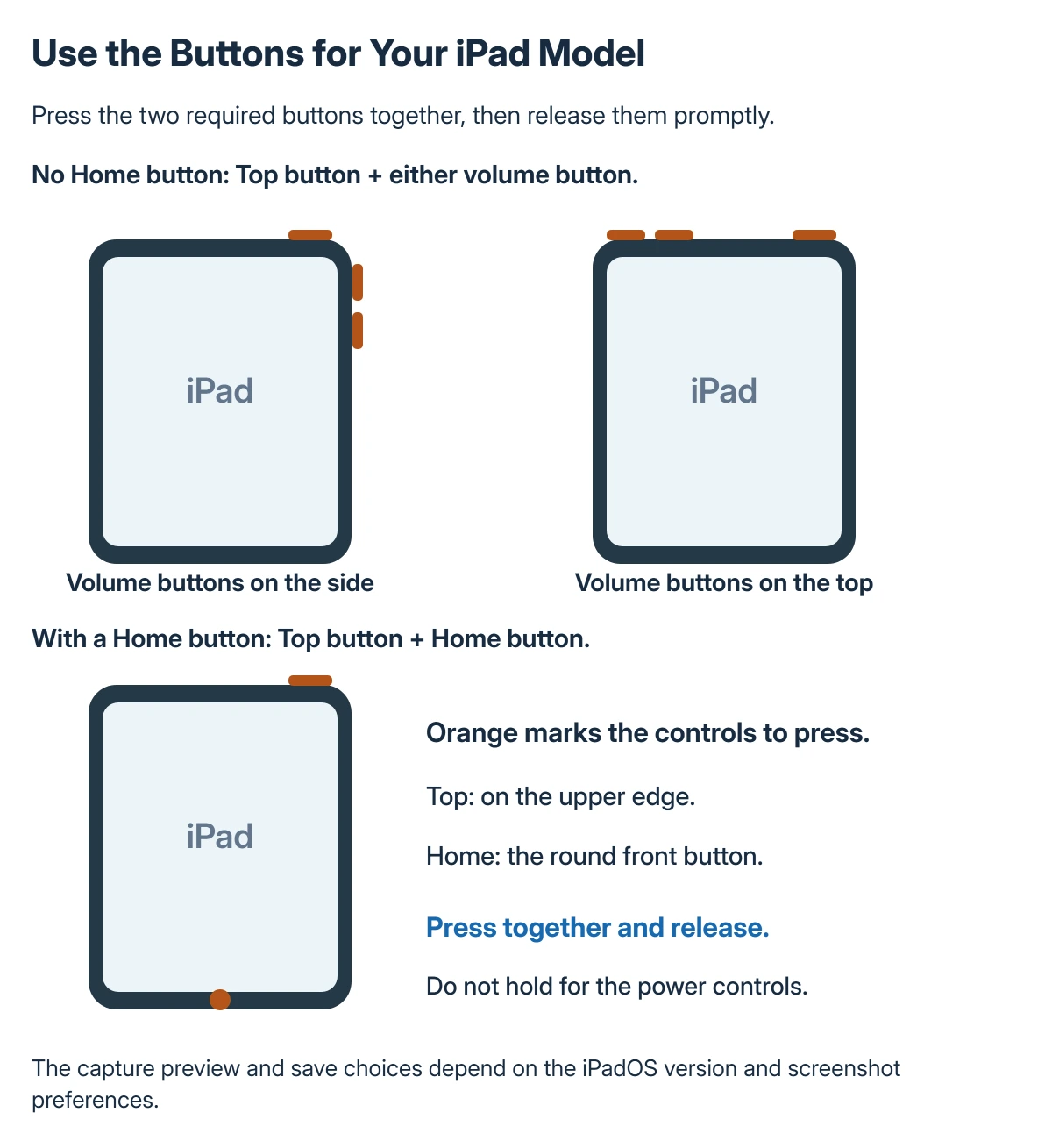
iPad screenshots use the buttons already on the device. Without a Home button, quickly press and release the top button together with a volume button. With a Home button, press it together with the top button instead.
Use a brief press rather than holding the buttons. After capture, inspect the picture and choose Full Page when a supported page needs more than the visible screen.
Use the combination for your iPad
Find out whether the iPad has a physical Home button under the display. That determines the screenshot combination, rather than the size or position of its volume controls.
On a model without Home, press a volume button together with the top button simultaneously, then release them promptly. On a Home-button model, use Home and the top button together.
Status: iPadOS 27 screenshot guidance reviewed 22 October 2026, including both button layouts and capture preferences. No iPad screen was captured for this guide.
Apple documents the combinations in its iPad screenshot guide. If holding the buttons opens another control, release them and try a short simultaneous press.
Review and crop the capture
Open the screenshot preview. Depending on capture preferences, it can appear full screen or as a temporary thumbnail near the lower-left corner.
Drag the crop handles to remove unwanted edges, or open Markup to annotate the picture. Inspect names, messages and other private details before using the share control.
For a picture of an app without overlapping windows, arrange the iPad workspace first. A screenshot records what is visible, including another window covering part of the app.
Capture more than one screenful
For supported content such as a Safari webpage, open the screenshot and tap Full Page. Move through the preview on the right to inspect the area extending beyond the display.
Apple states that full-page capture can include an entire supported webpage. It is not a promise that every app or scrolling list exposes the same option.
Adjust the crop if only part of the long page is needed. Use the save options offered by the capture interface and check the destination before closing it.
If the result was saved in Files, reopen it there. The iPad Files troubleshooting applies when that destination cannot open or a cloud provider is missing.
Find the saved screenshot
Apple says screenshots are automatically saved in the photo library. In Photos, open Collections, find Media Types and choose Screenshots to locate captures together.
Check a deliberately chosen Files destination separately, especially for a full-page document. A capture stored there will not be found just by looking through recent photos.
Capture preferences can also change whether previews appear full screen or as thumbnails and whether screenshots use SDR or HDR. Change those preferences only when the preview or format is the part that needs adjusting.
Alternatives to pressing the buttons
Apple lists Siri, AssistiveTouch and an Apple Pencil gesture as other ways to capture. With Apple Pencil, swipe diagonally inward from a lower corner as described in the guide.
Use an available alternative if physical buttons are difficult to press together. If a button also fails in ordinary use, have Apple check it rather than repeating the screenshot combination indefinitely.
For an absent Full Page option, verify the content being captured first. For captures that never save, give Apple Support the iPad model, iPadOS version and whether ordinary Photos storage works.
The Short Version
No Home button: briefly press top and volume together. With Home: briefly press top and Home together. Review the crop, then save or share.
Full Page depends on supported content. Check Photos for ordinary captures and the chosen Files folder when saving a document there.
Where to Next
Open the saved result before sending it. Confirm the crop, readability and destination, especially when the screenshot is being used as a document.

Isaac Smith is the founder and editor of PC Glance, a website that covers computers, laptops, and technology. He is a tech enthusiast and a computer geek who loves to share his insights and help his readers make smart choices when buying tech gadgets or laptops. He is always curious and updated about the latest tech trends.