
Your iPad has started feeling sluggish and unreliable whenever you open Files, and you have probably blamed the update. It is worth knowing that iPadOS 26 did not make the app slower.
The app itself handles files as quickly as before, sometimes quicker.
So when Files feels broken, it is usually one of three separate things: a redesign you can adapt to, an animation and windowing tax you can switch off, or a real freeze bug on some iPads that Apple has not patched.
Let me split the three apart with you, because they look identical from the outside and none of them is the app being slow.
Most "slow" is the new windowing, not the app
This one hits the most people. Files opens and scrolls with a lag it never had, and the cause is not the Files app, it is what iPadOS 26 layered around it: windowed multitasking and the heavier Liquid Glass animations.
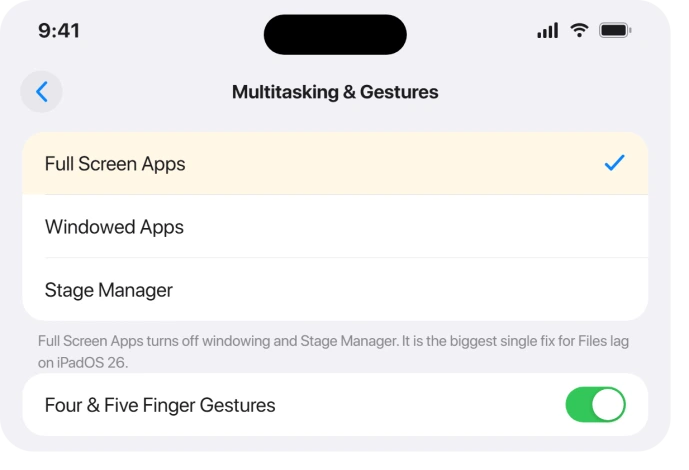
The biggest single fix is to drop windowing. Go to Settings > Multitasking & Gestures and choose Full Screen Apps.
That turns off the windowed and Stage Manager modes, and for a lot of people it takes the lag away on its own.
The trade-off is real, since you lose side-by-side windows, so pick it only if you value speed over multitasking.
If you keep windowing on for two apps at once, the Split View page shows how to get them side by side on iPadOS 26 and 27.
If you lean on multitasking, the iPadOS 26 window and close-app changes are the ones to read first.
Then soften the animations: turn on Reduce Motion in Settings > Accessibility > Motion, and Reduce Transparency in Settings > Accessibility > Display & Text Size.
Both cut the Liquid Glass overhead that older iPads feel most.
Give a brand-new update a day, too. After you install iPadOS 26 the iPad reindexes your files and photos in the background, which makes it run warm and sluggish for a day or two before it settles.
If it is also draining battery, iPad battery drain on iPadOS 26 explains the same reindex.
On an older iPad, one more thing helps: open Files, go to Recents, and clear out what has piled up there. A Recents list holding years of files makes the whole app crawl.
When tapping a file does the wrong thing
Some of what feels broken is the redesign, not a fault. On iPadOS 26, tapping a file no longer previews it in Quick Look by default.
It opens in whatever app iPadOS picks, which throws anyone used to a quick peek. That is a deliberate change, not a bug, so resetting will not undo it.
You can steer it, though. Press and hold a file, choose Open With, and pick Preview with Quick Look or the app you actually want.
That also sets the default for that file type, so the same kind of file opens the same way next time, though on later 26 updates the default does not always stick.
Open With has a second use on iOS 27. When Live Text will not select words in a Quick Look preview, opening the image in Preview instead worked for one iPhone owner, and the Live Text in Files page walks through it.
When you import from an SD card or camera, copy the files into a folder on the iPad first, then open them, which avoids the slow reads Files now does straight off a card.
For a drive that never appears, check the iPad USB connection and power requirements before treating Files as broken.
When Files freezes or crashes outright
This is the genuine bug.
Status: some iPads freeze or crash in Files right after the iPadOS 26 update. It is not about low storage or RAM, and Apple has not published a fix, though later 26 updates smoothed it out for some.
Work the ladder in order:
- Force quit Files and reopen it. If the whole screen is stuck, force restart: press and release Volume Up, press and release Volume Down, then hold the top button to the Apple logo. The same steps are in iPad frozen and force restart doing nothing if that fails.
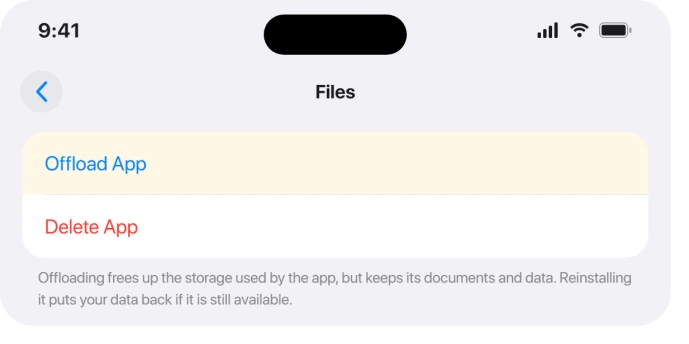
- Offload Files, restart, then reinstall it. In Settings > General > iPad Storage > Files, tap Offload App, restart the iPad, then tap the app to download it again. Offloading clears the app without touching your documents, and it clears a corrupt cache along the way. It fixes some iPads and not others, so do not be surprised if it does not stick.
- Reset All Settings. Settings > General > Transfer or Reset iPad > Reset > Reset All Settings keeps your files and apps while clearing settings that may be jamming things.
- Update to the newest iPadOS 26. Apple has not named a Files fix in any release notes, but users report later updates run smoother, so stay on the latest.
If the freeze only happens while a file is uploading or downloading, it is iCloud Drive, not Files. The app locks up waiting on a stalled sync.
Make sure iCloud Drive is on in Settings > [your name] > iCloud > Drive, let it finish over a strong Wi-Fi connection with the iPad on power, and clear space if your iCloud is full.
A weak connection is a common trigger, and iPad Wi-Fi not working on iPadOS 26 covers that side.
When a cloud service vanished from the sidebar
If Google Drive, Dropbox, or OneDrive disappeared from the Files sidebar after the update, the provider was switched off, not broken.
Open Files, tap Browse, tap the three dots at the top, choose Edit, turn the service back on, and tap Done.
If it still will not appear, update or reinstall that provider's app, which relinks it to Files.
When Safari downloads will not save to Files
If the Save to Files button greys out when you download in Safari, that is an older Safari download bug, unrelated to iPadOS 26.
Use a different browser like Chrome for that one download, or press and hold the link, choose Download Linked File, and collect it from Files > Downloads afterward.
A full-page capture is another kind of saved document. Check the iPad screenshot destination if its result went to Files instead of Photos.
Files search came back empty after 26.2
A known iPadOS 26.2 change left in-app search in Files returning nothing for some people.
Update to the latest 26.x, and in the meantime search from the Home Screen with Spotlight, which still finds files while the in-app search is misbehaving.
What will not fix it
- Paid "system repair" apps. Tools like ReiBoot and UltFone are pushed as the fix for this, but they cannot repair an iPadOS bug or a stalled iCloud sync. Skip them.
- A recovery-mode reinstall as your first move. It is a last resort, not step one, and a bad restore creates fresh problems.
- Hunting for a "Clear Files cache" button. There is no such thing in iPadOS 26. Offloading the app is the real way to clear its cache, so use that rather than searching for a toggle that does not exist.
- Blaming storage for a hard freeze. A nearly empty iPad still froze for some people, so free space is not the cure for a launch freeze. Do not gut your storage chasing it.
- Wiping the iPad early. Reset All Settings keeps your data and comes first. Save Erase All Content for a genuine last resort.
Why is the Files app not opening after iPadOS 26?
For most people it is not truly broken, just slowed by the new windowed multitasking and animations, which Full Screen Apps mode and Reduce Motion fix.
On some iPads it is a real launch freeze that has nothing to do with storage. There, force restart, then offload and reinstall Files, then Reset All Settings, and keep iPadOS updated.
Does offloading the Files app delete my files?
No. Offloading removes only the app itself, not your documents, and your files stay in iCloud Drive and on the iPad. When you reinstall Files, everything is still there.
It is the safe way to clear a corrupt app cache, which is why it comes before any reset.
Why did Google Drive disappear from Files on iPadOS 26?
The update switched the provider off in the sidebar rather than removing it. Open Files, tap Browse, tap the three dots, choose Edit, and turn Google Drive back on.
If it is still missing, update or reinstall the Google Drive app to relink it to Files.
The Short Version
- The Files app itself did not get slower on iPadOS 26. Most "slow" is the new windowing and animations.
- For lag: Settings > Multitasking & Gestures > Full Screen Apps, plus Reduce Motion and Reduce Transparency. Give a fresh update a day to reindex.
- Some taps opening the wrong app is the redesign, not a bug: press and hold a file and use Open With > Preview with Quick Look.
- For a real freeze or crash: force restart, then offload and reinstall Files, then Reset All Settings, then update. It is not a storage problem, and offloading does not always stick.
- A cloud service gone from the sidebar comes back under Browse > three dots > Edit. Skip paid repair tools and any "clear cache" button, which does not exist.
Where to Next
Where the iPad asks permission for every single paste, that prompt can be settled per app.
For an app that opens and shows nothing at all, Apple Music's blank Home tab is a known one.
For another built-in app that stops responding, Translate has seven solutions of its own.
Where the Journal app interrupts every entry with a suggestions pop-up, that has a switch behind it.
On a Mac where the Open Anyway button has vanished from Security settings, there is a way to get it back.
Should the app that opens your documents be the one falling over, Preview crashing on iPadOS 26 is the closer match.
- Force restart not working: iPad frozen and force restart doing nothing
- Understand the new windowing: swipe up to close apps on iPadOS 26
- Warm and draining after the update: iPad battery drain on iPadOS 26
- More iPad fixes: iPad problems and fixes
- Back to the start: pcglance home

Isaac Smith is the founder and editor of PC Glance, a website that covers computers, laptops, and technology. He is a tech enthusiast and a computer geek who loves to share his insights and help his readers make smart choices when buying tech gadgets or laptops. He is always curious and updated about the latest tech trends.