

You downloaded an app, macOS blocked it, and the standard instruction is to open Privacy & Security and click Open Anyway. You go there and the Open Anyway button is not on the screen.
It was there. That button is tied to a recent blocked launch and Apple documents it lasting about an hour, so a quiet Settings pane usually means the window has closed rather than that anything is broken.
Opening the app again puts it back. Before you do, settle two things first.
Should you click Open Anyway at all?
Apple states its position on the page that carries these steps, and Apple does not soften it:
> "Overriding security settings to open an app is the most common way that a Mac gets infected with malware. You should not override security settings if an app hasn't been checked by Apple, even if the app looks like it comes from a major developer."
That is the right default, and this article does not argue with it. Open Anyway waives a malware check. Use it only for an app whose origin you can actually account for.
You can check that rather than guess. macOS records where a downloaded file came from. Select the app in Finder, press Command-I for Get Info, and look for a Where from line.
If it names the developer's own site, that matches what you expected. If it names a link aggregator, a file host or something you do not recognize, that is your answer and the answer is no.
If you cannot account for the source, the supported route is to look for the app in the Mac App Store or find an alternative. Nothing further down changes that.
Check your security setting before overriding anything
There is a version of this problem that needs no override at all, and it is the safer fix, so rule it out first.
Go to System Settings, Privacy & Security, and scroll to Security. Look at the Allow applications from menu.
- If it is set to App Store, that alone blocks everything downloaded anywhere else, however legitimate. Apple's own remedy is to change it to App Store and Known Developers. That waives nothing, because signed and notarized apps still pass their checks normally.
- If it is already on App Store and Known Developers and your app is still blocked, then the app itself is unsigned or unnotarized, and this setting is not your answer.
Only the second case needs the rest of this article.
Why the Open Anyway button is not there
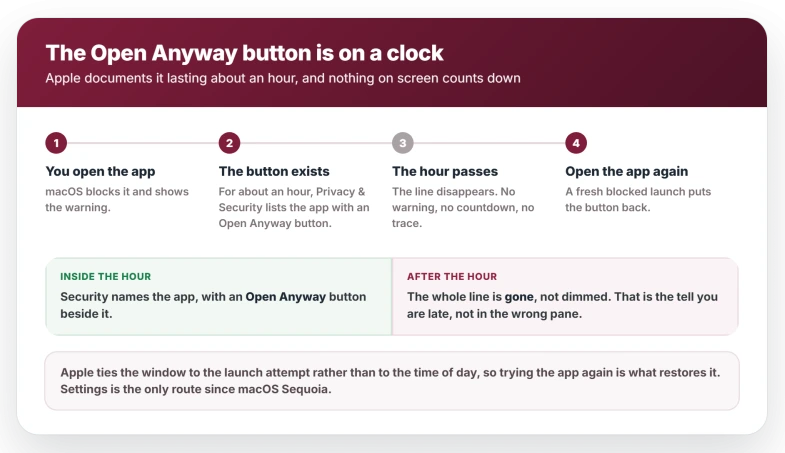
Gatekeeper does not park a permanent entry in Settings waiting for you. The button is generated by a blocked launch and it lapses with it.
Apple's macOS user guide puts one sentence under the step:
> "This button is available for about an hour after you try to open the app."
That sentence is the only place Apple states the limit. It is not new to Tahoe either, despite how it is usually presented. Apple has carried it since macOS Sonoma.
What changed is covered further down, and it is the reason the hour now decides whether this works.
Apple ties the window to the launch attempt rather than to the clock on the wall, so a fresh attempt is what puts the button back.
Double-click the blocked app again, let it fail again, then go straight to Apple menu > System Settings > Privacy & Security and scroll to Security.
How to click Open Anyway on macOS Tahoe 26
- Open the Apple menu, then System Settings, then Privacy & Security in the sidebar. You may need to scroll down.
- Scroll to Security. Inside the fresh hour, the blocked app is named there with an Open Anyway button beside it. If that whole line is absent rather than dimmed, the hour has run out and you are not in the wrong pane.
- Click Open Anyway. The warning reappears as a confirmation, which is expected rather than a second failure. Confirm it.
- Enter your login password, then click OK.
One wrinkle to know about, because it will otherwise send you hunting. Apple's two pages label these buttons in opposite orders.
The user guide numbers a step "Go to Security, then click Open" before "Click Open Anyway", while Apple's support article and Apple's own screenshot show Open Anyway as the button sitting in the Security section, with a plain Open on the confirmation that follows.
Go by what is on your screen.
Apple notes the app "is saved as an exception to your security settings", so this is not a per-launch ritual.
The exception belongs to that copy of the app, which is why a freshly downloaded update can prompt again: the copy you just downloaded is new software as far as the check is concerned.
If macOS asks for your login password here and refuses to take it, that is a separate problem, and a Mac rejecting a password it should accept has its own causes.
The firewall remembers apps by signature in a similar way, which is why a box about incoming connections can return at every launch.
Why Apple's support article leaves out the one-hour limit
Three Apple pages cover this for ordinary readers, and they do not agree.
Two macOS user guide pages carry the steps and both include the one-hour sentence.
Apple's general support article, Safely open apps on your Mac, explains Gatekeeper and notarization thoroughly, tells you to try opening the app first, and never mentions an hour anywhere on the page.
It also skips the password prompt.
So the support article is not wrong about the order. It simply never says the order is on a clock, and it is the page most searches land on.
What "Apple could not verify" actually means
Read the alert, because the wording tells you which situation you are in.
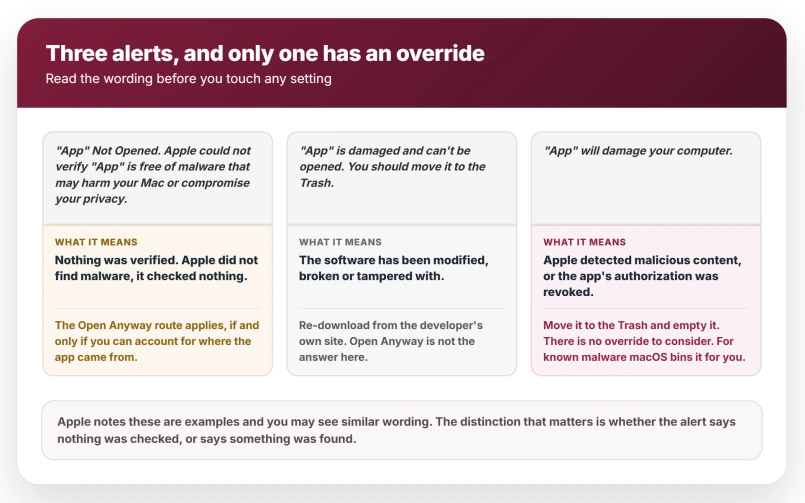
On Tahoe the block reads "App" Not Opened, with the body "Apple could not verify "App" is free of malware that may harm your Mac or compromise your privacy", and only Move to Trash and Done on it.
Older phrasing about a developer who "cannot be verified" is Sonoma-era and earlier.
Apple describes the underlying checks plainly.
macOS checks the Developer ID signature "to verify that the software is from an identified developer and that it has not been altered", and "by default, macOS Catalina and later also requires software to be notarized".
A notarized app "indicates that Apple checked it for malicious software and none was detected".
So the alert usually means one of three things: the developer is not identified, the app was never sent for that malware check, or your Mac is set to App Store only. Note what none of them means.
Apple has not found malware. Apple has verified nothing.
A tampered download trips this. So does a small developer who never paid for a Developer ID, shipping perfectly clean software.
The alert cannot tell them apart, and neither can you from the alert alone, which is why the Where from check matters more than any instruction on this page.
Does Control-clicking an app still work on Tahoe 26?
Control-click then Open used to produce a dialog with an Open button that overrode the block.
Apple ended that in macOS Sequoia and announced it on 6 August 2024, saying users would instead need to visit System Settings to review security information before allowing software to run.
Be precise about what went. Control-click then Open is still an ordinary Finder command and still opens apps that are not blocked. What it no longer does is override a block.
That change is why the one-hour window matters now: Settings is the only route left.
If it says the app is damaged instead
"App" is damaged and can't be opened. You should move it to the Trash is a different alert with a different cause. Apple attributes it to software that has been modified, broken or tampered with.
The Open Anyway route is not the answer to it.
Re-download the app from the developer directly first, because an interrupted or corrupted download is the ordinary cause. Apple's own listed responses are to contact the developer or look for an App Store version.
If a clean download from the developer's own site produces the same message, stop treating it as a download problem.
At that point the file really has been altered somewhere, and forcing it open is the exact scenario Apple's warning describes.
Separate again is an alert saying an app will damage your computer. Apple uses that for detected malicious content or revoked authorization, and there is no override to consider.
Move it to the Trash and empty the Trash, and do not fetch it again from wherever it came from.
For known malware macOS does this for you: Apple states it notifies you the app cannot be opened and moves it to the Trash itself.
If unwanted apps or alerts keep appearing, review the Mac's malware checks before allowing more software to run.
Built-in apps refusing to launch is a different matter entirely, and Photos or Passwords not opening on Tahoe has its own causes.
If macOS instead refuses with a permission message, even for an admin, the fault sits in the app's files or signature.
What does not help
- Opening System Settings first and hunting for the button. It exists only after a recent blocked launch. Trigger the block, then go.
- Control-clicking the app and choosing Open. Apple removed that override in Sequoia, so on Tahoe it will not get you past a block.
- Restarting the Mac. The button is tied to a recent blocked launch, not to anything a restart resets, so rebooting is not what brings it back. Open the app again instead.
- Waiting to see whether the button reappears. It will not. Time passing is what removed it.
- Overriding an app you cannot account for. Run the Where from check first. If that comes back unfamiliar, the block did its job.
If an iPhone or iPad app will not even download on the Mac, the Mac App Store page covers the sign-out fix.
Status: as of macOS Tahoe 26.6 the one-hour limit is in Apple's user guide pages and not in its Safely open apps article. Apple ended the Control-click override in Sequoia.
Why is there no Open Anyway button in Privacy & Security?
Because the button is time-limited. Apple's macOS user guide says it is available for about an hour after you try to open the app, and nothing on screen counts down.
Double-click the app so it fails again, then go straight to System Settings, Privacy & Security, and scroll to Security.
How do I open an app from an unknown developer on macOS Tahoe?
Try to open it so macOS blocks it, then go to Apple menu, System Settings, Privacy & Security, and scroll to Security.
Click Open Anyway beside the app name, confirm the warning when it reappears, and enter your login password. Apple saves an exception for that copy.
Only do this for an app whose source you can account for.
Does Control-clicking an app still work on macOS Tahoe?
Not as a way past a block. Apple removed that override in macOS Sequoia, announced 6 August 2024, and directed users to System Settings instead.
Control-click then Open still opens apps that are not blocked, so the command works, it just no longer overrides Gatekeeper.
The Short Version
- The Open Anyway button is time-limited, about an hour after the blocked launch, and nothing on screen counts down.
- A missing button means the hour has run out. Open the app again so it fails, then go straight to Settings.
- Path: System Settings > Privacy & Security > Security, click Open Anyway beside the app, confirm the warning when it reappears, enter your password.
- Check Allow applications from first. If it is on App Store only, switching it to App Store and Known Developers fixes this with no override at all.
- Check the source before overriding: Finder, Command-I, and read the Where from line.
- Apple ended the Control-click override in Sequoia, announced 6 August 2024. It still opens apps that are not blocked.
- "App is damaged" is a different alert. Re-download it. "Will damage your computer" means move it to the Trash, not override it.
- The hour is not new to Tahoe. Apple has documented it since Sonoma.
Where to Next
The button is time-limited and that is the part nobody tells you. Roughly an hour after the blocked launch, and then it is gone from the pane as though it never existed.
Read Apple's warning before you use it, because it is blunt for a reason and it is worth taking seriously.
If your app is one you genuinely trust and the button has expired, just try to open it again and go straight back to the pane. Tell me if that does not bring it back.

Isaac Smith is the founder and editor of PC Glance, a website that covers computers, laptops, and technology. He is a tech enthusiast and a computer geek who loves to share his insights and help his readers make smart choices when buying tech gadgets or laptops. He is always curious and updated about the latest tech trends.