
You type the password you have used for years, and after a Tahoe update, at the login or FileVault screen, your Mac says it is wrong. It starts to feel like you are locked out of your own machine for good.
You are almost certainly not. The password is fine. Tahoe misread your keyboard and is entering different characters than the keys you press, so a symbol or two comes out wrong.
Your files are safe, and there are ways back in that erase nothing. I would start with the keyboard, then work through the recovery routes.
First, prove the password is right
Before you doubt your memory, see what your Mac is actually receiving. If your login screen shows a name and password field, type your password into the name field, where it shows as plain text, and read it back.
If a symbol like an at sign, a slash, or a backtick comes out as something else, that is the bug, not you.
Two other signs point the same way. The same password still works on another Mac, or in macOS Recovery, and the trouble began the moment you updated to Tahoe.
If instead it is rejected even in Recovery, you are looking at a deeper lockout rather than the keyboard bug, and your recovery key or Apple ID is how you reset it.
This test works at the normal login screen. The FileVault screen that appears first on an encrypted Mac shows no plain text, so if you are stuck there, the recovery route is the way through.
This is a rejected password, not a Mac that will not start.
A startup padlock or a lost-device PIN needs the matching Mac lock recovery route, rather than another keyboard-layout change.
If yours never reaches the login screen, that is a Mac that will not wake or boot, and an update that will not finish is Tahoe installation failing.
Switch the keyboard at the login screen
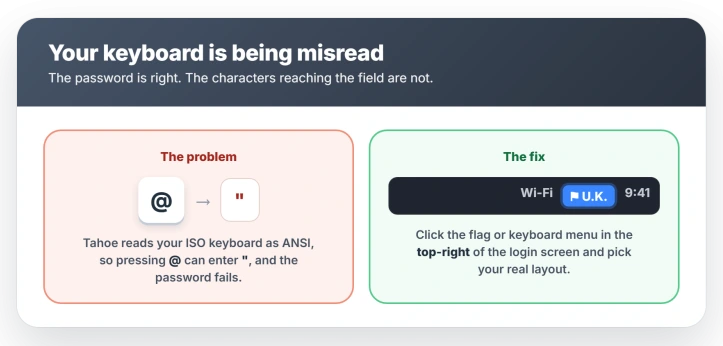
When more than one keyboard layout is installed, the login screen shows a small flag or keyboard icon in the top-right corner.
Click it and pick the layout that matches your actual keyboard, such as British or U.S., then type your password again.
Tahoe often resets this to the wrong layout on every boot, and the Globe or Fn key does not switch it here, so use that menu. If the icon is not there, only one layout is set, and Recovery is how you get back in.
Watch for Caps Lock and a Bluetooth keyboard
Two more things to rule out at the login screen. Caps Lock has been switching itself on for some people after the update, so check its light before you type.
And the first FileVault screen may not power an older Apple or third-party Bluetooth keyboard at all, so its keys do nothing. Use the built-in keyboard, or plug in a wired USB-C keyboard, to get past that screen.
If you are stuck, get in through Recovery
If the login or FileVault screen will not budge, macOS has a built-in recovery for exactly this.
After three wrong tries, the screen usually offers to reset the password with your Apple ID or your recovery key.
If your recovery key is not in the Passwords app, you can make a new one while you can still log in.
On some Apple silicon versions, pressing Shift, Option, and Return at the login screen reveals a recovery-key field, if it appears.
To go further, boot into Recovery. On Apple silicon, hold the power button until Loading startup options appears, then choose Options.
Open Utilities, then Terminal, type resetpassword, and press Return. Pick your Apple ID or your FileVault recovery key to set a new password. None of this touches your files.
Apple lays out the path in If you forgot your Mac login password.
A password set that way leaves your login keychain on the old one, so the keychain may keep asking for it afterwards.
If the Apple ID route fails with an iCloud communication error instead, Advanced Data Protection may be blocking it.
The recovery key is the 24-character code you saved when you turned FileVault on.
If you never wrote it down, on Tahoe it may be waiting in the Passwords app on another Apple device signed in to the same account. Open Passwords and search for recovery key.
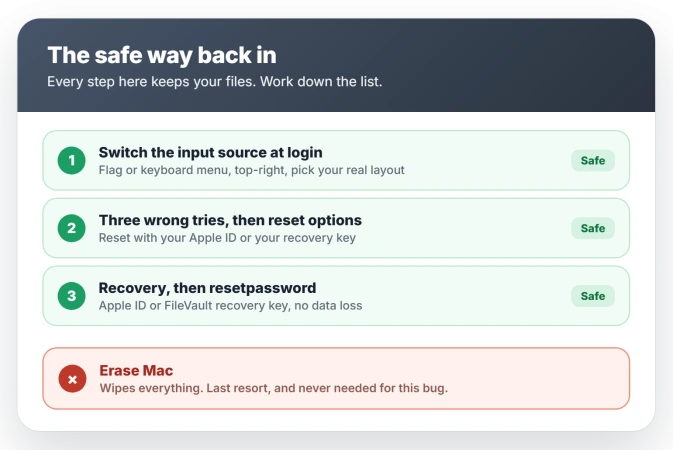
Status: a Tahoe keyboard-layout mix-up rejects correct passwords at login. User-reported and still unfixed, but your files stay safe. Switch the input source, or reset in Recovery.
What not to do
With a login bug, a few moves make things worse, not better.
- Do not choose Erase Mac. Erasing, or an erase-and-reinstall, wipes everything and is only recoverable from a backup. It is never needed to fix a keyboard-layout rejection.
- Do not keep hammering the password. After several wrong tries a Mac locks you out for longer and longer, and on Apple silicon too many attempts in Recovery can leave the drive unrecoverable. Move to the Apple ID or recovery-key route early.
- Know the keychain trade-off. Resetting the password without the old one starts a new, empty login keychain, so passwords saved in it are lost, though your files are not. With iCloud Keychain on, they sync back.
- Do not confuse the two passwords. The screen wants your local Mac password, not your Apple Account password. The Apple Account password is only a way to reset the local one.
Why won't my Mac accept my correct password after Tahoe?
Tahoe misread your keyboard at the login and FileVault screen, usually reading an ISO keyboard as ANSI or picking the wrong input source, so some characters, especially symbols, are entered differently than the keys you press.
The password is right, but what reaches the field is not. Switch the input source at the login screen to your real layout.
How do I switch the keyboard layout at the Mac login screen?
If more than one layout is installed, the flag or keyboard icon sits in the top-right corner of the login screen; pick the one matching your keyboard.
If no icon appears, only one layout is set, and Recovery is the way in instead.
Tahoe often resets the choice on the next boot, so you may have to switch it again each time you log in.
I'm locked out at the FileVault screen. How do I get in without erasing?
Boot into Recovery: on an Apple silicon Mac, hold the power button until Loading startup options appears, then choose Options. Open Utilities, then Terminal, and run resetpassword.
Reset with your Apple ID or your FileVault recovery key. This does not erase your files. Do not choose Erase Mac.
Where is my FileVault recovery key?
It is the 24-character code shown when you first turned FileVault on. If you saved it nowhere, on Tahoe it may be in the Passwords app on another device signed in to the same Apple Account.
Open Passwords and search for recovery key. It is not the same as your Apple Account recovery key.
The Short Version
- Your password is probably right. Tahoe misread your keyboard, so a symbol or two types wrong at the login or FileVault screen.
- Prove it by typing the password into the username field, where it shows as plain text, and checking the symbols, or confirm it still works on another Mac.
- At the login screen, click the flag or keyboard icon in the top-right corner, pick your real keyboard layout, then type the password.
- Rule out Caps Lock, and an old Bluetooth keyboard that may not work at the FileVault screen. Use the built-in or a wired keyboard there.
- Fully locked out? Boot to Recovery, run resetpassword, and use your Apple ID or FileVault recovery key. It does not erase your files. Do not choose Erase Mac.
Where to Next
- The update itself refusing to install: macOS Tahoe installation failed
- A Mac that will not wake or reach the screen at all: Mac won't wake from sleep on Tahoe
- The Passwords or Photos app refusing to open: Photos and Passwords won't open on Tahoe

Isaac Smith is the founder and editor of PC Glance, a website that covers computers, laptops, and technology. He is a tech enthusiast and a computer geek who loves to share his insights and help his readers make smart choices when buying tech gadgets or laptops. He is always curious and updated about the latest tech trends.