
You shrink the giant clock on your Lock Screen, tap Done, and it springs back to oversized, on top of your widgets. Or it ballooned on its own after updating to iOS 26.1, and nothing keeps it small.
Two things drive it, neither obvious. Only the default clock font can stretch, so it is the only one that can blow up. And a shuffling wallpaper resizes the clock to fit each new photo, undoing your change.
Neither is anywhere you would think to look, so let me take you to both.
Drag the clock back down to size
The clock has a resize handle. Long-press the Lock Screen, tap Customize, then tap Lock Screen and tap the clock itself. A small round handle sits in the bottom-right corner of the time.
Drag that handle up to shrink the clock, and down to grow it. Pull it up until the time clears your widgets, then tap Done.
Apple covers the handle in Create a custom iPhone Lock Screen.
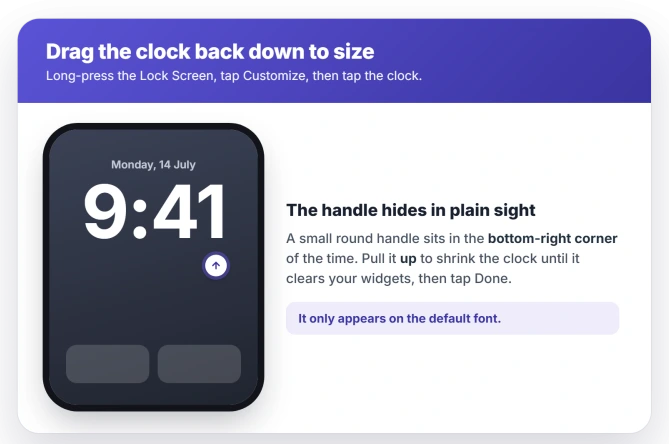
If the widgets sit on top of the handle so you cannot grab it, press on the widget row and drag it down first, then reach the handle.
If it springs back to oversized the moment you tap Done, the cause is your wallpaper, not the handle.
Switch to a fixed-size font
Only the first, default font can be stretched, which makes it the only one that can balloon on its own. The other five fonts are a fixed size and cannot grow past normal.
So to take the problem off the table for good, tap the clock, tap the font row, and choose any of the other fonts. The clock loses its stretch, and it can never inflate again.
The trade is that you also give up the resize handle, so you cannot make the clock big on purpose either.
Drop the shuffling wallpaper
If the clock keeps re-inflating right after you shrink it, the cause is your wallpaper.
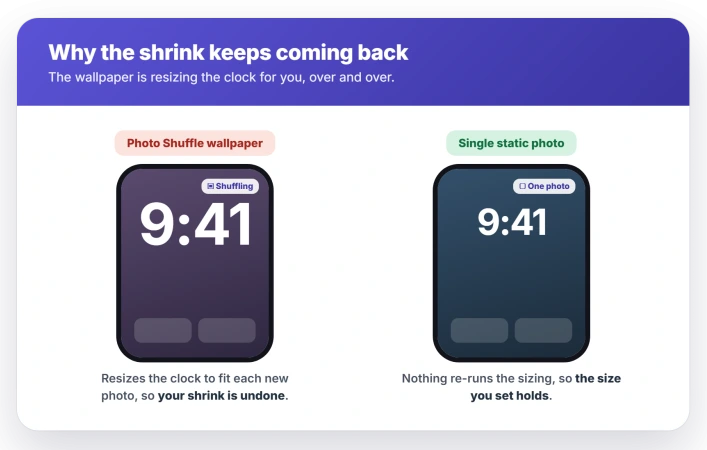
A Photo Shuffle wallpaper, the kind that rotates through several images, resizes the clock to fit each new photo, so your shrink does not stick.
Switch the Lock Screen to a single static photo instead, and the size you set stays put.
If the changing picture is your actual complaint rather than the clock, our guide to a Lock Screen wallpaper that keeps changing works through the causes that are not Photo Shuffle at all.
When the handle will not appear
Sometimes the resize handle is simply missing, and there are two common reasons.
The photo has no room over its subject. iOS keeps the time from covering a face or a landmark, so with a subject near the top there is nowhere for the clock to sit, and the handle does not show.
Pick a photo with clear space over the subject, or in Customize turn off the depth effect so the time is not forced to move.
The Lock Screen was made before the update. An older one can get stuck without the new handle. Delete it and build a fresh Lock Screen, and the handle comes back.
If it is the widgets rearranging themselves rather than the clock, that is a different Lock Screen and StandBy widget problem.
Status: the oversized Lock Screen clock on iOS 26 is user-reported, not acknowledged by Apple. Only the default font stretches, and a shuffle wallpaper resizes it. No size fix through 26.3.
What will not fix it
A couple of fixes look like they should help but do not.
- The Glass and Solid style toggle. Added in iOS 26.2, it changes how transparent the time looks, not how big it is, so it will not shrink an oversized clock. If the clock or your notifications look faint rather than large, that is a readability issue instead.
- Waiting for a patch. iOS 26.2 and 26.3 came and went without a size fix, and Apple has not called this a bug, so the manual steps are what you have.
- Changing the wallpaper brightness or the phone's text size. Neither touches the Lock Screen clock's height.
- Reset All Settings. It will not shrink a clock the default font stretched, and it will not stop a shuffle wallpaper from resizing it.
Why did my iPhone Lock Screen clock get so big?
The default clock font is the only one that can stretch, and on iOS 26 it can inflate on its own, especially with a shuffling photo wallpaper that resizes the time to fit each image.
Drag the clock's handle in the bottom-right corner back down to size, or switch to any other font so it cannot stretch.
How do I make the Lock Screen clock smaller on iOS 26?
Long-press the Lock Screen, tap Customize, tap the clock, and drag the round handle in the bottom-right corner of the time upward. The handle only shows on the default font, so if you switched fonts you will not see it.
Why does my clock get big again after I shrink it?
Your wallpaper is a Photo Shuffle that rotates through images, and the time resizes itself to fit each new one, undoing your change. Switch the Lock Screen to a single static photo, and the size you set holds.
Did iOS 26.2 fix the big Lock Screen clock?
No. iOS 26.2 only added a way to adjust the clock's transparency, and no release through 26.3 lists a fix for the sizing or the widget overlap. The manual steps here are still the way to sort it.
The Short Version
- Long-press the Lock Screen, tap Customize, tap the clock, and drag the handle in the bottom-right corner up to shrink it. Only the default font has that handle.
- If the widgets cover the handle, drag the widget row down first, then grab it.
- Switch to any of the other five fonts and the clock cannot stretch or balloon, but you lose the resize handle.
- If it keeps re-inflating after you shrink it, your wallpaper is a Photo Shuffle that resizes the clock to each image. Use a single static photo.
- No room over the photo's subject, or an old Lock Screen from before the update, can hide the handle. Pick a photo with space up top, or delete and remake the Lock Screen.
Where to Next
And if there is a line across the display rather than an oversized clock, start by wiping it.
Where the passcode delay is fixed at Immediately with no way to change it, that has a documented explanation.
Where the whole appearance keeps flipping rather than one element resizing, six switches can do that.
Where the buttons themselves have gone from the lock screen rather than the clock resizing, that has its own explanation.
- The Lock Screen widgets shuffling on their own: StandBy widgets keep changing on iOS 26
- A Clock alarm going off with no sound: iPhone alarm silent on iOS 26
- Lock Screen notifications washed out and hard to read: iOS 26 notifications hard to read

Isaac Smith is the founder and editor of PC Glance, a website that covers computers, laptops, and technology. He is a tech enthusiast and a computer geek who loves to share his insights and help his readers make smart choices when buying tech gadgets or laptops. He is always curious and updated about the latest tech trends.