
You put the phone down in a light interface and pick it up in a dark one. Nothing was tapped. Nothing was scheduled, as far as you know, and it has now done it three evenings running.
I get how unsettling a phone that changes on its own can be, so let me show you what is behind it.
Six separate things can flip your appearance, and they sit in six different places. Turning off the obvious one leaves the other five running.
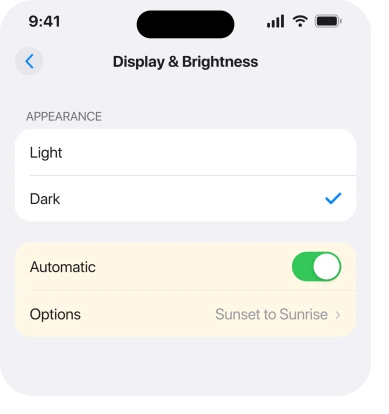
1. Automatic, in Display & Brightness
Check this first, because it explains most of it.
Apple, on screen brightness and color: "You can set Dark Mode to turn on automatically at night (or on a custom schedule)."
The route is Settings, Display & Brightness. Is Automatic on? Then tap Options and read what it is set to.
On iOS 27 the same switch has moved. Apple's Dark Mode page now says: "In the Settings app, tap Appearance." Then select Automatic and tap Options, exactly as above.
Now the part that catches people. Apple: "If you select Sunset to Sunrise, iPhone uses the data from your clock and geolocation to determine when it's nighttime for you."
Your location, not a fixed hour. So the changeover drifts through the year. It moves again the moment you travel. A phone that flipped at seven in June and flips at four in December is not faulty. It is following the sun.
Turn Automatic off and select Light to stop it entirely.
A Mac handles Automatic differently. There, Auto follows the Night Shift schedule, so a Mac that never turns dark may simply have no schedule set, as the Mac Auto Dark Mode page explains.
2. The Home Screen has its own Auto, and step 1 does not touch it
This is the one that survives the obvious fix, and it is why people come back saying they already turned Automatic off.
iOS 26 gives your icons and widgets their own appearance control. Separate place, separate switch, its own automatic setting.
Apple, on customising the Home Screen: "To show icons and widgets with a dark appearance at night and a light appearance during the day, tap Auto."
Same behaviour, different switch, and nothing in Display & Brightness governs it.
Go to the Home Screen. Touch and hold the background until the icons jiggle. Tap Edit at the top, then Customize. Pick Light rather than Dark or Auto.
Two more things on that screen carry the same trap. Apple: "Tap Clear to make the icons translucent, then choose Light, Dark, or Auto." Tinted ends with the same three choices. So there are three routes into an automatic dark Home Screen.
All three hide behind a jiggle-mode menu almost nobody opens.
If your icons go dark but your Settings app stays light, this is your answer and step 1 never was.
Owners worked this out for themselves before anybody wrote it down.
On a community thread about appearance after installing iOS 26, one poster spelled the rule out for everyone else: "you must enable Dark Mode in BOTH Home Screen settings AND global settings: Settings > Display & Brightness > Appearance > Dark".
Two places, and the same is true in reverse when you are trying to stop it.
3. A Focus is carrying an appearance filter
Now we are into causes that fire on a trigger rather than a clock, which is why they feel so random.
Apple, on setting up a Focus: "Customize how your apps and device behave when the Focus is on: Tap Add Filter."
One of those filters sets your appearance. A Focus carrying it switches you to Dark every time it starts. Then back again when it ends.
Apple does not publish a list of the available filters anywhere I could find, so naming this one is ours. The mechanism is Apple's; the identification is mine.
Go to Settings, Focus, tap each Focus you have, and scroll to its Focus Filters section. Remove any appearance filter you find there.
Sleep is the usual culprit, because it is the Focus most people set up and then forget. If your Focus is also holding back calls or alerts, our page on a Focus blocking calls covers the schedules that keep re-arming themselves.
4. A Shortcuts automation you set up once
Rarer, and check it precisely because you would not remember doing it.
Shortcuts can change appearance on a trigger. Arriving somewhere, opening an app, a time of day, the battery dropping. People build these in a burst of enthusiasm and never look at them again.
Open Shortcuts, tap Automation at the bottom, and read the list. Anything mentioning appearance, dark or light is yours to delete.
The tell for this one is a trigger that has nothing to do with time. If it goes dark when you get to work, or the second you open one particular app, no schedule explains that and an automation almost certainly does.
5. One app is dark and the rest of the phone is not
Different problem, and no amount of hunting through Settings will fix it.
Plenty of apps carry their own appearance setting, independent of iOS. Chat apps do. So do browsers, readers and note apps.
So if your phone is light and one app insists on being dark, open that app's own settings and look for a theme or appearance option. That is where the choice lives, and iOS is not overriding it.
The reverse happens too. An app set to follow the system will change when your phone changes, which makes a single app look like the cause when it is only the messenger.
6. It is not Dark Mode at all, it just looks like it
Read this if the switching matches none of the five, or if the colours look wrong rather than simply darker.
Three separate features darken an iPhone without touching Dark Mode.
- Night Shift. It warms the display rather than darkening the interface, and Apple gives it the same automatic scheduling: "Tap From, then select either Sunset to Sunrise or Custom Schedule." Two features on the same sunset trigger is why they get confused.
- Smart Invert. An accessibility setting that flips colours across the whole screen. Your photos still look right while everything around them looks wrong, which is the giveaway. It is at Settings, Accessibility, Display & Text Size. One poster on a community thread about iOS 26 appearance found they could reproduce the look they were complaining about just by toggling Smart Invert, so toggle it once and see whether your screen matches.
- Reduce White Point. Same screen, and it dims bright areas without changing any colour at all.
There is also a Focus option that darkens one screen only. Apple: you can "darken the Lock Screen when the focus is on". So a Lock Screen that looks dark while everything else looks normal is that setting, not Dark Mode.
If your Lock Screen alone looks wrong, the Always-On display is the other common explanation.
And if you switched your app icons to Dark on purpose, to get rid of grey target icons, the target icons page explains why.
What does not help
- Restarting. All six causes are saved settings, so all six come back the moment the phone does.
- Reset All Settings. It would clear them, along with your Wi-Fi passwords, wallpaper and every app permission. Enormously out of proportion.
- Turning Dark Mode off in Control Center. It changes the state, not the schedule, so it comes back at sunset.
- Updating iOS. None of these is a bug, so there is nothing to patch.
- Changing your wallpaper. A dark wallpaper is a separate look and it is not what is switching your interface.
Status: iOS 26.6, checked 17 August 2026. Apple documents the Display & Brightness schedule following your geolocation, and a separate Auto appearance for Home Screen icons and widgets. Updated 25 September 2026: on iOS 27 these settings sit under Settings, Appearance.
Why does my iPhone keep switching to dark mode on its own?
Automatic in Settings, Display & Brightness is the usual answer. Apple says Sunset to Sunrise uses your clock and geolocation, so the changeover time drifts through the year and moves when you travel. Turn Automatic off and choose Light.
I turned Automatic off and my icons still go dark. Why?
Because the Home Screen has its own appearance control. Touch and hold the background, tap Edit then Customize, and Apple's own instruction is that Auto shows "a dark appearance at night and a light appearance during the day". Choose Light there instead.
Can a Focus turn Dark Mode on by itself?
Yes. Apple documents Add Filter as the way to customise how your device behaves during a Focus, and an appearance filter is one of the options. Check Focus Filters under each Focus in Settings, and look at Sleep first.
The Short Version
- Settings, Display & Brightness, then Automatic. That is the common cause.
- Sunset to Sunrise follows your location, so the time it flips moves with the season and with travel.
- The Home Screen carries its own Auto appearance, reached by holding the background and tapping Edit then Customize.
- Clear and Tinted icon styles each end with the same Light, Dark or Auto choice.
- A Focus can carry an appearance filter, and Sleep is the one people forget.
- A Shortcuts automation explains any trigger that is not a time.
- Night Shift, Smart Invert and Reduce White Point all darken the screen without being Dark Mode.
Where to Next
The thing to take away is that appearance is not one setting on iOS 26. It is a schedule in Display & Brightness, a second schedule behind your Home Screen icons, a filter inside every Focus you own, and anything Shortcuts feels like doing.
Turn off the first two and you have covered the vast majority of cases. Check the third if it still happens on a trigger rather than a clock.
If your phone goes dark at a time you cannot explain and none of these six is switched on, tell me roughly what time it happens and whether the icons change too, because those two facts separate the schedule from the Focus straight away.

Isaac Smith is the founder and editor of PC Glance, a website that covers computers, laptops, and technology. He is a tech enthusiast and a computer geek who loves to share his insights and help his readers make smart choices when buying tech gadgets or laptops. He is always curious and updated about the latest tech trends.